How custom exercises work on your Garmin
When you add custom exercises to Garmin Connect from LiftTrack, your watch titles each step Go and shows your exercise name in the step description.
On this page
Your Garmin can only name exercises from Garmin’s own exercise list. So LiftTrack sends a custom exercise as a step titled Go, with your name for it in the step description. You train it like any other step, and when the session syncs back, History shows it under your name.
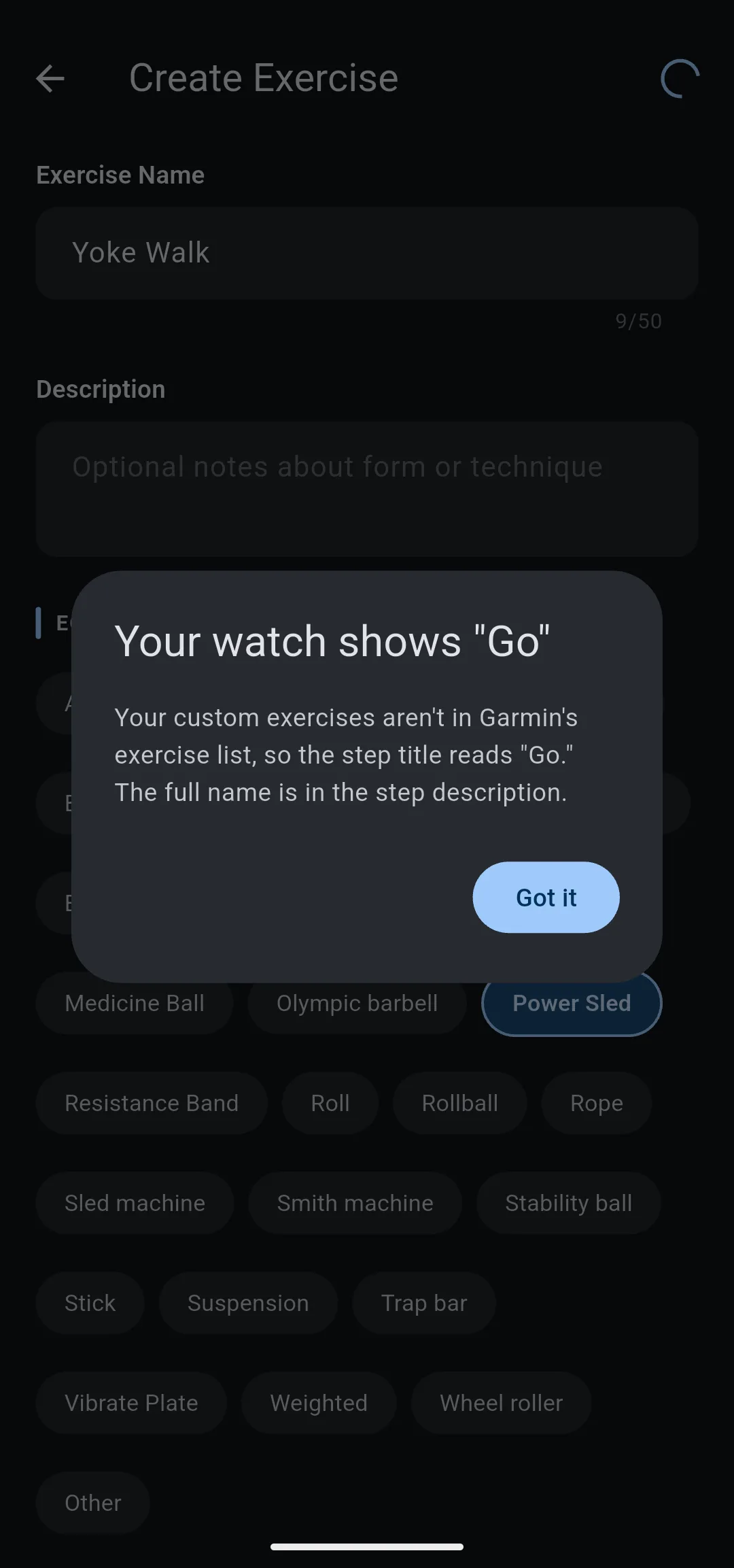
What does your watch show for a custom exercise?
The step title on your watch reads Go, and the step description holds the rest. LiftTrack builds that description from the exercise name, then the RPE and notes you set for it in the workout.
Say you create Yoke Walk and add it to a workout with 3 sets of 10 reps at 100 kg (220 lb), RPE 8 and the note “Short fast steps”. Your Garmin shows those sets as steps titled Go with the target of 10 reps and 100 kg. The description reads “Yoke Walk RPE: 8 Notes: Short fast steps”.
The Instinct 2 shows only a few characters of each step description, so custom exercise names do not display on it. The Instinct 3 shows them.
What does Garmin Connect show?
Garmin Connect receives the step with no Garmin exercise attached. LiftTrack leaves Garmin’s exercise category and exercise name empty for a custom exercise, because Garmin Connect has no entry for it. Your exercise name travels in the step description instead, the same text the watch shows.
Built in exercises are different: LiftTrack sends them with their Garmin category and name, so the watch and Garmin Connect show the exercise by name.
How does LiftTrack know which exercise you did?
Each step also carries hidden data that Garmin does not display. It says which exercise in the workout the step belongs to and, for a custom exercise, its number in your custom exercises. When the session syncs back from your watch, LiftTrack reads that number, finds the custom exercise, and saves the sets under its name.
In the example, History shows Yoke Walk with 3 sets, the weight and reps your watch recorded, and RPE 8. The sets count toward that exercise’s history and stats, the same as a session you tracked on your phone.
LiftTrack reads the hidden number, not the visible name, so the exercise still matches after a sync even though Garmin never knew what Yoke Walk is.
Why doesn’t LiftTrack send the closest Garmin exercise instead?
Sending a similar Garmin exercise would put a name on the watch, but it would be the wrong name. Your sets would come back as that Garmin exercise and mix with its history, and they would count toward that exercise’s muscles instead of the ones you chose.
Sending Go with the name in the description keeps your exercise exact from the workout to History. The trade off is on the watch: the title says Go, and you read the description to see which exercise is next.
What each place shows
| Place | Custom exercise | Built in exercise |
|---|---|---|
| Watch step title | Go | The Garmin exercise name |
| Watch step description | Your exercise name, then RPE and notes | RPE and notes, if set |
| Garmin Connect | No Garmin exercise; your name in the step description | The Garmin exercise |
| LiftTrack History | Your exercise name | The exercise name |
Exercises marked with the LiftTrack marker in the exercise list are not in Garmin’s list either, so they also show as Go on the watch.
What you can change
- Create a custom exercise: add a movement that is not in the exercise list, and edit its name or muscles.
- Build a workout: add custom exercises to a workout and set their RPE and notes.
- Send your LiftTrack workouts to your Garmin watch: get the workout onto your watch.


