How Garmin sync works
LiftTrack sends your workouts to your Garmin through Garmin Connect and brings each session back to History, so what you lift on the watch sets up next time.
On this page
- When does LiftTrack send a workout to your Garmin?
- What comes back after you train?
- How does LiftTrack know which workout you did?
- How does a session change your next workout?
- Which Garmin sessions come back?
- Why does LiftTrack go through Garmin Connect?
- What happens when you disconnect Garmin?
- What you can change
Garmin sync is a round trip through Garmin Connect. LiftTrack sends each workout you save to Garmin Connect, and your watch picks it up when it syncs. The session you record comes back to History with every set matched to its target.
- 1
Workout sent
Each save sends the latest version to Garmin Connect.
- 2
Watch syncs
The watch gets the workout from Garmin Connect, and you train it in the watch's strength app.
- 3
Session back
After the watch syncs, History shows each set next to its target.
- 4
Next time
Changes you accept save the workout again.
Every accepted change is a new save, so step 4 leads back to step 1.
When does LiftTrack send a workout to your Garmin?
LiftTrack sends a workout every time you save it. The first save creates it on Garmin Connect, and each later save replaces that copy with the new version. Garmin Connect never holds two copies of one LiftTrack workout.
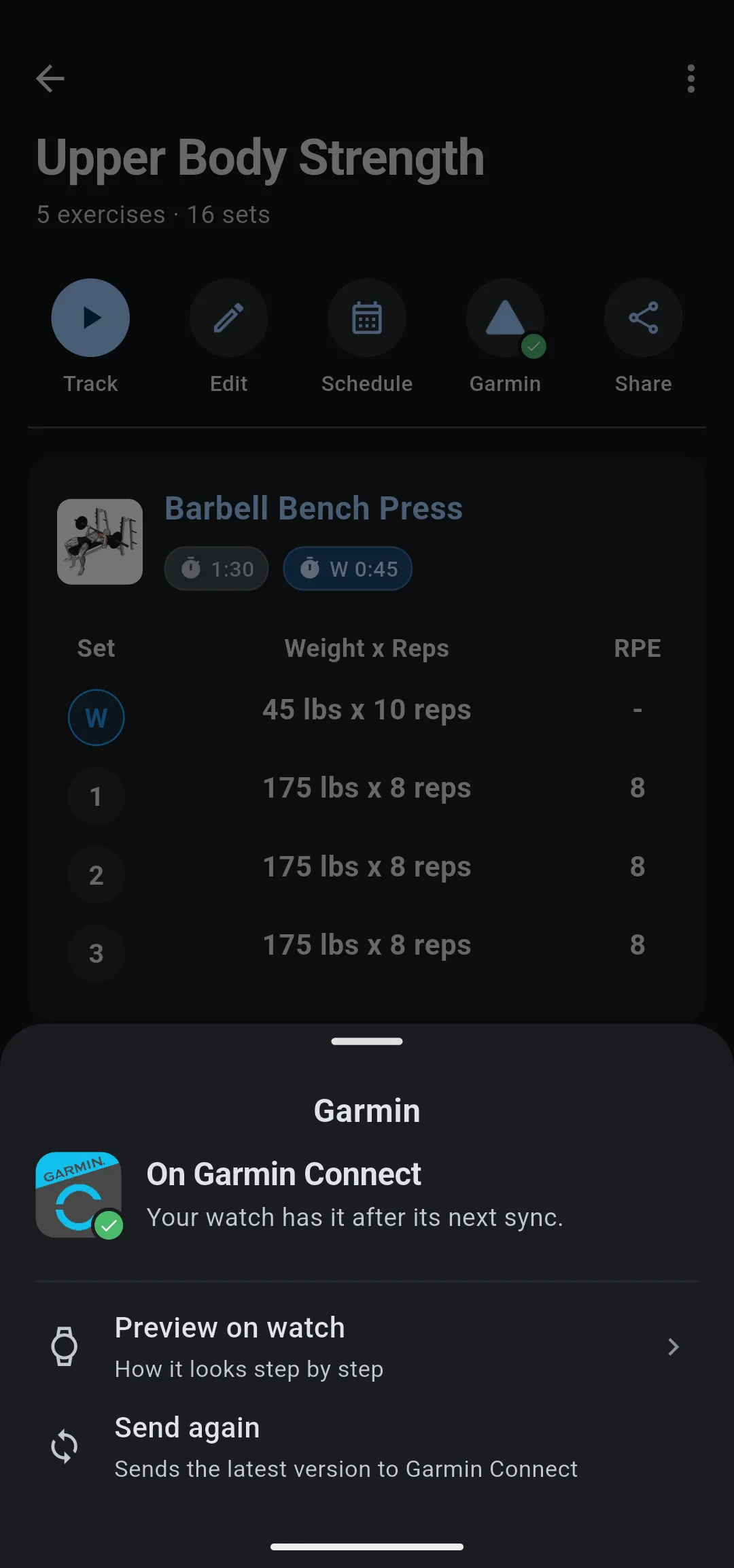
Deleting the workout in LiftTrack deletes it from Garmin Connect too.
Your watch never talks to LiftTrack directly. It gets workouts from Garmin Connect when it syncs with the Garmin Connect app on your phone. A workout you saved a moment ago reaches the watch at its next sync.
A workout you schedule also goes on your Garmin Connect calendar for that day.
To connect your Garmin and check that a workout arrived, see send your LiftTrack workouts to your Garmin watch.
What comes back after you train?
When you save the session on your watch and it syncs with Garmin Connect, Garmin sends the session to LiftTrack. LiftTrack notifies you with Workout Uploaded, and when you open the app, Workout Complete opens on the session for review.
For each set, the session brings back the weight and reps your watch recorded, or the time for a timed set. LiftTrack adds what the watch does not record: the exercise, whether the set was a warmup, its target, and the RPE you planned. The session also keeps its duration and calories from the watch.
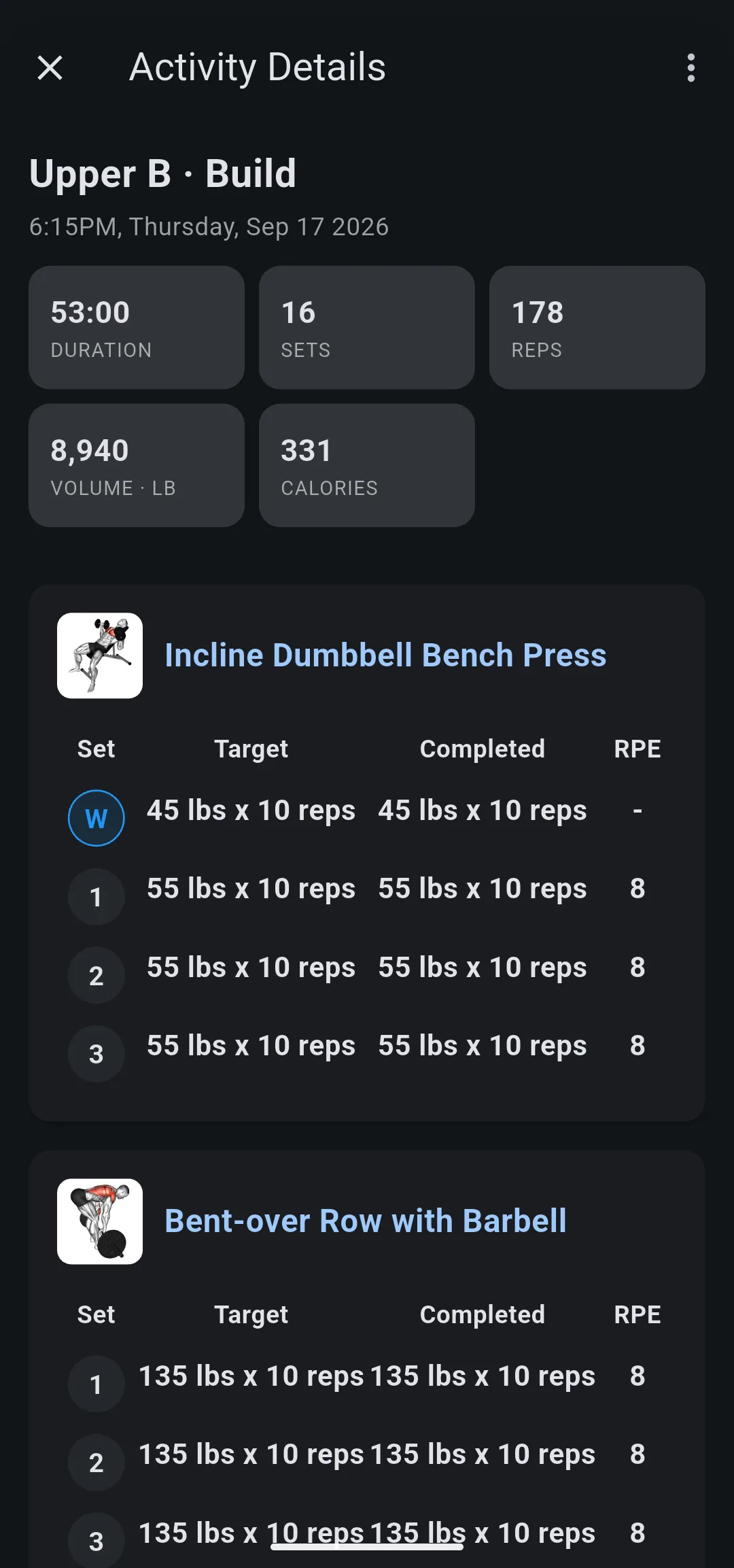
The session counts toward History, exercise stats and personal records the same way as a session you tracked on your phone.
How does LiftTrack know which workout you did?
Every step LiftTrack sends carries hidden data that Garmin does not display. It names the LiftTrack workout, the exact version you trained from, and which exercise in it each step belongs to. When the session comes back, LiftTrack reads that data instead of the exercise names.
That is why a custom exercise still lands in History under your name for it, even though the watch titles its steps Go. To see what the watch shows for one, read how custom exercises work on your Garmin.
Because LiftTrack saves every version of a workout, you can edit a workout after your watch synced it. The session is still compared with the version you did, not the edited one.
How does a session change your next workout?
A session from a LiftTrack workout feeds the same review as a phone session. After Workout Complete, Next time shows each exercise with a progression, and nothing changes until you tap Accept. If the session differs from the plan, LiftTrack also offers to update the workout from your session.
Any change you accept is a new save, so LiftTrack sends the workout to Garmin Connect again. For example, Barbell Bench Press is planned at 3 sets of 175 lb × 8 with a Linear progression of 5 lb:
| On your watch | In LiftTrack | Back on your watch |
|---|---|---|
| 175 × 8 on all 3 sets | Next time shows +5 lb; you tap Accept | 180 × 8 on all 3 sets, after the watch syncs |
| 175 × 8, 175 × 8, 175 × 7 | Next time shows the exercise as held | 175 × 8, unchanged |
Which Garmin sessions come back?
LiftTrack reads every strength session your watch saves, but what it keeps depends on how you started it.
| You started | What LiftTrack does |
|---|---|
| A workout LiftTrack sent | Saves the session with every set matched to its exercise and target |
| A strength session with no workout | Saves its start time, duration and calories. You add the exercises on Workout Complete |
| A workout you built in Garmin Connect | Nothing; it has no LiftTrack workout to match |
| An old copy of a LiftTrack workout that is no longer on Garmin Connect | Lists it in History with its totals, marked Exercise details couldn’t sync. It does not count toward exercise history or progressions |
The out of sync case happens when the watch has not synced since the workout was sent again or removed. Syncing your watch with the Garmin Connect app before you train keeps its copy current. When a session you expected did not come back, see how to fix a Garmin workout missing from LiftTrack.
Why does LiftTrack go through Garmin Connect?
Garmin Connect is how Garmin lets other apps put workouts on a watch and read sessions back. Going through it means the workout runs in your watch’s own strength app, with Garmin’s rep counting and heart rate. There is no LiftTrack app to install on the watch.
The trade off is timing. A workout reaches the watch only when the watch syncs with Garmin Connect, and a session reaches LiftTrack only after the watch syncs it back. If you train away from your phone, the session arrives the next time the watch syncs.
What happens when you disconnect Garmin?
Disconnecting removes your LiftTrack workouts and their scheduled days from Garmin Connect. Your workouts, schedule and History stay in LiftTrack. When you connect again, LiftTrack sends your workouts and upcoming scheduled days to Garmin Connect again, with no edits needed.
What you can change
- Send your LiftTrack workouts to your Garmin watch: connect your Garmin, send a workout again, and preview it as the watch runs it.
- Schedule your workouts: put a workout on one day or repeat it every week, and on your Garmin Connect calendar.
- Add a progression to an exercise: make the weight or reps move after each session.


