Schedule your workouts
Schedule a workout for one day, or set up a recurring workout schedule that repeats every week and fills your Home tab and your watch.
On this page
A scheduled workout shows on its day on the Home tab. If your Garmin is connected, it also goes on your Garmin Connect calendar and reaches your watch the next time the watch syncs.
Before you start
- A workout in your Workouts tab
- Optional: your Garmin connected to LiftTrack in HomeProfileConnections, to see scheduled workouts on your watch
Schedule a workout for one day
- On the Workouts tab, tap the workout.
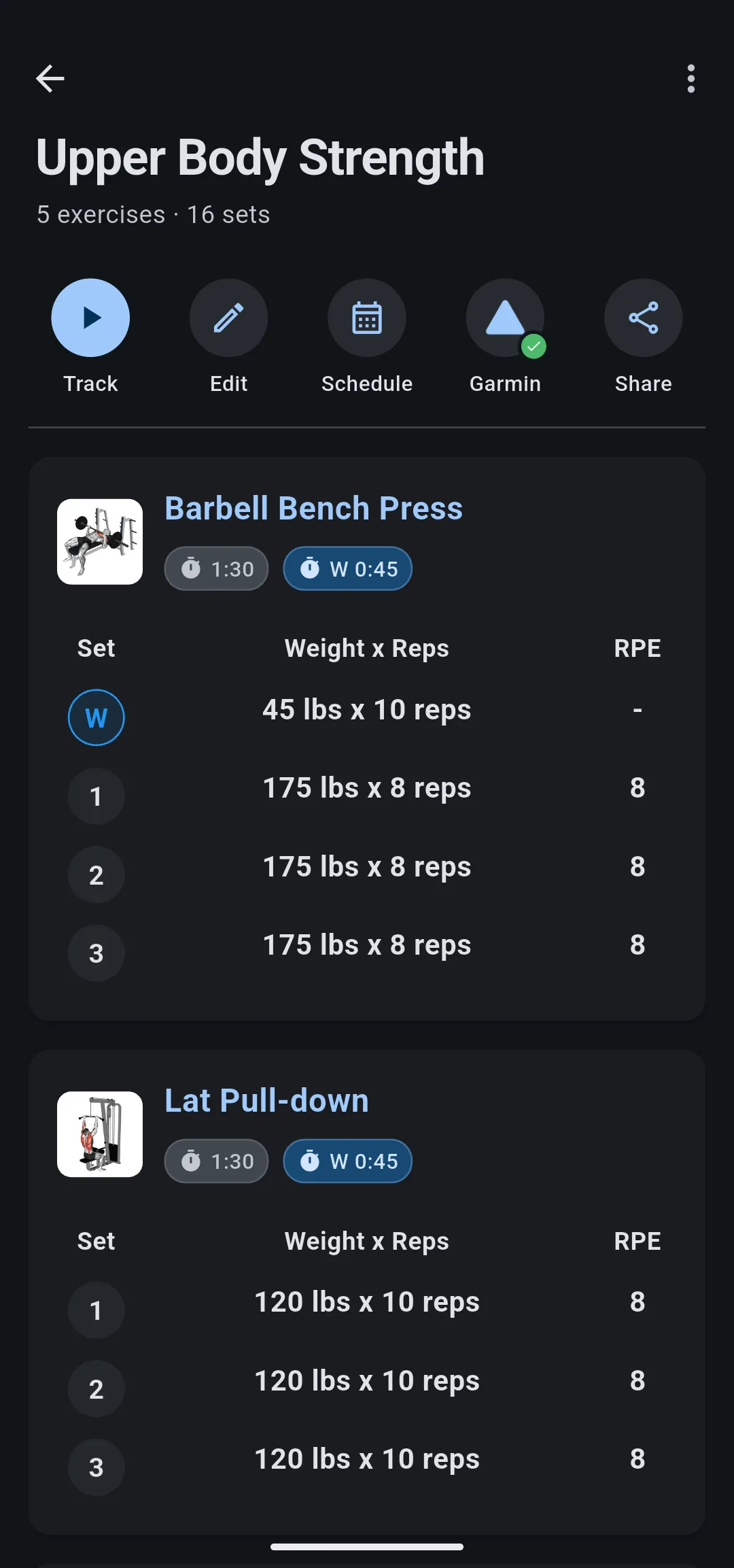
- On the workout screen, tap Schedule.
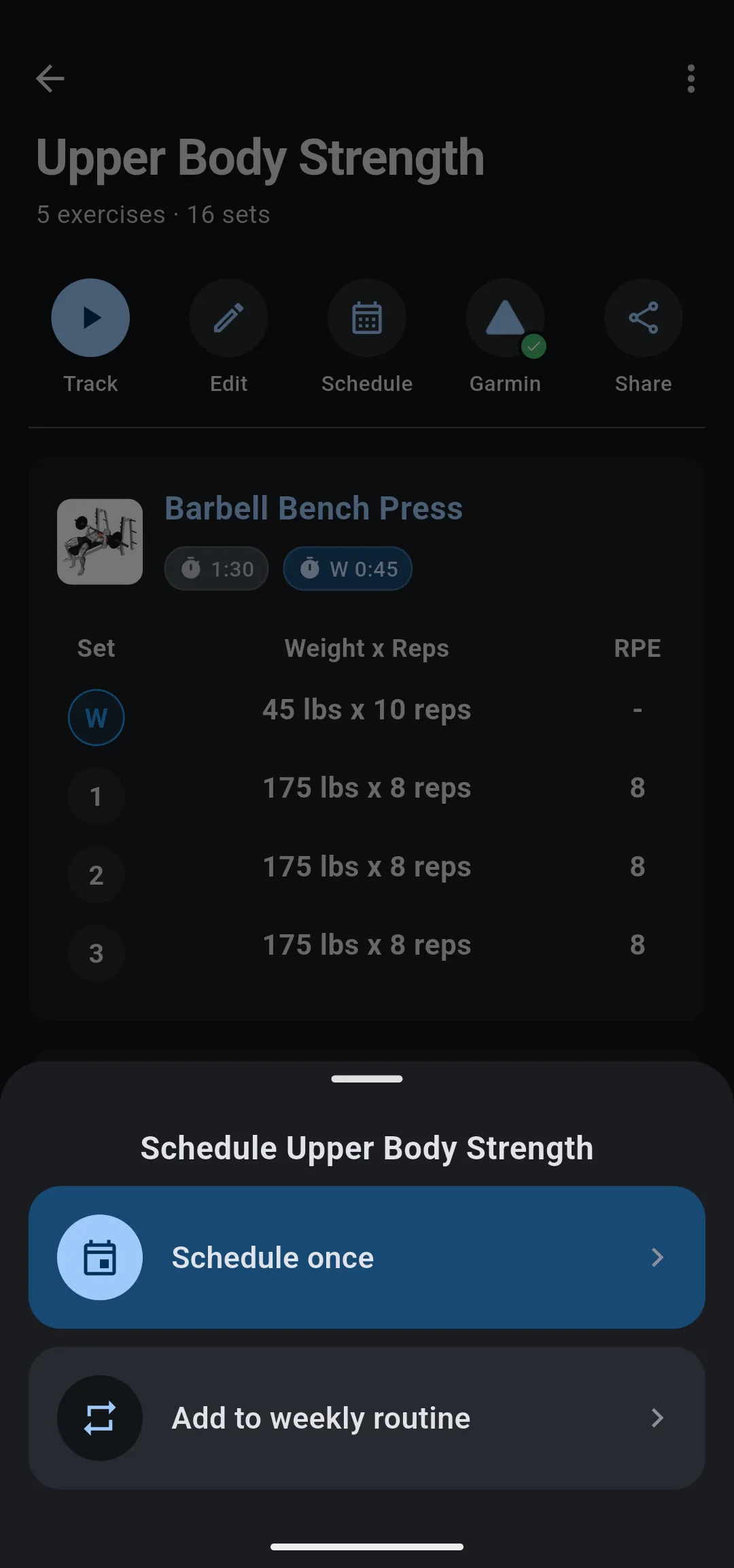
- Tap Schedule once.
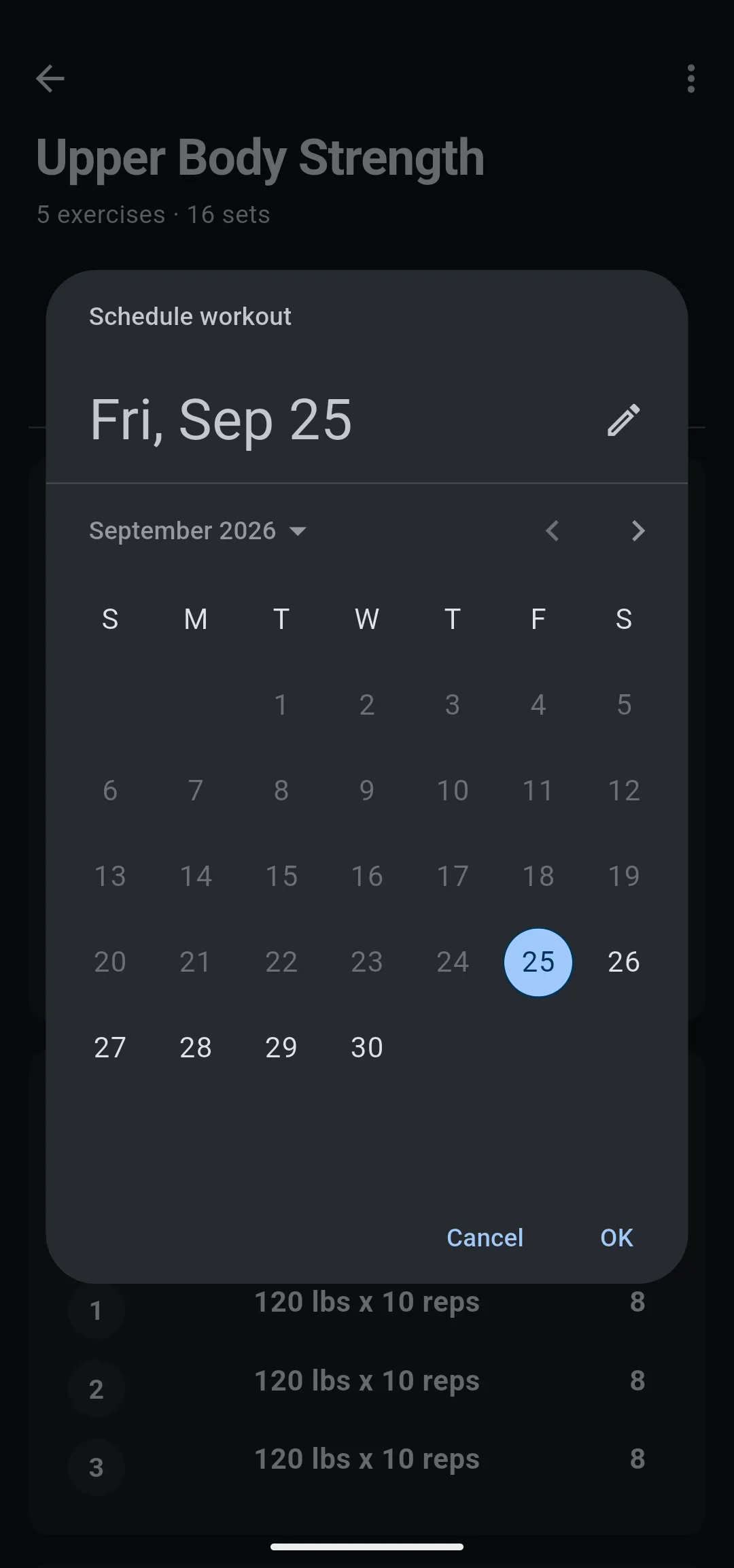
- Choose a date, then tap OK. You can choose any day from today to 30 days ahead.
The app shows Workout scheduled, and the workout appears on that day on the Home tab.
- 1 Tap Schedule
On the workout screen.
- 2 Tap Schedule once
Or Add to weekly routine to repeat it.
- 3 Choose the day
Any day up to 30 days ahead.
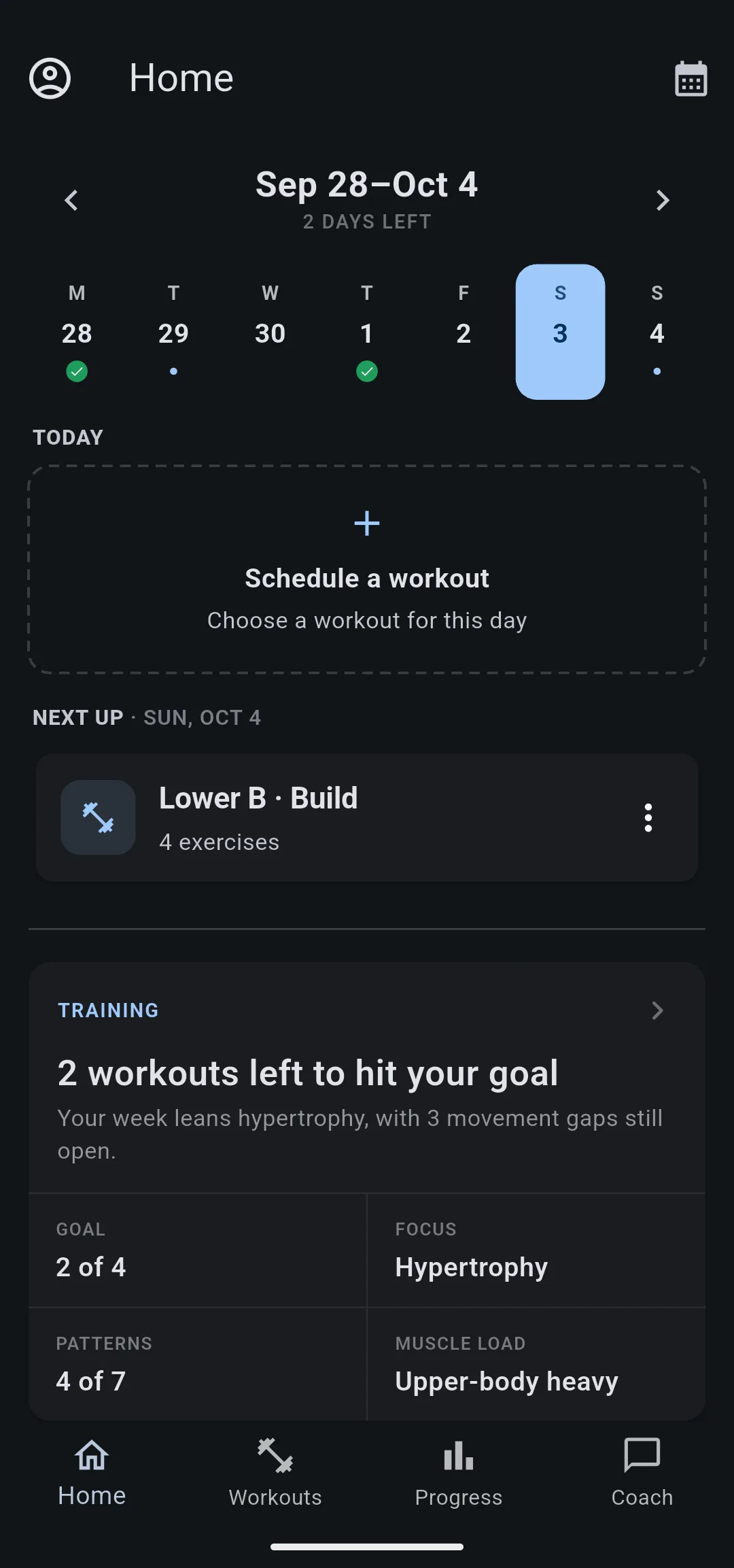
To fill an empty day from the Home tab instead, tap the day in the week strip, tap Schedule a workout, then choose the workout.
Set up a weekly routine
A routine is the set of workouts you do on each day of the week. LiftTrack repeats it every week until you change it.
- On the Home tab, tap the calendar icon. The Routine screen opens with a section for each day, Monday to Sunday.
- Under a day you train, tap Add workout and choose a workout. Repeat for each training day.
- Tap Save.
- 1 Tap the calendar icon
On the Home tab.
- 2 Add workouts
Tap Add workout under each day you train, then Save.
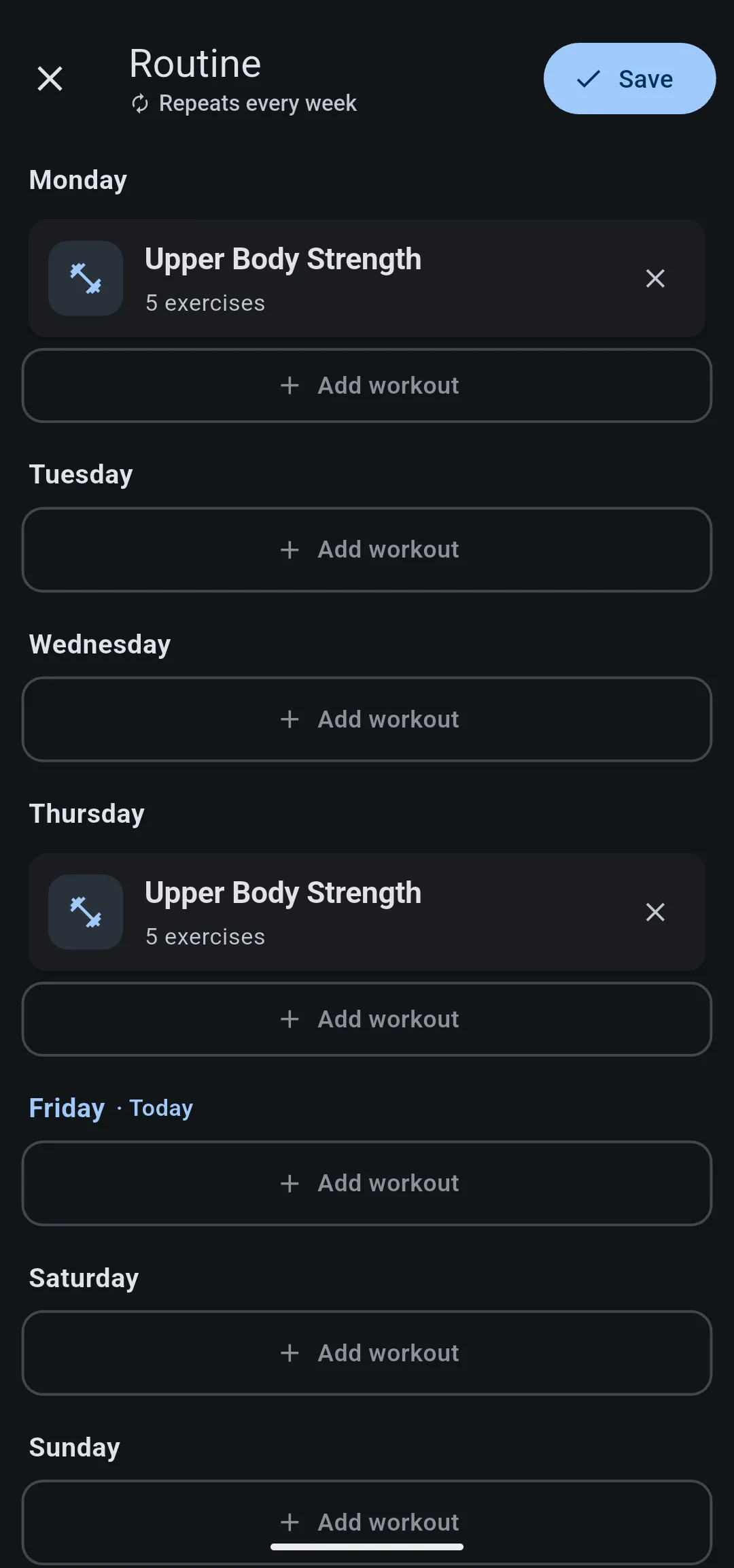
The app shows Routine saved. The next 7 days of the routine appear on the Home tab, and LiftTrack adds the following day every night. If your Garmin is connected, the same 7 days go on your Garmin Connect calendar.
You can also reach the Routine screen from any workout: tap Schedule, then tap Add to weekly routine.
Alternate workouts between weeks
If you train on a two week cycle, such as upper and lower days that swap each week, add a second week to the routine.
- On the Routine screen, tap Add Week 2. A week strip appears with Week 1 and Week 2.
- Tap Week 2 and add its workouts.
- Optional: to add a third or later week, tap the plus icon at the end of the week strip.
- To say which week of the cycle this is, tap that week, tap its options icon, then tap Set as current week.
- Tap Save.
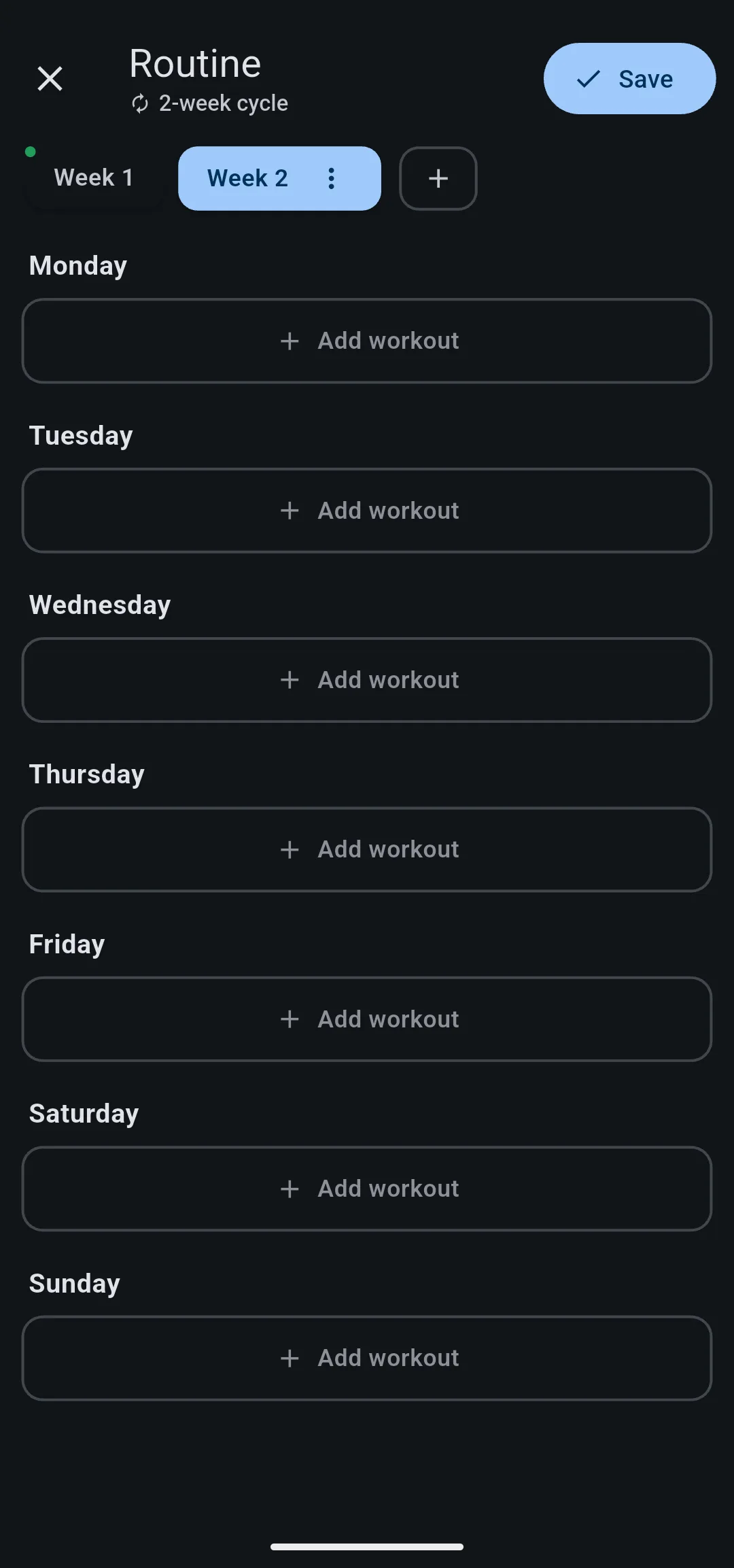
The subtitle under Routine changes from Repeats every week to the length of the cycle, for example 2-week cycle.
Change or remove a scheduled workout
To change your routine, open the Routine screen, make the change, then tap Save. The change applies to every future week.
- To take a workout off a day, tap the close icon on the workout.
- To move a workout to another day, remove it from the first day and add it to the other.
- To remove a week from a cycle, tap the week, tap its options icon, then tap Remove week. Warning: this also removes every workout planned in that week.
To remove a workout you scheduled once, open the Home tab and tap its day. Tap More options on the workout, then tap Remove from calendar. The app shows Removed from calendar.
Workouts from a program follow the program’s own schedule. On a program workout, Schedule takes you to the program instead of the options on this page.


