What the Progress tab shows
The Progress tab tracks your strength training progress: your weekly streak, the exercises you train most, trends over time and every past session.
On this page
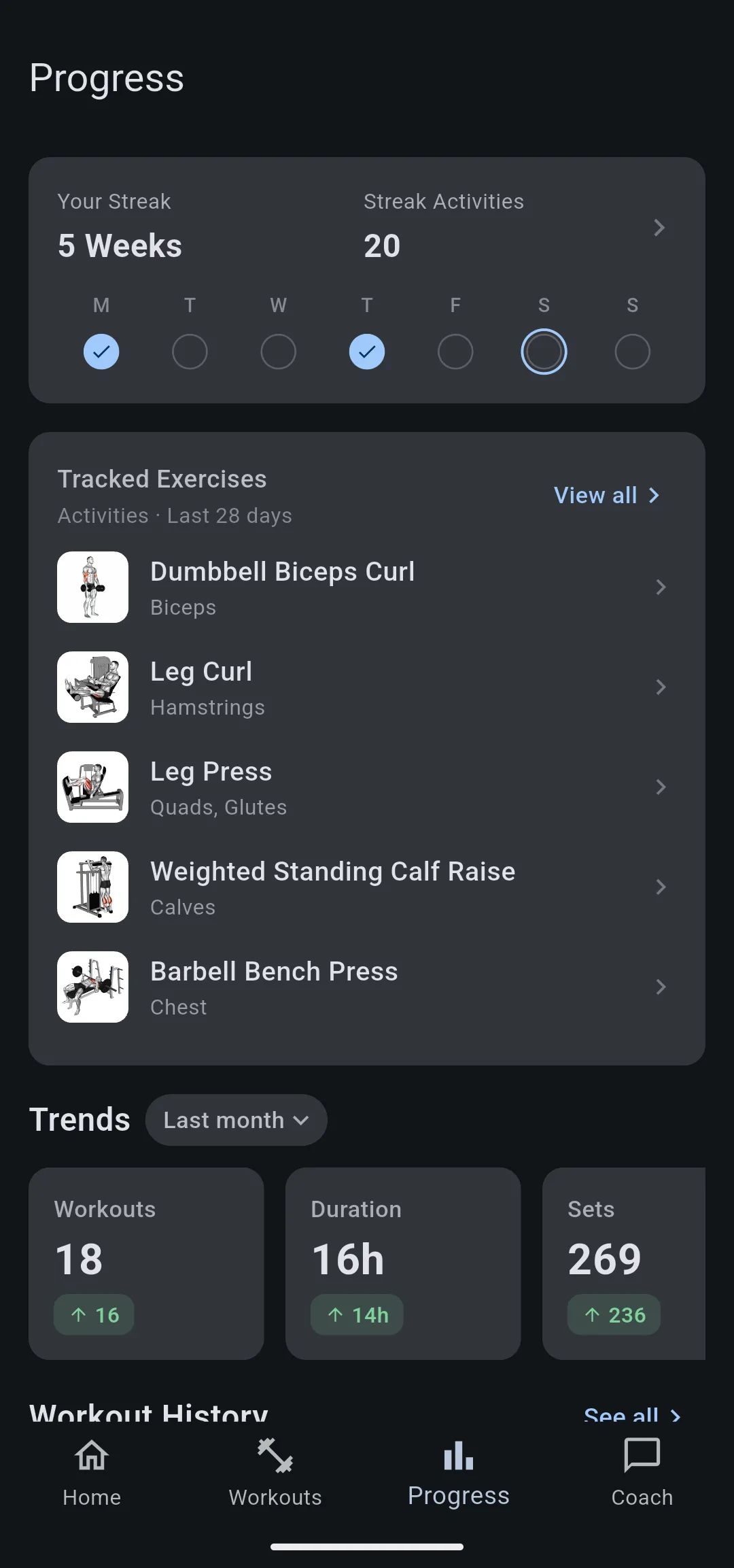
Every session you finish, on your phone or on your Garmin, feeds the Progress tab. It reads from top to bottom as four cards: your streak, the exercises you train most, trends over a period you choose, and your latest sessions.
How does the streak count?
Your Streak counts weeks, not days. A week runs Monday to Sunday and counts when it has at least one session. Streak Activities is the number of sessions inside those weeks.
The current week never breaks the streak while it is still going. Say you trained every week for 8 weeks, 31 sessions in all, and it is Saturday with nothing logged yet this week. The card still reads 8 Weeks and 31.
Train on Sunday and the streak becomes 9 weeks. Let Sunday pass without a session and the streak starts again from 0.
The row of days under the streak shows the current week: a filled dot with a check for each day you trained, and a ring around today. Tap the card to open Your Streak, a month calendar of the days you trained.
LiftTrack counts weeks because strength training has rest days. A daily streak would break every time you rested as planned, while a weekly one only asks you to show up each week.
How are tracked exercises ranked?
Tracked Exercises lists the exercises that appeared in the most sessions over the last 28 days. An exercise counts once per session, however many sets you did, and exercises with the same count are listed alphabetically. The card shows the top 5; tap View all for the full list.
The 28 days roll forward each day, so an exercise you stopped doing slides down the list and drops off after 4 weeks.
Tap an exercise to open it on its Progress tab. There a chart plots one measure per session, such as e1RM, Volume or Heaviest, and Personal Records lists your Heaviest weight, Best e1RM and Best session volume. To read each number, see an exercise’s stats and personal records.
What do the trends compare?
Trends adds up your sessions over the period you choose and compares each total with the period of the same length before it. The periods roll back from today: Last month means the last 30 days, not the calendar month.
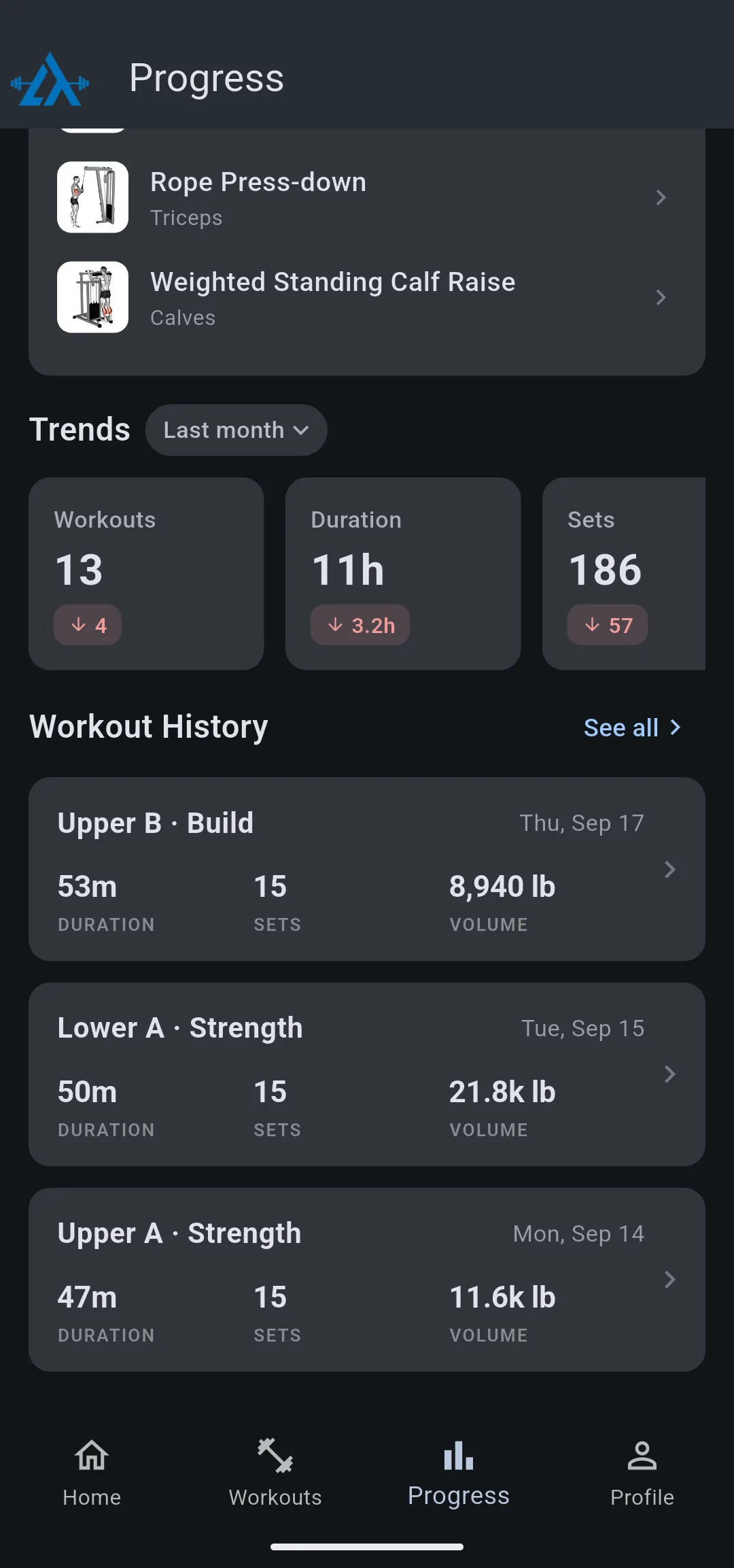
For example, with Last month chosen, Workouts reads 18 with an up arrow and 16. That means 18 sessions in the last 30 days and 2 in the 30 days before that. A down arrow means the total fell, and No change means it matched.
If the earlier period has no sessions, for example in your first month, every card reads No change, because there is nothing to compare against.
What goes into each trend?
Warmup sets are left out of Sets and Volume, so the numbers reflect your working sets. Warmup sets still show in each session.
| Trend | What it adds up |
|---|---|
| Workouts | Sessions you finished in the period |
| Duration | Total time of those sessions |
| Sets | Working sets |
| Volume | Weight × reps of every working set, in your weight unit |
Volume is shown in the unit set in Weight units under HomeProfileWorkout Settings. A bodyweight set with no weight adds sets but no volume.
Last week, Last 3 months, Last 6 months and Last year work the same way, each compared with the period of the same length before it.
Where is every past session?
Workout History at the bottom of the tab shows your 3 latest sessions, each with its duration, sets and volume. Tap See all for the full Workout History, newest first.
Tap a session to open its details: each exercise with the target next to what you did, set by set, and the RPE you logged. Sessions from your Garmin arrive here after your watch syncs; how Garmin sync works explains that path.
What you can change
- Send your LiftTrack workouts to your Garmin watch: connect your Garmin so the sessions you do on your watch reach Workout History.
- How LiftTrack updates a workout from your session: keep the saved workout in step with what you lifted.
- Add a progression to an exercise: make the weight or reps move up between sessions, and the trends move with them.


