How RPE works
RPE tracking in LiftTrack records how hard each set felt, from 6 to 10, so your History shows effort next to weight and reps.
On this page
RPE is an optional value on each set, from 6 to 10 in steps of 0.5, that says how many more reps you could have done. You can plan it in a workout, change it while you track on your phone, and see it in History. RPE never changes your weights; it feeds your estimated one rep max.
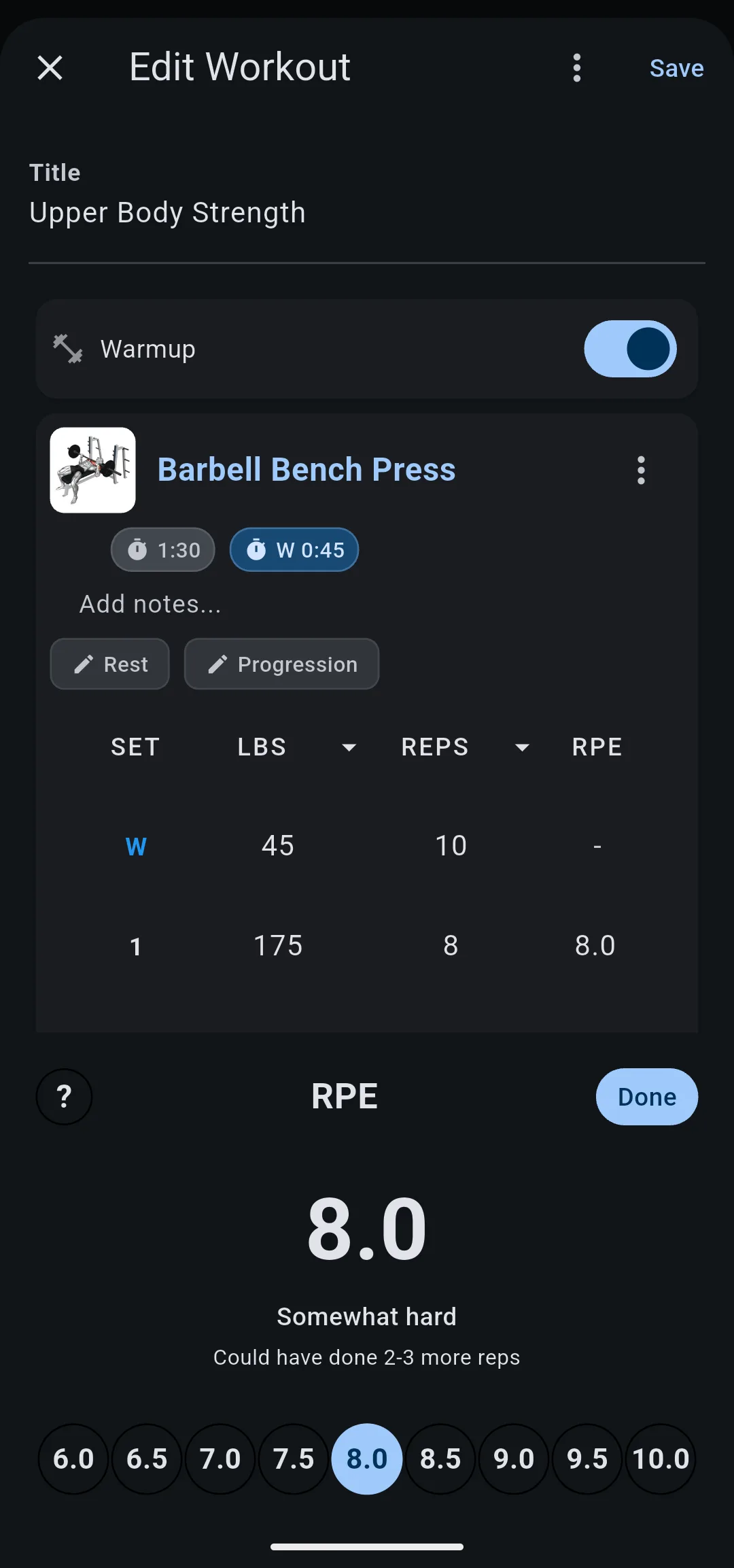
What does each RPE value mean?
Each RPE value stands for the reps you had left when the set ended. 10 means you could not have done another rep, 9 means 1 more, and 8 means 2 to 3 more. The picker shows the meaning under the number as you choose it, and the ? icon opens About RPE.
| RPE | Label in the app | Reps left |
|---|---|---|
| 10.0 | Maximal | None |
| 9.5 | Extremely hard | Maybe 1 |
| 9.0 | Very hard | 1 |
| 8.5 | Hard | 1 to 2 |
| 8.0 | Somewhat hard | 2 to 3 |
| 7.5 | Light | Maybe 3 |
| 7.0 | Very light | 6 or more |
| 6.5 | Extremely light | 8 or more |
| 6.0 | No exertion | Many more |
These nine values are the only ones LiftTrack stores, in the app and on your Garmin. They cover the last reps before failure, where reps left is something you can judge.
Where do you set RPE?
RPE is a column on every exercise card, next to weight and reps, on three screens:
- Edit Workout: the RPE you plan for each set. When you add a set, it copies the RPE of the set before it.
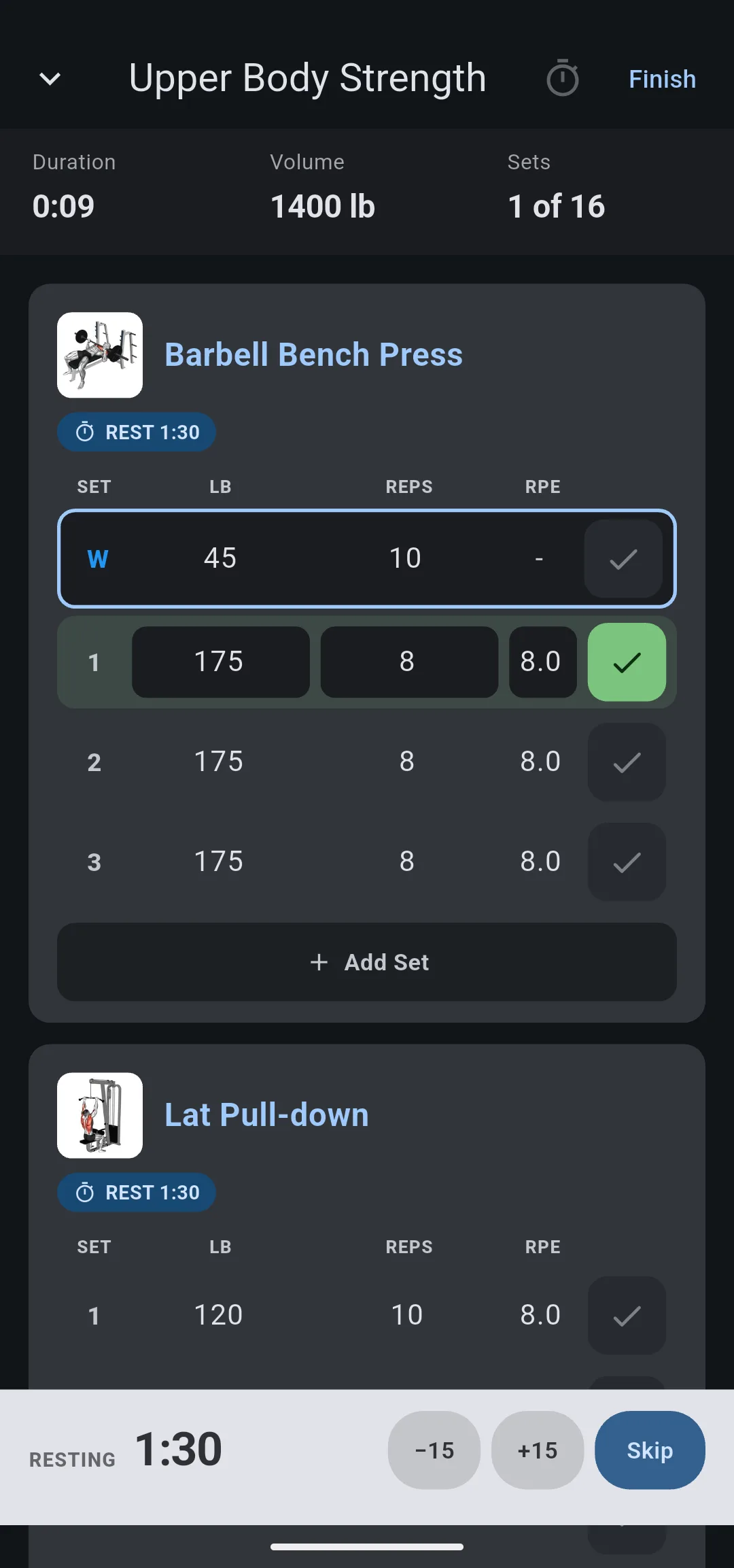
- Tracking on your phone: each set starts with the RPE from the workout. Tap it to change it to what the set felt like, before or after you check the set.
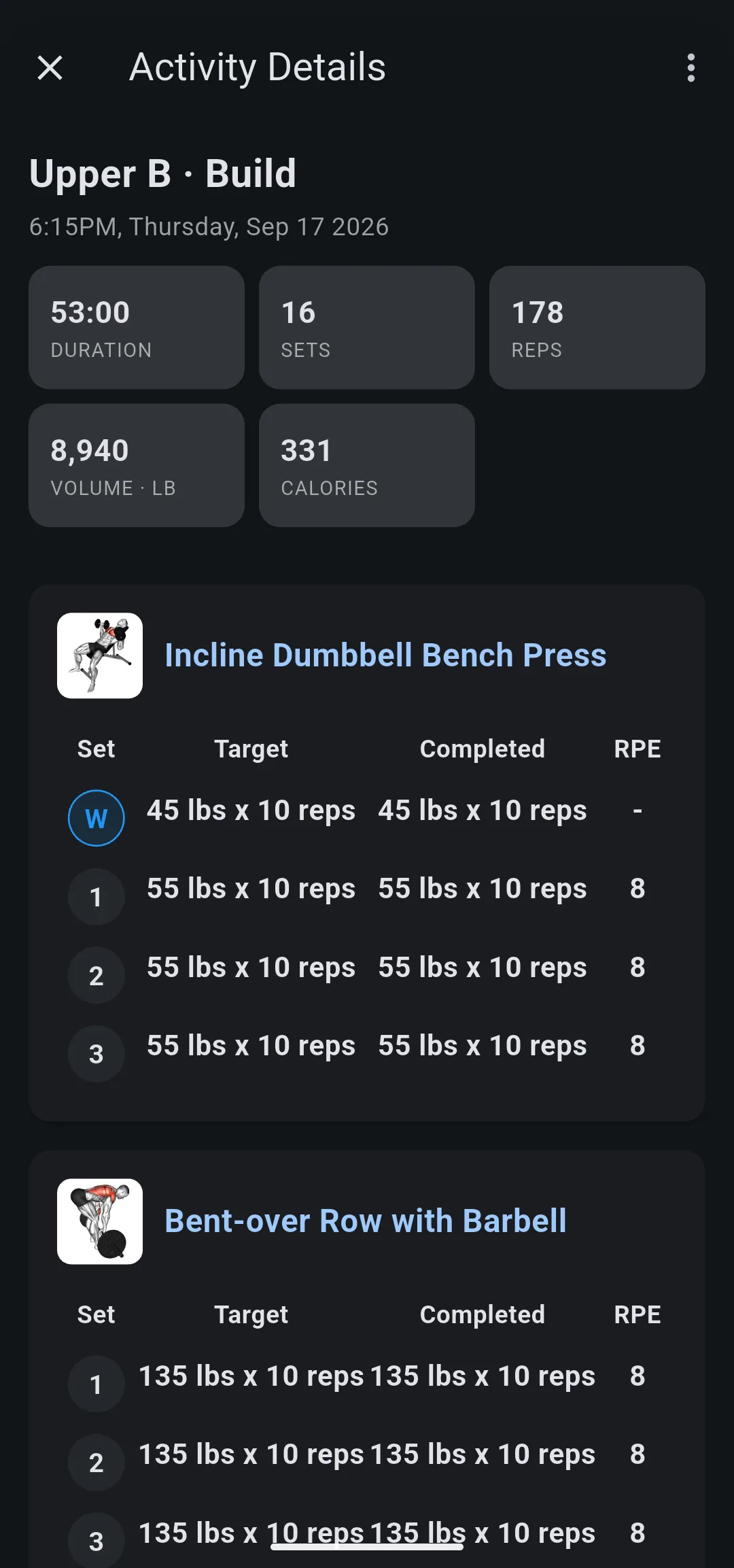
- Edit Activity: a session already in History. Open the session, tap the options icon, then Edit, as in how to edit a completed workout.
Tap an RPE value to open the picker, and tap the chosen value again to clear it. An empty RPE shows as -.
How does RPE get from your Garmin into History?
Your Garmin shows the planned RPE, but it has no way to record one. LiftTrack adds the RPE to the step description on the watch, before any notes: a set planned at RPE 8 reads “RPE: 8.0”.
When the session comes back from your Garmin, each set in History carries the RPE you planned, next to the weight and reps the watch recorded. If a set felt different, change it with Edit on the session.
How does RPE change your estimated one rep max?
LiftTrack uses RPE to count the reps you had left when it estimates your one rep max (e1RM). It takes the heaviest working set you rated 8 or higher, adds the reps left to the reps you did, and applies the Epley formula.
For example, you bench 175 lbs for 8 reps at RPE 8. RPE 8 counts as 2 reps left, so LiftTrack calculates as if you did 10 reps and estimates 233 lbs. Without an RPE, the same set gives 222 lbs.
Sessions without an RPE of 8 or higher fall back to the heaviest set as it is. The estimate shows on the exercise’s Progress tab, as Best e1RM under Personal Records and on the e1RM chart, part of progress tracking.
To open that tab and read each record, see an exercise’s stats and personal records.
Why doesn’t RPE change your weights?
A progression looks only at the weight and reps you did, never at RPE. When LiftTrack updates a workout after a session, it keeps the planned RPE of every set as it was.
The reason is that reps are measured and RPE is judged. A progression built on reps gives the same result every time for the same session. The trade off: if you train by RPE, raising the weight after a set that felt light is up to you.
Where else does RPE show up?
- Copy as text on a session adds ”@ RPE 8” after each set that has one.
- The CSV export writes RPE to its own rpe column.
- Warmup sets can have an RPE, but they are left out of the e1RM like every other stat.
What you can change
- Build a workout: plan an RPE for each set.
- How progressions work: what changes your weights and reps between sessions.


