How the rest timer works
The rest timer counts down between sets on your phone and your Garmin, with a separate rest for the working and warmup sets of each exercise.
On this page
Each exercise in a workout carries its own rest, one for working sets and one for warmup sets. After each set, your phone or your watch runs the rest of that exercise. A heavy lift and an accessory in the same workout each get the rest they need.
What happens when you finish a set?
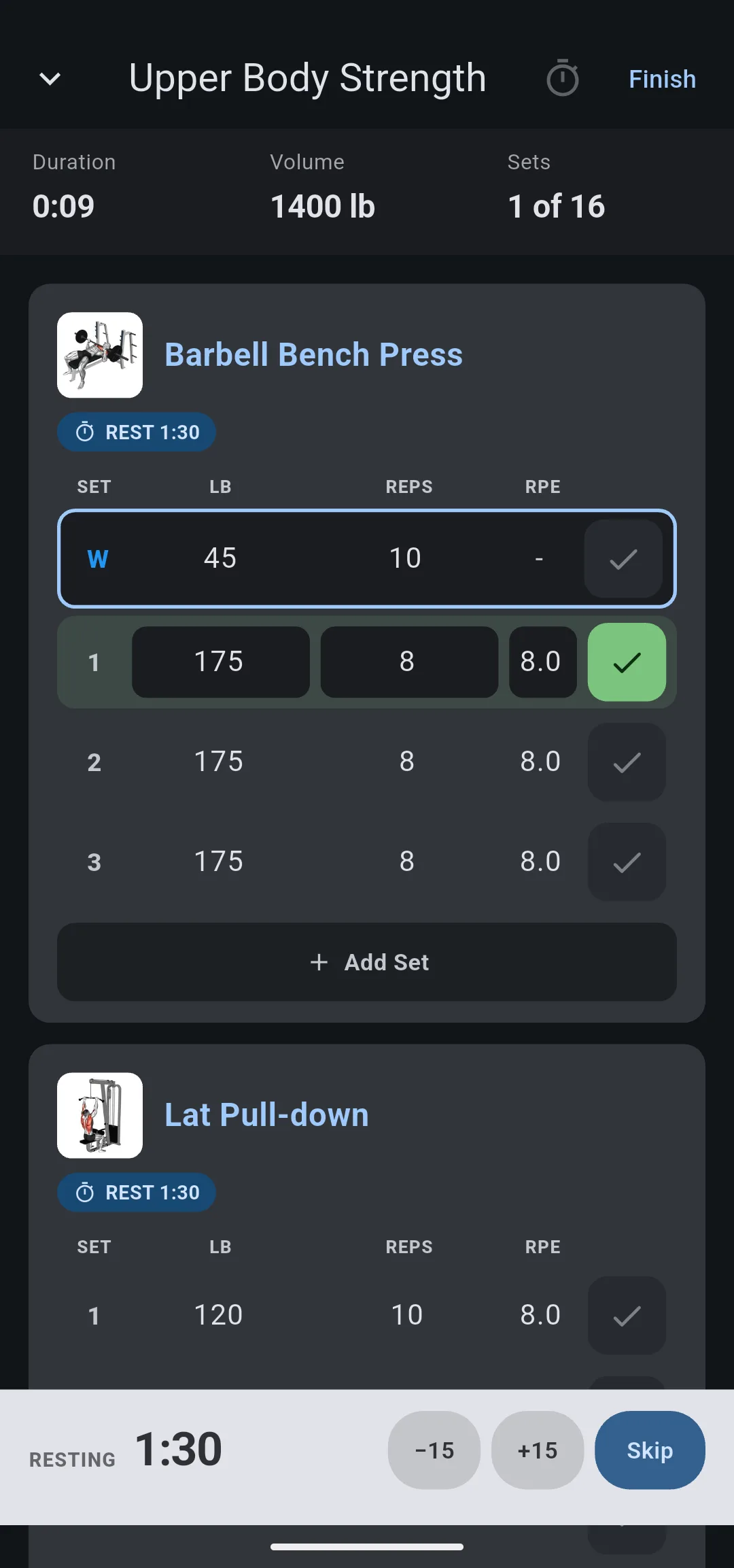
The rest starts as soon as a set ends. On your phone, it starts when you tap the check on the set; on your Garmin, it starts when you press Lap to end the set.
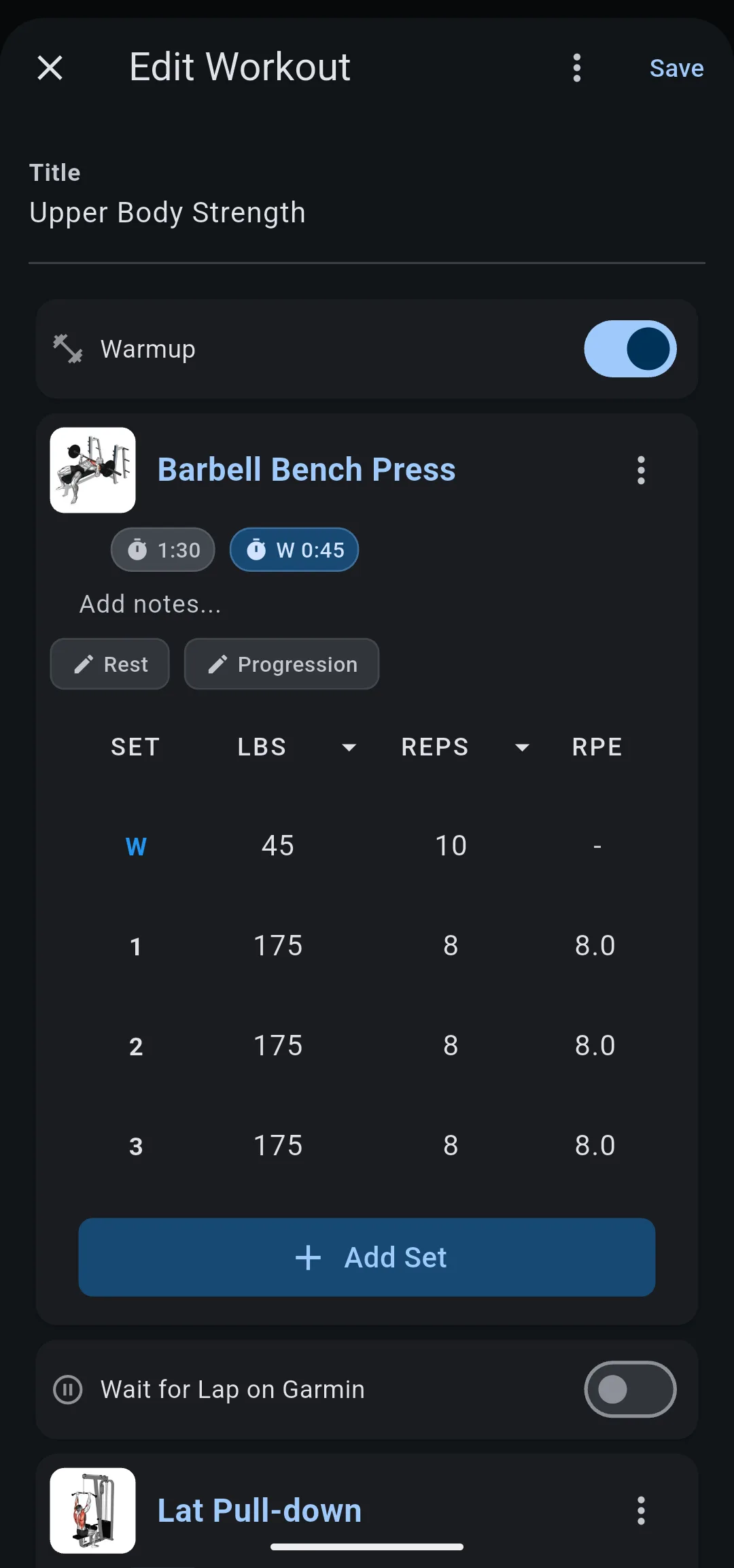
For example, Barbell Bench Press has 1 warmup set and 3 working sets, with a rest of 45 s for warmup sets and 1 min 30 s for working sets. After the warmup set, a 0:45 countdown runs, and after each working set, a 1:30 countdown runs.
On the Edit Workout screen, the exercise card shows both rests as chips: 1:30 and W 0:45.
On your phone, the countdown sits at the bottom of the tracking screen next to −15, +15 and Skip. These change only the rest that is running, never the rest saved in the workout.
When the countdown ends, your phone shows a Rest complete notification if LiftTrack is in the background. An iPhone also plays a chime, even with the ring switch set to silent.
Rest options
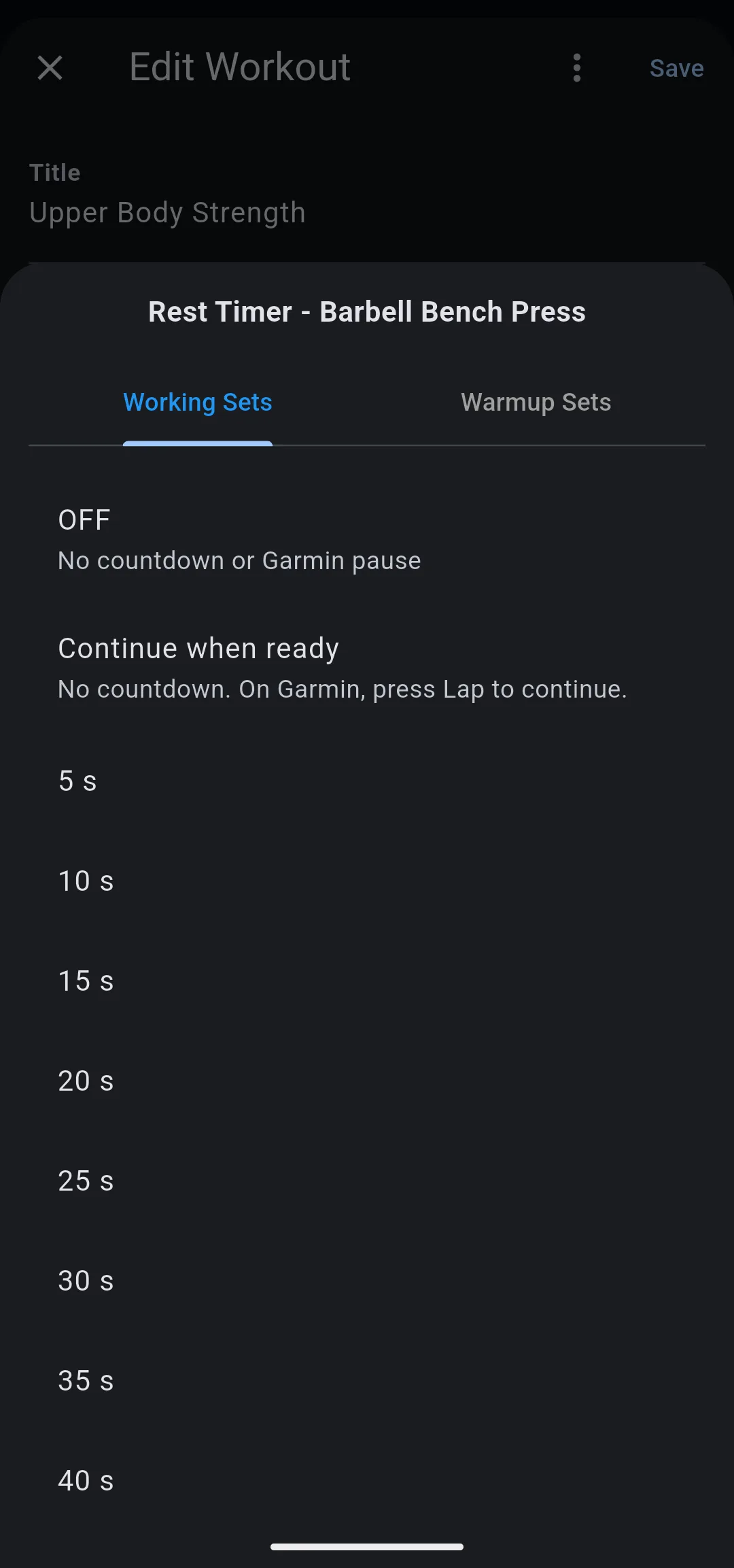
Every rest, working or warmup, is one of these.
| Option | On your phone | On your Garmin |
|---|---|---|
| OFF | No countdown | No rest step. The next set starts right away |
| Continue when ready | No countdown | The watch waits until you press Lap |
| 5 s to 5 min | A countdown of that length | A countdown of that length, then the next set |
Timed rests go from 5 seconds to 5 minutes in steps of 5 seconds. The picker shows them as 45 s, 1 min 30 s, 2 min.
Why choose OFF over Continue when ready?
On your phone the two look the same: no countdown. On your Garmin, a workout can have at most 100 steps, and Continue when ready is a rest step that waits for Lap. OFF adds no step, so it keeps a long workout under the limit.
Use OFF when you go straight from one exercise to the next, as in a superset, or to fit a long workout. Use Continue when ready when you want the watch to hold the next set until you are ready, for example on heavy singles.
Why do warmup sets have their own rest?
Warmup sets are light, so they rarely need the rest of a working set. A separate warmup rest keeps the ramp moving: in the Barbell Bench Press example, the warmup set rests 45 s while each working set rests 1 min 30 s. The warmup chip shows on the card only when the exercise has warmup sets.
Where does a new exercise’s rest come from?
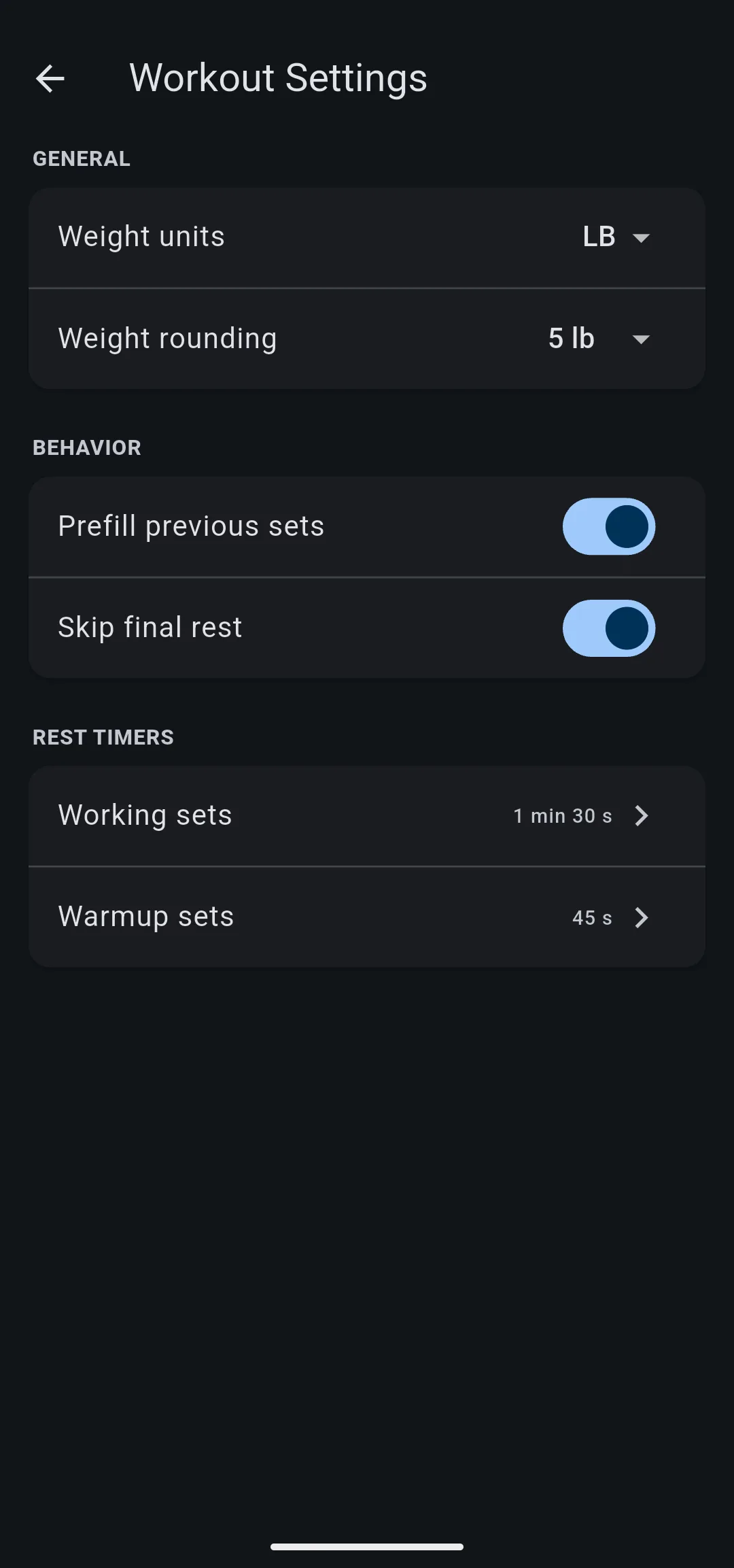
A new exercise starts with your default rest, set under Rest Timers in HomeProfileWorkout Settings. There is one default for Working sets and one for Warmup sets. Until you choose one, new exercises start with Continue when ready.
The first time you choose a timed rest on an exercise, the app offers to make it your default. Tap Set as default to start every new exercise with that rest. Changing a default never changes the exercises already in your workouts.
What does Wait for Lap on Garmin add?
Wait for Lap on Garmin pauses the watch after the last set of an exercise, until you press Lap. It sits between two exercises on the Edit Workout screen, and it shows only when the first exercise has a working rest other than Continue when ready. Use it to walk to the next station without the next set starting.
In a superset, the switch shows only after the last exercise, so a pause never splits a round.
What does Skip final rest do?
Skip final rest drops a rest that would only be in your way. On your phone, no rest starts after the last set of the workout. On your Garmin, the watch skips the timed rest right before a Wait for Lap on Garmin pause, so you do not rest and then wait again. Not every Garmin watch supports skipping a rest.
The switch is in Workout Settings, and the app also offers it the first time you turn on Wait for Lap on Garmin after a timed rest. LiftTrack saves the setting into each workout when you save it. A change applies to the workouts you save after it.
What you can change
- Build a workout: tap Rest on an exercise card to choose its working and warmup rest.
- Create a superset: set the rest between the exercises of a superset and between rounds.
- HomeProfileWorkout Settings: the default rest for new exercises, and Skip final rest.


