Create a superset
Pair two or more exercises into a superset in the workout editor, so your phone and your Garmin watch alternate between them set by set.
On this page
A superset is saved with the workout. Every time you track the workout on your phone or do it on your Garmin, the exercises come in rounds with no setup at the gym.
Before you start
- A workout with at least two exercises. To make one, see how to build a workout.
Pair two exercises
- On the Workouts tab, tap the workout.
- On the workout screen, tap Edit. The Edit Workout screen opens.
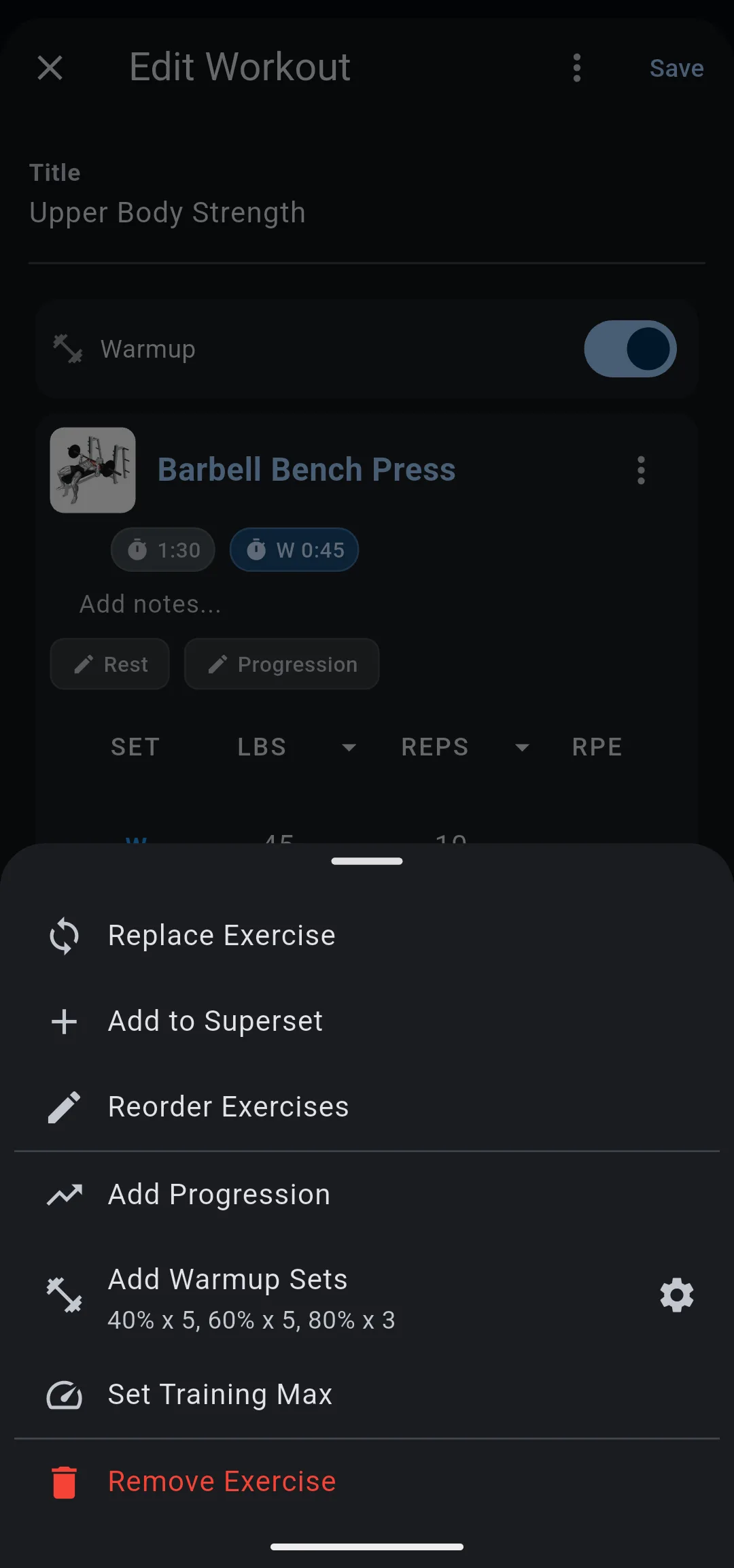
- On the card of the first exercise, tap the options icon, then tap Add to Superset. The Superset list opens with the other exercises in the workout.
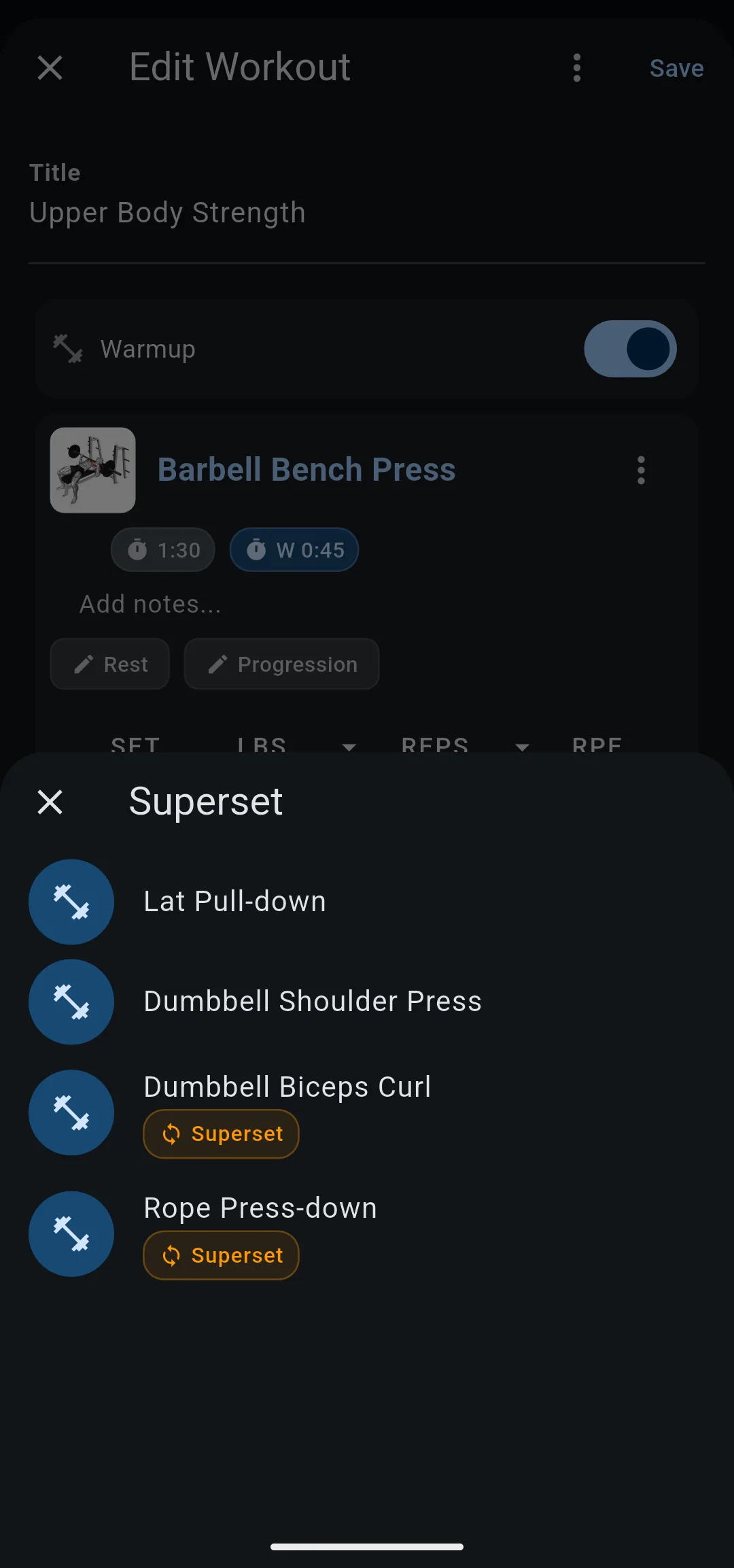
- Tap the exercise to pair it with. Both cards get a Superset label and a border in the same color, and a link icon joins them.
- Tap Save.
- 1 Tap Add to Superset
In the options of the first exercise.
- 2 Choose the partner
Exercises already in a superset show a label.
- 3 Tap Save
A link icon joins the two cards.
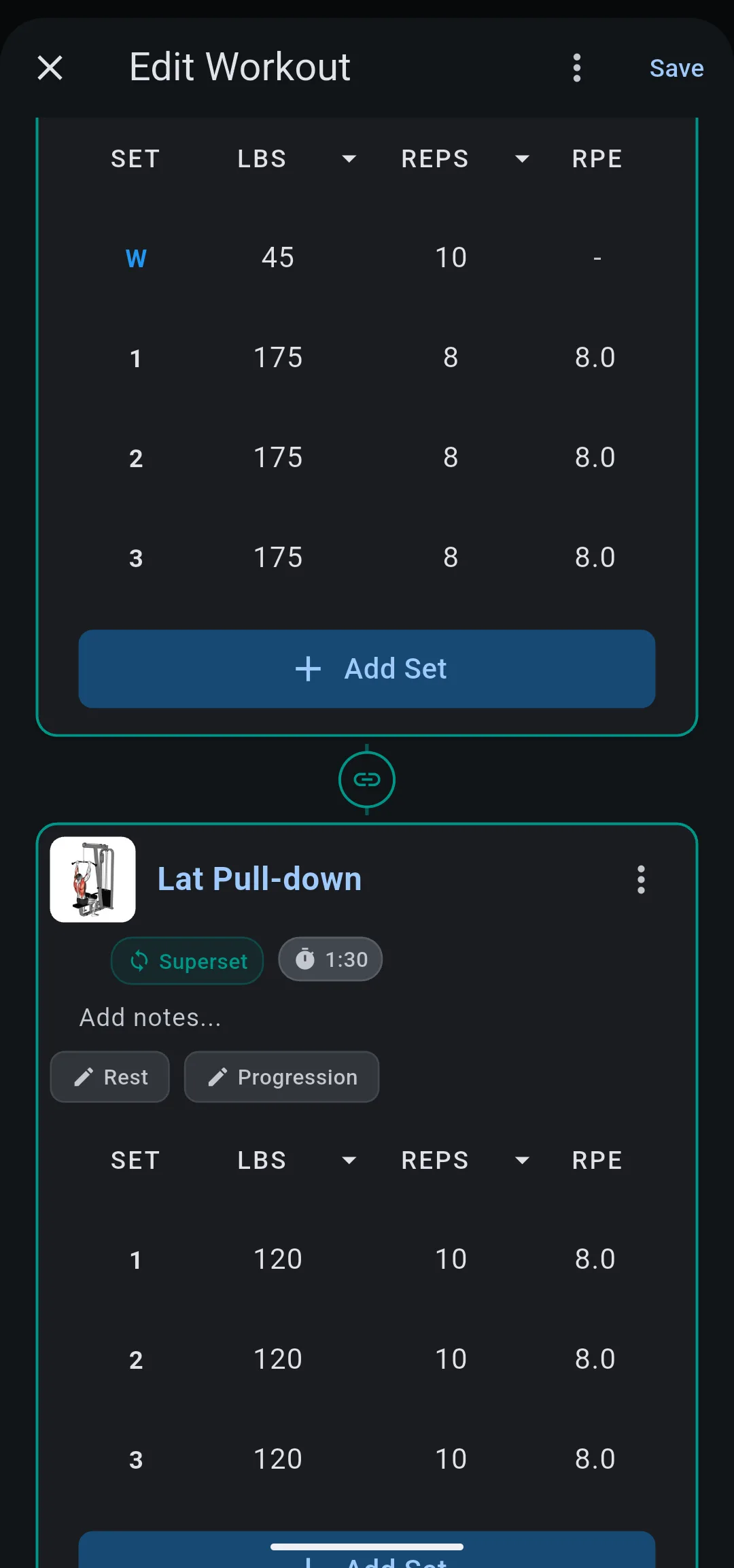
The workout saves with the superset. If your Garmin is connected, LiftTrack also sends the updated workout to Garmin Connect.
LiftTrack keeps the exercises of a superset next to each other. If the partner was further down the list, it moves up to sit after the first exercise. In Reorder Exercises, a superset moves as one card.
Plan the order of the sets
On your phone and on your Garmin, you do the first set of each exercise in the superset. Then you do the second set of each, and so on. The sets pair up by their position on the card, and warmup sets count.
For example, bench press has 1 warmup set and 3 working sets, and lat pulldown has 3 working sets. The first round is the bench press warmup, then the first set of pulldowns. The fourth round is the last set of bench press on its own.
- To pair working sets with working sets, give each exercise the same number of warmup sets.
- To end the superset on the same round, give each exercise the same number of sets.
Set the rest in a superset
The rest timer of an exercise runs after each of its sets, including the rest between two exercises of the same superset. Set it on each card with Rest.
- On the card of the first exercise, tap Rest, then choose OFF. You go from that exercise straight to the next one.
- On the card of the last exercise in the superset, tap Rest and choose the rest you want between rounds.
- Tap Save.
Rest has a Working Sets tab and a Warmup Sets tab; set both when the exercises have warmup sets. To learn what each rest option does on your phone and your watch, see the rest timer.
Inside a superset, Wait for Lap on Garmin shows only after the last exercise, so a watch pause for Lap never splits a round.
Add a third exercise
Add to Superset shows only on an exercise that is not in a superset yet, so start from the exercise you are adding.
- On the Edit Workout screen, tap the options icon on the exercise to add, then tap Add to Superset.
- In the Superset list, tap any exercise of the superset. It shows a Superset label.
- Tap Save.
A workout can have up to 16 supersets. Past that, the app shows Maximum number of supersets (16) reached and asks you to remove one first.
Take an exercise out of a superset
- On the Edit Workout screen, tap the options icon on the exercise, then tap Remove From Superset.
- Tap Save.
If the superset had two exercises, both go back to normal exercises. If it had three or more, only that exercise leaves, and the rest stay in the superset.


