Manage your subscription
Open your Premium subscription from the Profile tab to check, change or cancel it, or upgrade to Premium if you are on the free plan.
On this page
Premium is billed by the App Store or Google Play, whichever you bought it from, and LiftTrack opens that subscription for you from the Profile tab.
Before you start
- A LiftTrack account you are logged in to. If the Account section of the Profile tab shows Log In, log in first; the subscription rows appear only after you do.
Open your subscription
- On the Profile tab, find the Account section.
- Tap Manage Subscription. Your subscription screen opens with your current plan.
- Close the screen when you are done. LiftTrack checks your Premium status again as soon as it closes.
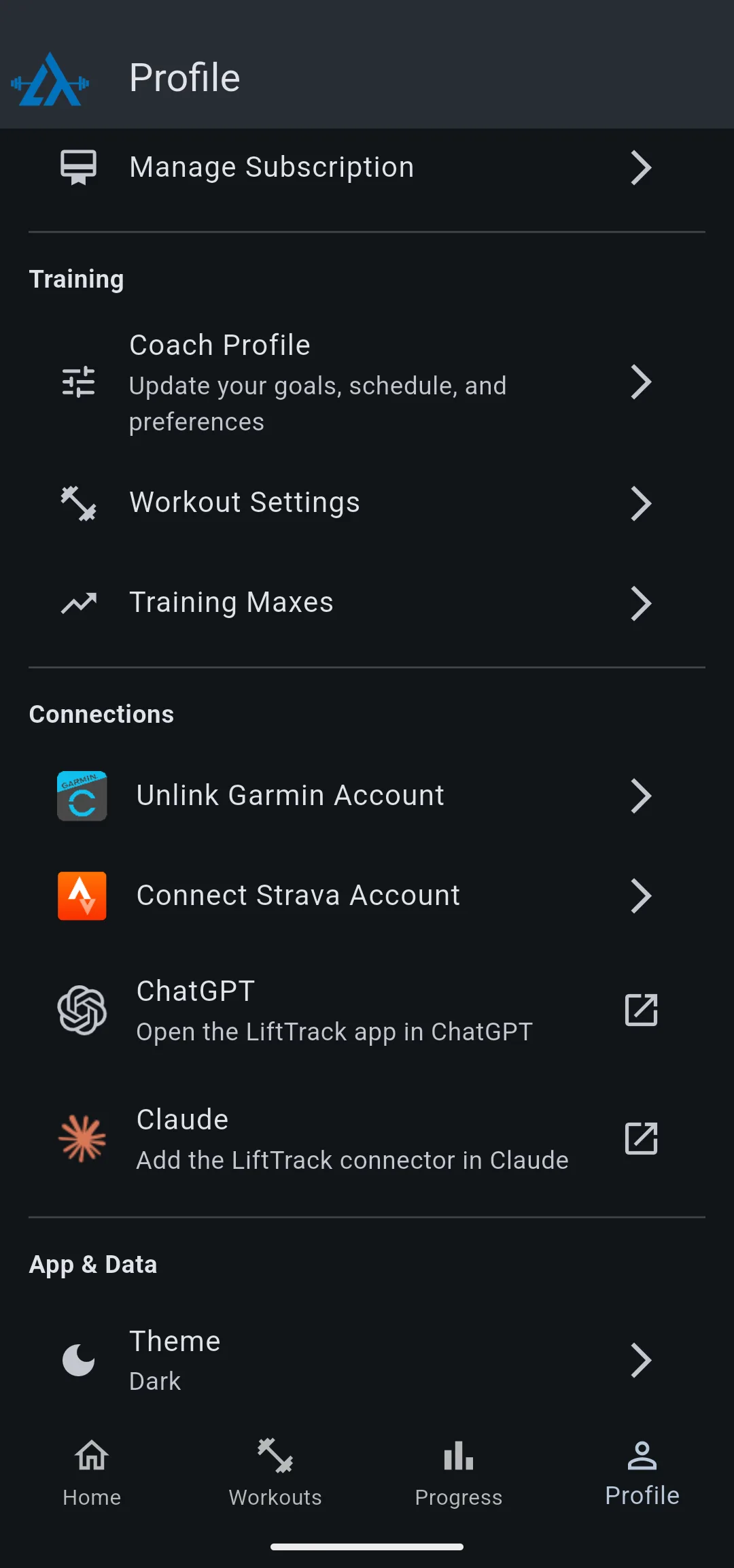
The Profile tab shows Manage Subscription only while Premium is active. On the free plan, the same row reads Upgrade to Premium.
Change or cancel Premium
The store you paid through holds the subscription, so you can change or cancel it there at any time, with or without opening LiftTrack.
- iPhone: open Settings, tap your name, then Subscriptions, and choose LiftTrack. Apple’s guide to changing or canceling a subscription has the details.
- Android: open the Play Store, tap your profile picture, then Payments & subscriptions > Subscriptions, and choose LiftTrack. Google Play’s guide to canceling a subscription has the details.
When you cancel, Premium stays active until the end of the period you already paid for. After that, the row on the Profile tab changes back to Upgrade to Premium. Deleting the app does not cancel the subscription; only the store can.
Upgrade to Premium
- On the Profile tab, tap Upgrade to Premium. The Premium screen opens with the plans and prices for your store.
- Choose a plan and confirm the purchase with your App Store or Google Play account.
When the purchase goes through, the row changes to Manage Subscription, and Premium features such as Max, the coach inside LiftTrack, unlock.
Use Premium on another phone
Premium belongs to your LiftTrack account, not to one phone. On a new or second phone, install LiftTrack and log in with the same account. The Profile tab shows Manage Subscription once the app confirms your Premium status.
If the Profile tab still shows Upgrade to Premium, see how to fix Premium access after a purchase.


