Ask Max, your coach in LiftTrack
Chat with Max inside LiftTrack about your training, and have him draft a workout you approve before it lands on your Workouts tab.
On this page
Max reads your training history before he answers, so you can ask about your own week instead of describing it.
Before you start
- Premium. Without it, the Training screen shows View Premium Plans where the Max bar would be, and the bar on a program opens the Premium offer.
- Optional: a coaching profile with your goals, schedule and equipment, so Max can skip the basic questions. You set it up on Profile > Coach Profile.
Open Max
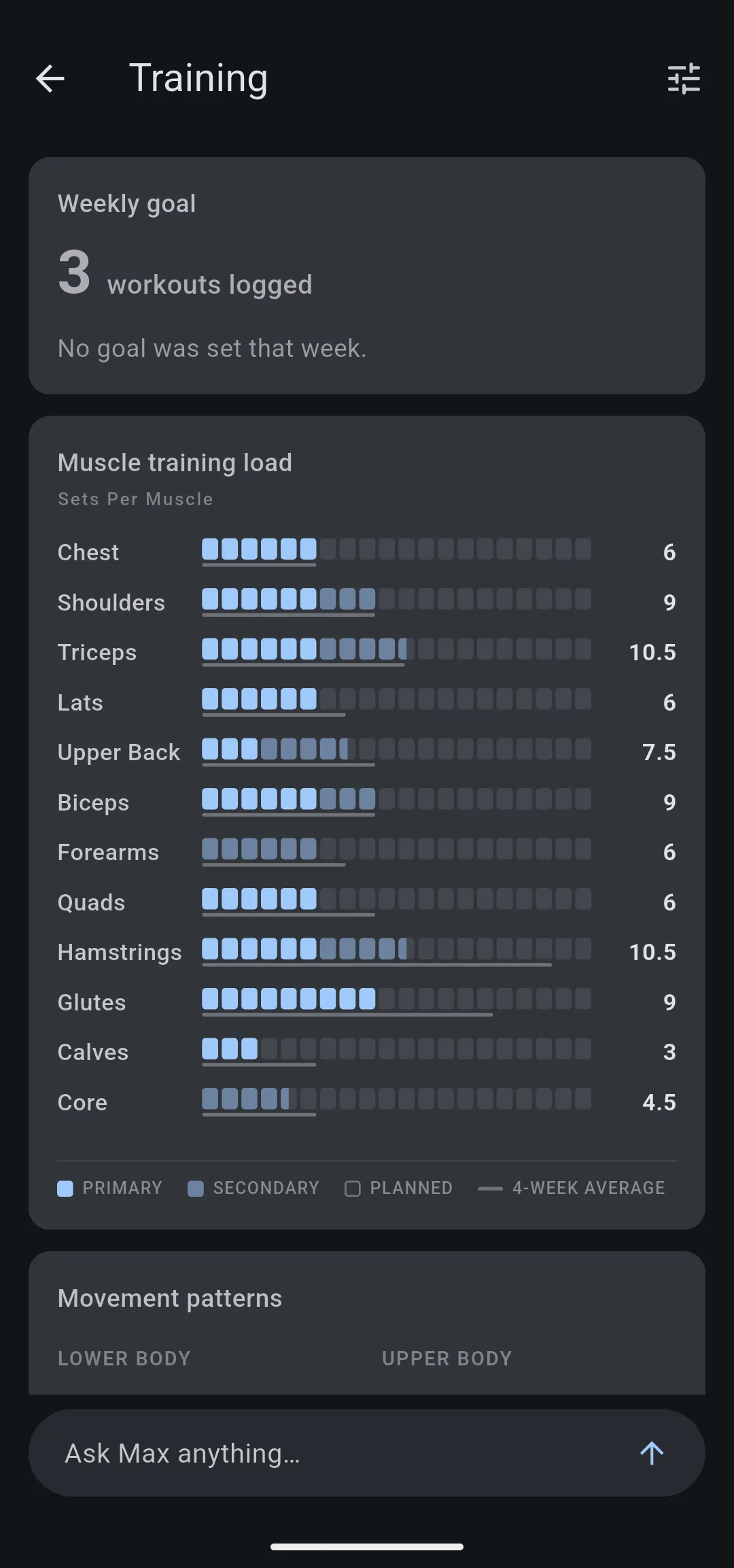
Max has two entry points, both a bar that reads Ask Max anything…:
- From the Training screen: on the Home tab, tap the Training card, then tap Ask Max anything….
- From a program: open WorkoutsPrograms and tap Ask Max anything…. The bar shows once you have a program. Max also gets the program you are looking at, so you can ask about it without naming it.
The chat opens with the keyboard up and the cursor in Message Max…. If your coaching profile is empty, the chat opens with a Set up your coaching profile card before Max’s greeting; tap Set up profile to fill it in.
Ask Max a question
- In Message Max…, enter your question, for example “What should I train today?” or “Why did my bench stall?”
- Tap the arrow to send. While Max works, a line such as Used 6 tools shows what he checked in your data; tap it to see the list.
- Read the reply. To stop a long reply, tap the stop icon.
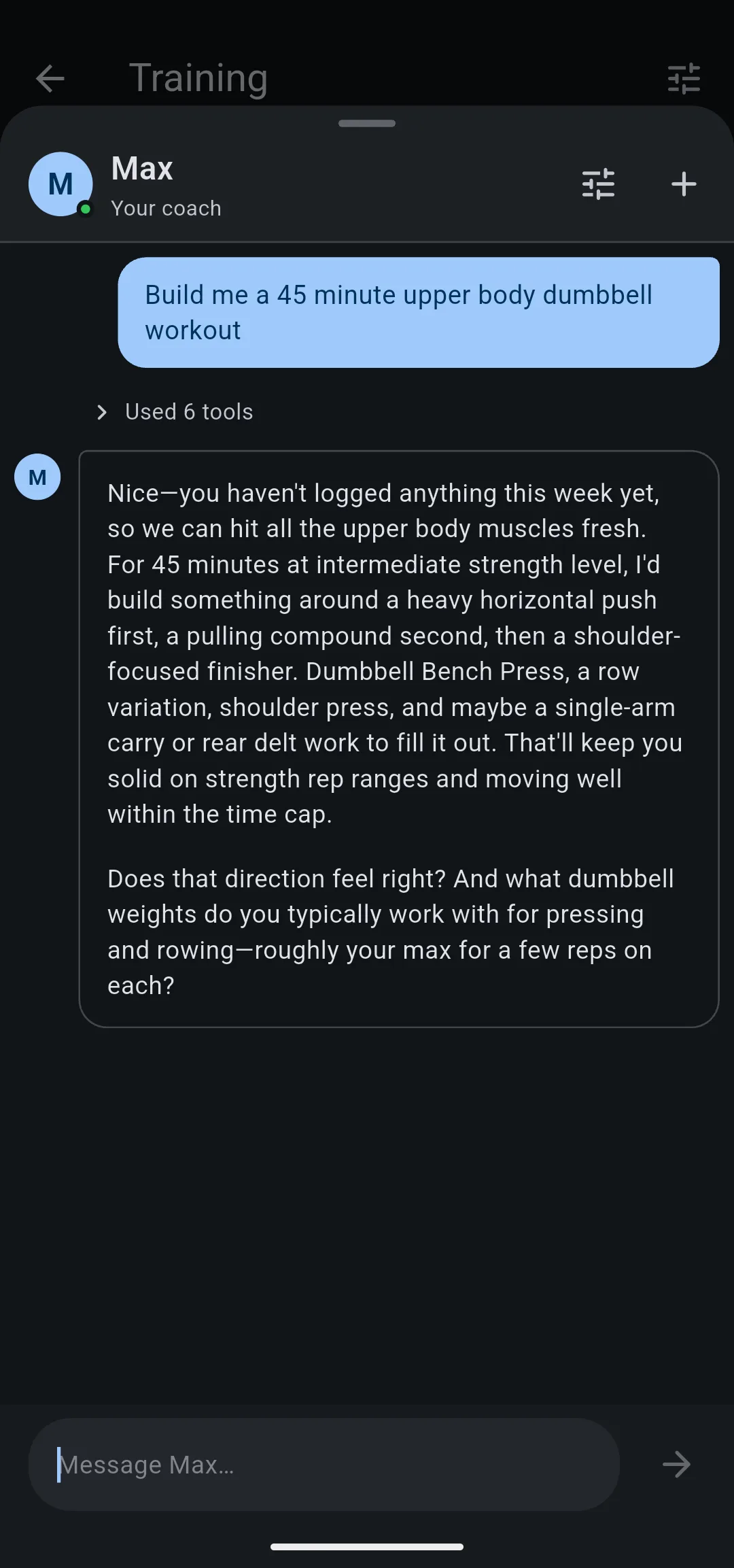
Max can ask you questions back, such as the weights you use. Answer in the same chat and he builds on what you said.
Have Max draft a workout
- Ask for the workout you want, with the details that matter: “Build me a 45 minute upper body dumbbell workout.”
- Answer any follow up questions. When Max has what he needs, he shows a card headed Proposed by Max with the workout name, each exercise and its sets, reps and weight.
- Optional: tap an exercise on the card to open its details.
- Tap Approve to save the workout, or Reject to turn it down. The card then reads Approved or Dismissed.
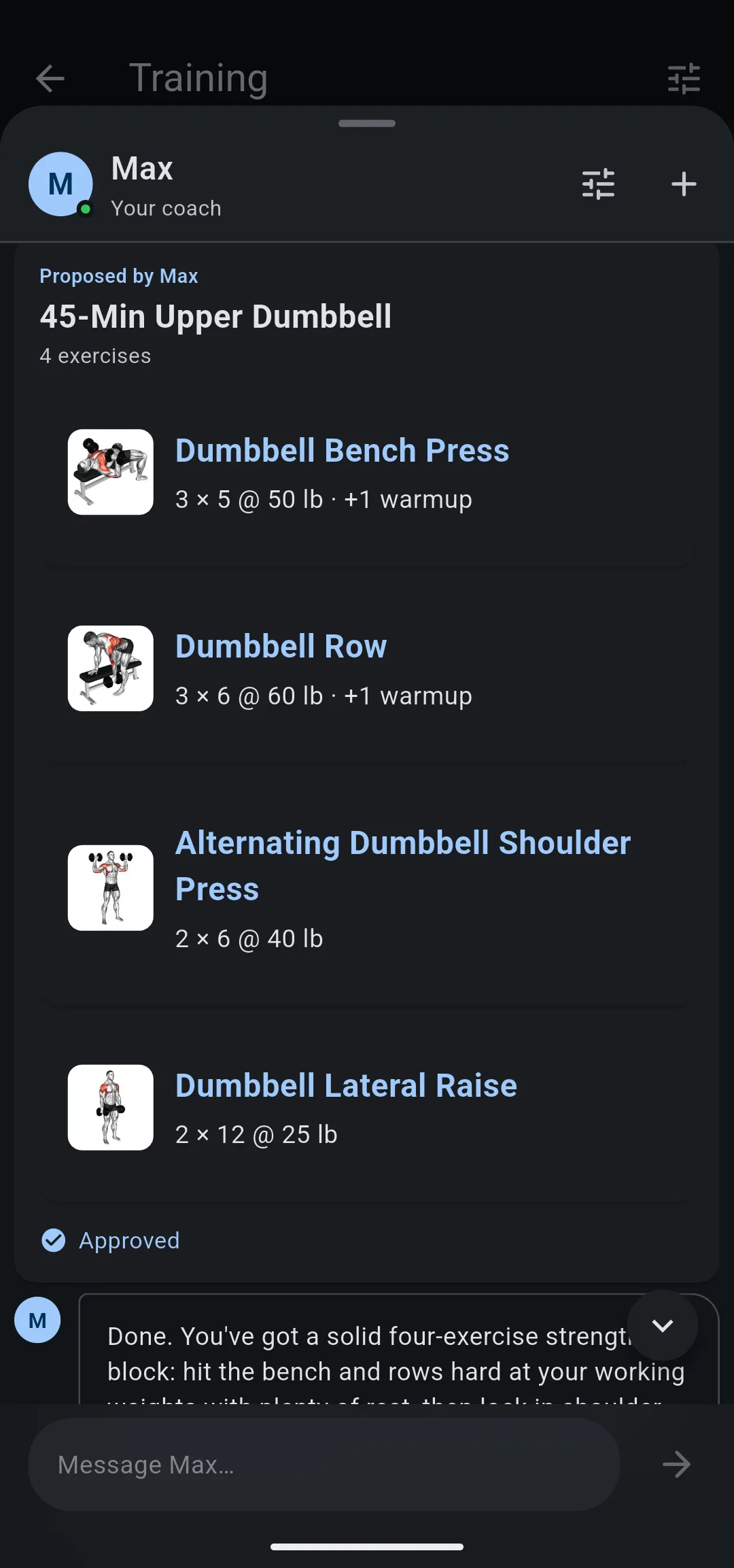
Max saves nothing until you tap Approve. An approved workout shows on the Workouts tab like one you built yourself, ready to send to your Garmin or track on your phone. To change the plan before you approve, tell Max what to change instead of tapping Reject; he proposes a new card.
To have Max plan several weeks at once, see build your program with AI.
Start a new chat
The conversation stays when you close the chat or switch tabs, and clears when LiftTrack restarts. To clear it yourself, tap the plus icon in the chat, then tap New chat to confirm. Workouts you already approved stay on the Workouts tab.
To change your coaching profile from the chat, tap the sliders icon next to the plus icon.
Retry a message that failed
If Max cannot be reached, the chat shows Something went wrong reaching Max. Tap Retry to send the message again.
If you see You’ve reached this week’s coaching limit. It resets Monday., Max takes no more messages until Monday. The chat keeps your conversation, and every other part of LiftTrack works as usual.
To use your LiftTrack data from ChatGPT or Claude instead, see connect LiftTrack to your AI assistant.


