Send your LiftTrack workouts to your Garmin watch
Connect your Garmin account once, and LiftTrack sends every workout you save to Garmin Connect, ready for your watch on its next sync.
On this page
Your watch gets workouts from Garmin Connect, never from LiftTrack directly. LiftTrack sends each workout to Garmin Connect, and the watch picks it up the next time it syncs with the Garmin Connect app.
Before you start
- A Garmin watch paired with the Garmin Connect app on your phone
- A workout in your Workouts tab. To make one, see build a workout.
Connect your Garmin account
- Go to HomeProfileConnections and tap Connect Garmin. Your browser opens Garmin’s sign in page.
- Sign in to Garmin and allow LiftTrack access. The browser returns you to LiftTrack.
The row under Connections now reads Disconnect Garmin. LiftTrack sends the workouts you made before connecting to Garmin Connect as well.
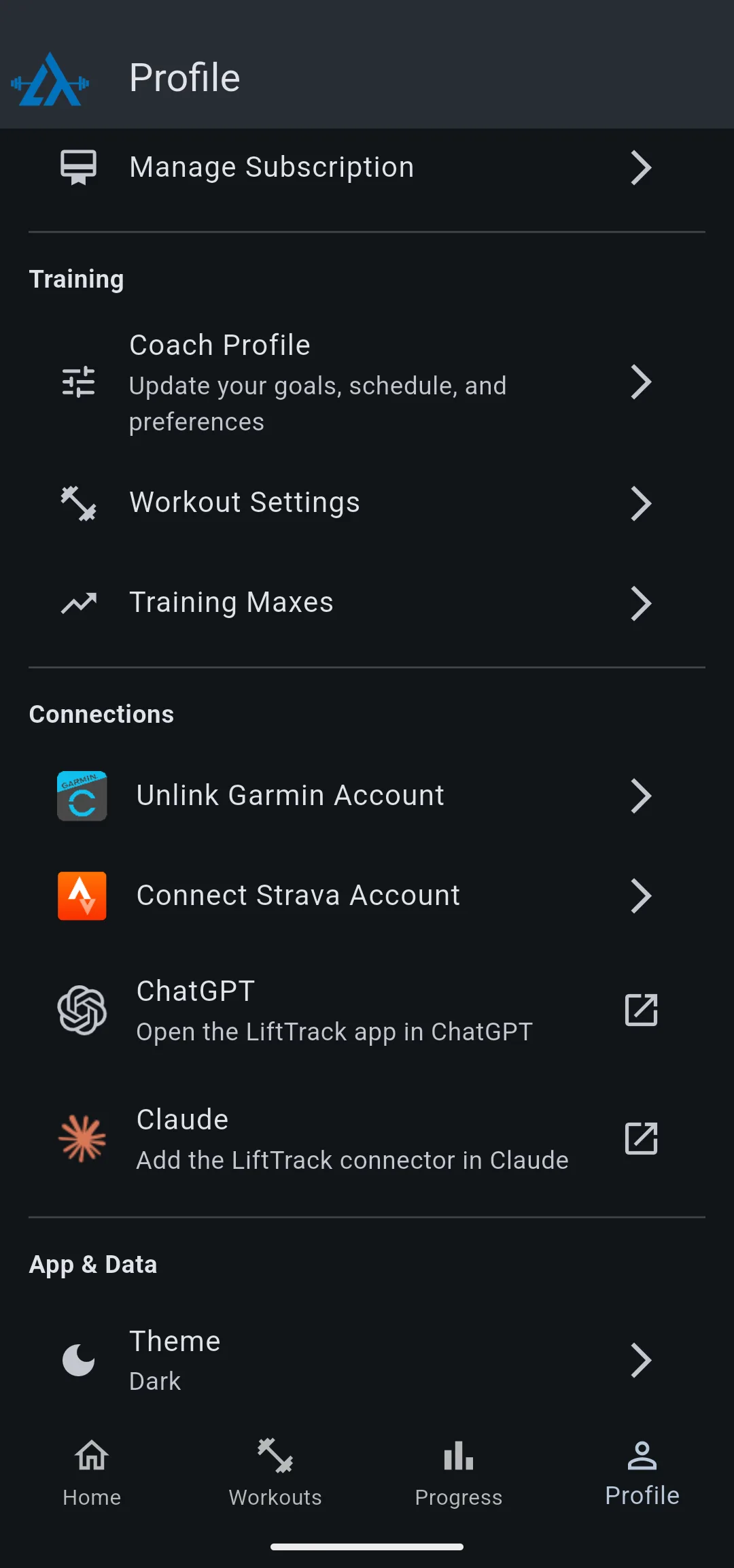
You can also connect from any workout: tap Garmin on the workout screen, then tap Connect Garmin.
Send a workout to Garmin Connect
LiftTrack sends a workout when you save it in the editor, and sends it again after every edit, so Garmin Connect always has the latest version. There is no separate send step. To check that a workout arrived:
- On the Workouts tab, tap the workout.
- On the workout screen, look at Garmin. A green check means Garmin Connect has the workout.
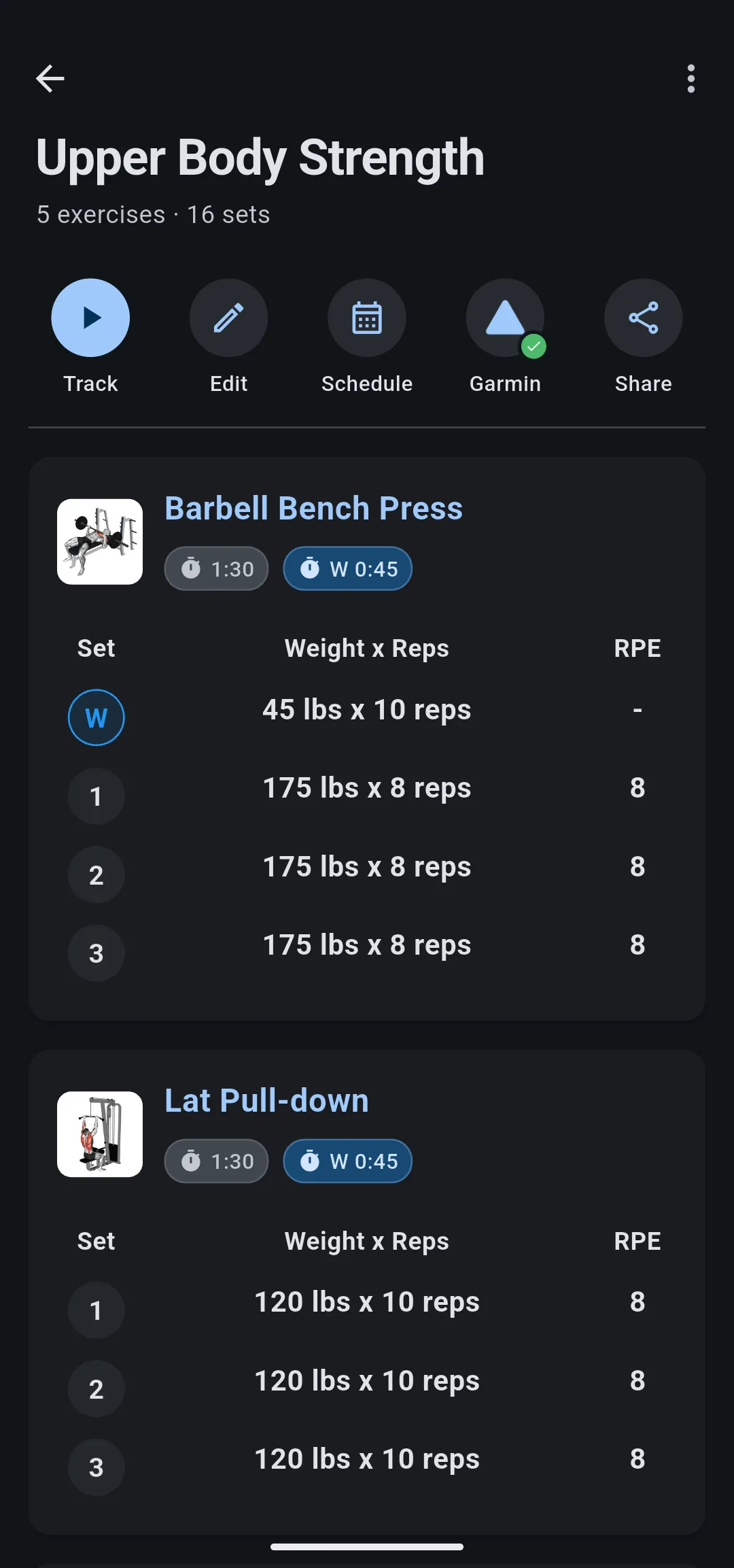
To see the details, tap Garmin. The Garmin sheet reads On Garmin Connect and says when LiftTrack sent it. If the sheet reads Not on Garmin Connect, tap Send to Garmin.
Get the workout onto your watch
- Open the Garmin Connect app on your phone so your watch syncs with it.
- On your watch, start the workout from the watch’s workouts list. Garmin’s guide to the Workouts app shows where your model keeps it.
A workout you schedule in LiftTrack also goes on your Garmin Connect calendar for that day, so the watch shows it on the day you plan to train.
Preview the workout before you train
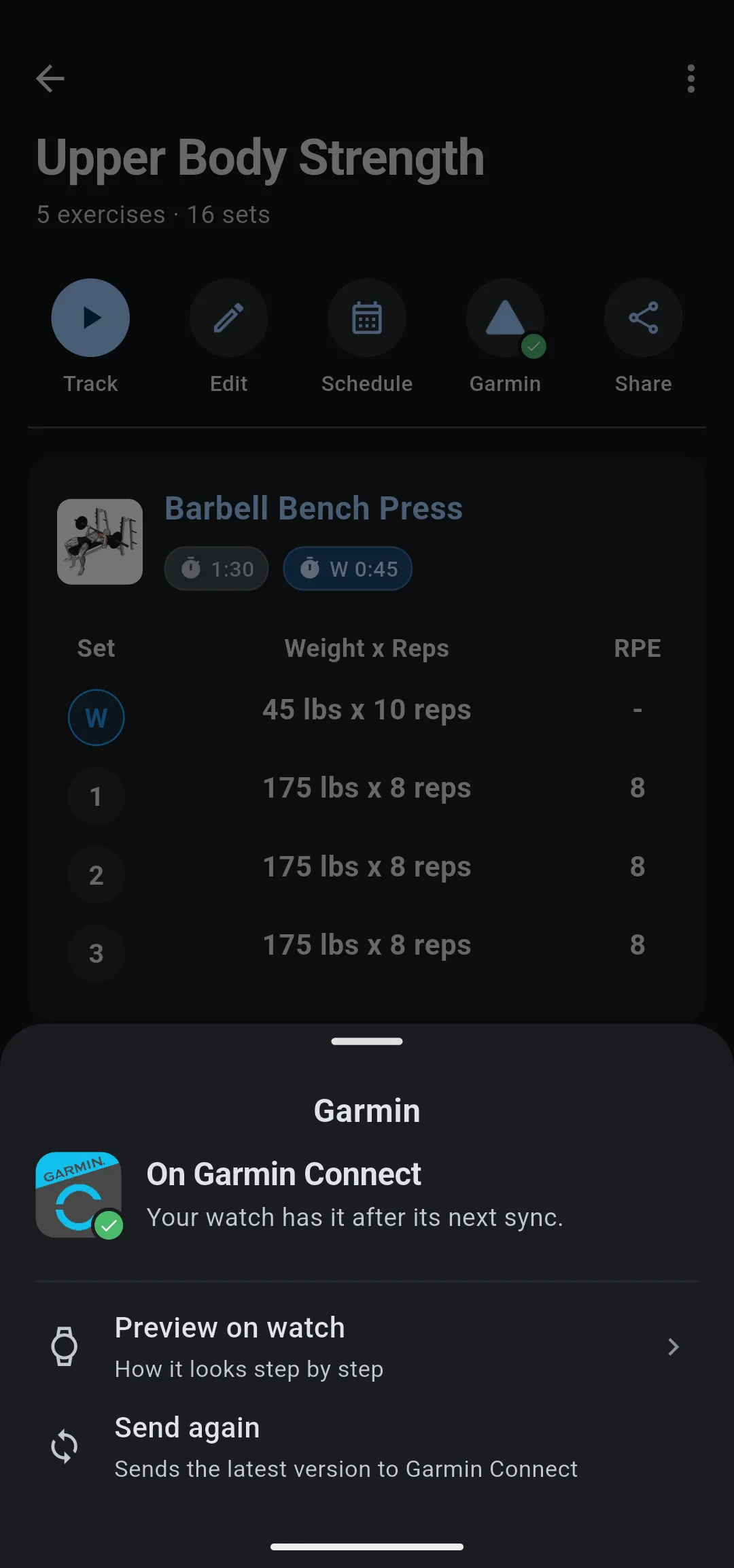
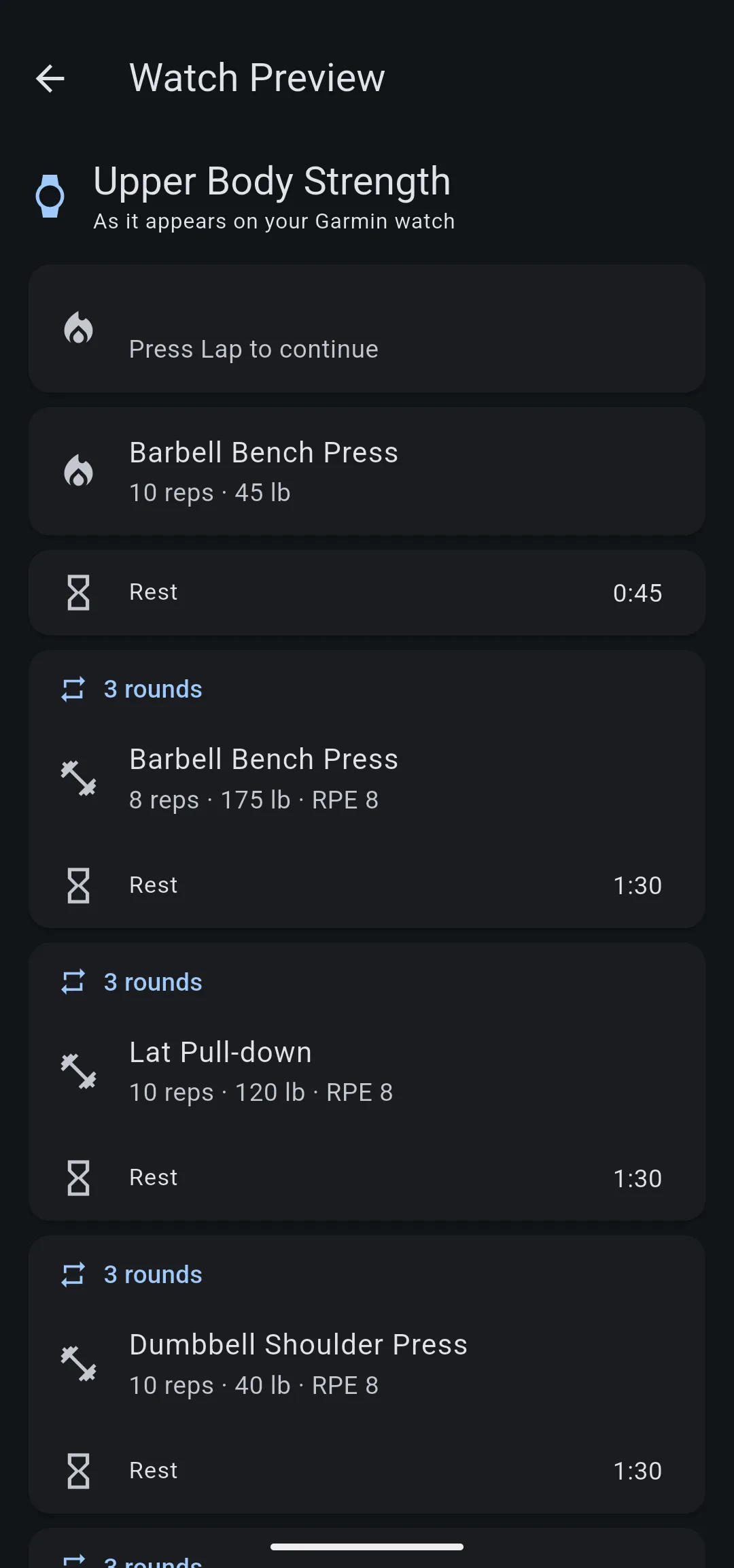
On the Garmin sheet, tap Preview on watch. The Watch Preview screen lists every step, rest and round in the order your watch runs them.
- 1 Open the workout
Workouts tab, then tap the workout.
- 2 Tap Garmin
The sheet shows whether Garmin Connect has it.
- 3 Preview on watch
Every step and rest, as your watch runs it.
Send a workout again
If your watch shows an older version of a workout, send it again, then sync the watch.
- On the workout screen, tap Garmin.
- Tap Send again. LiftTrack sends the latest version to Garmin Connect.
What the Garmin sheet tells you
The Garmin sheet names where the workout stands and offers the one button that moves it forward.
| Sheet reads | What it means | Tap |
|---|---|---|
| On Garmin Connect | Garmin Connect has the workout. Your watch has it after its next sync. | Preview on watch or Send again |
| Sending to Garmin Connect… | LiftTrack is sending the latest version. | Nothing; wait for it to finish |
| Not on Garmin Connect | This workout has not been sent yet. | Send to Garmin |
| Couldn’t send to Garmin Connect | Garmin did not accept the workout. | Try again |
| Garmin needs reconnecting | Your Garmin link expired, so workouts stopped sending. | Reconnect Garmin, then sign in to Garmin |
| Garmin not connected | No Garmin account is connected to LiftTrack. | Connect Garmin |
To get a workout onto your watch when the sheet reads anything other than On Garmin Connect, see fix a workout that is not on your watch.
- The workout’s Garmin sheet reads On Garmin Connect.
- Your watch has synced with the Garmin Connect app since then.
- The workout is in your watch’s workouts list.


