Build a workout
Build a workout in LiftTrack from the Workouts tab: name it, add exercises, set the weight and reps for each set, then save it to train from.
On this page
A workout is the list of exercises and sets you plan to do. Once it is saved, you can track it on your phone, schedule it, or send it to your watch.
Before you start
- Premium, to save more than 3 workouts. A free account can create 3; the fourth opens the Premium offer.
- Optional: your Garmin connected to LiftTrack, so each workout you save also goes to your watch.
Create the workout and add exercises
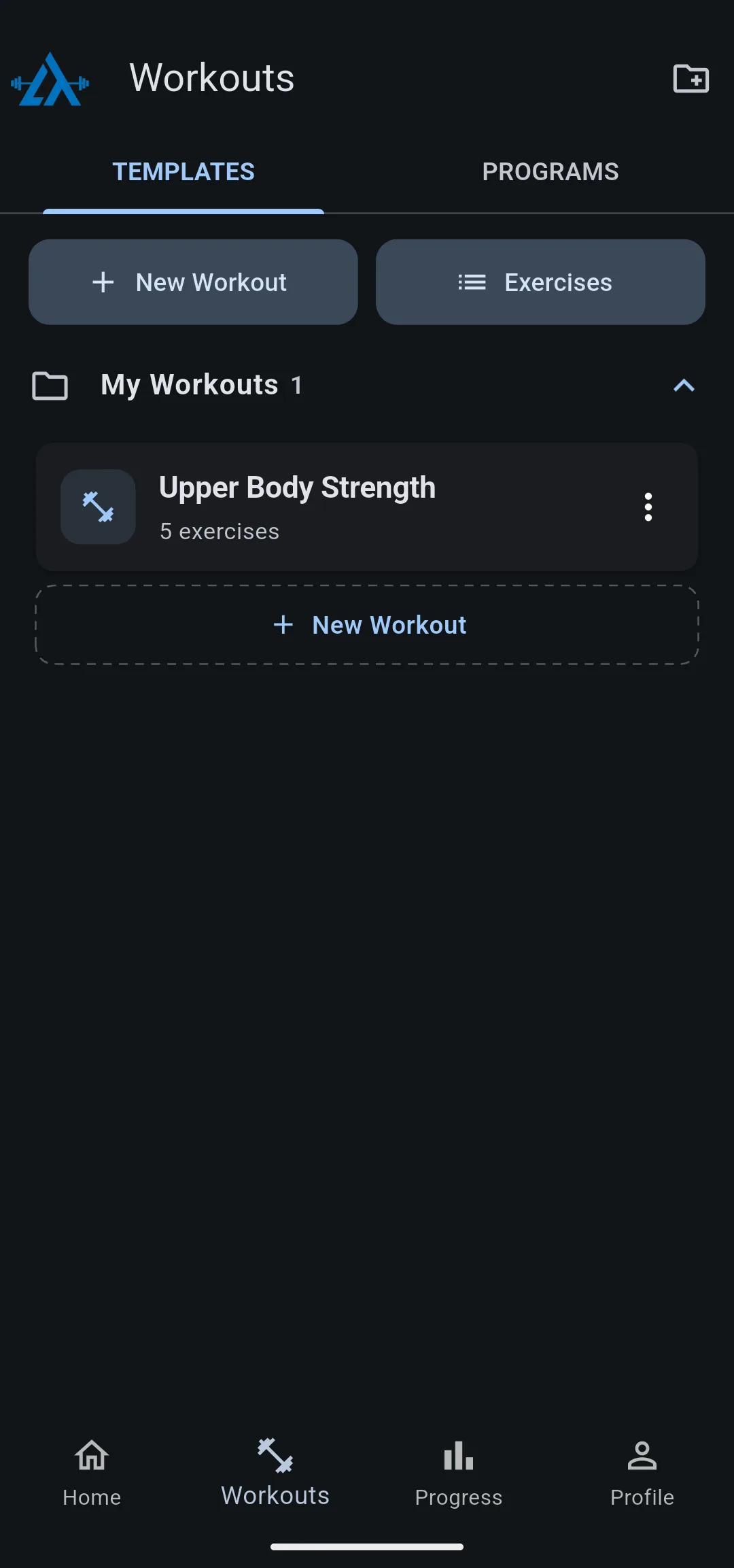
- On the Workouts tab, tap New Workout. If you have more than one folder, choose the folder for the workout. The Edit Workout screen opens.
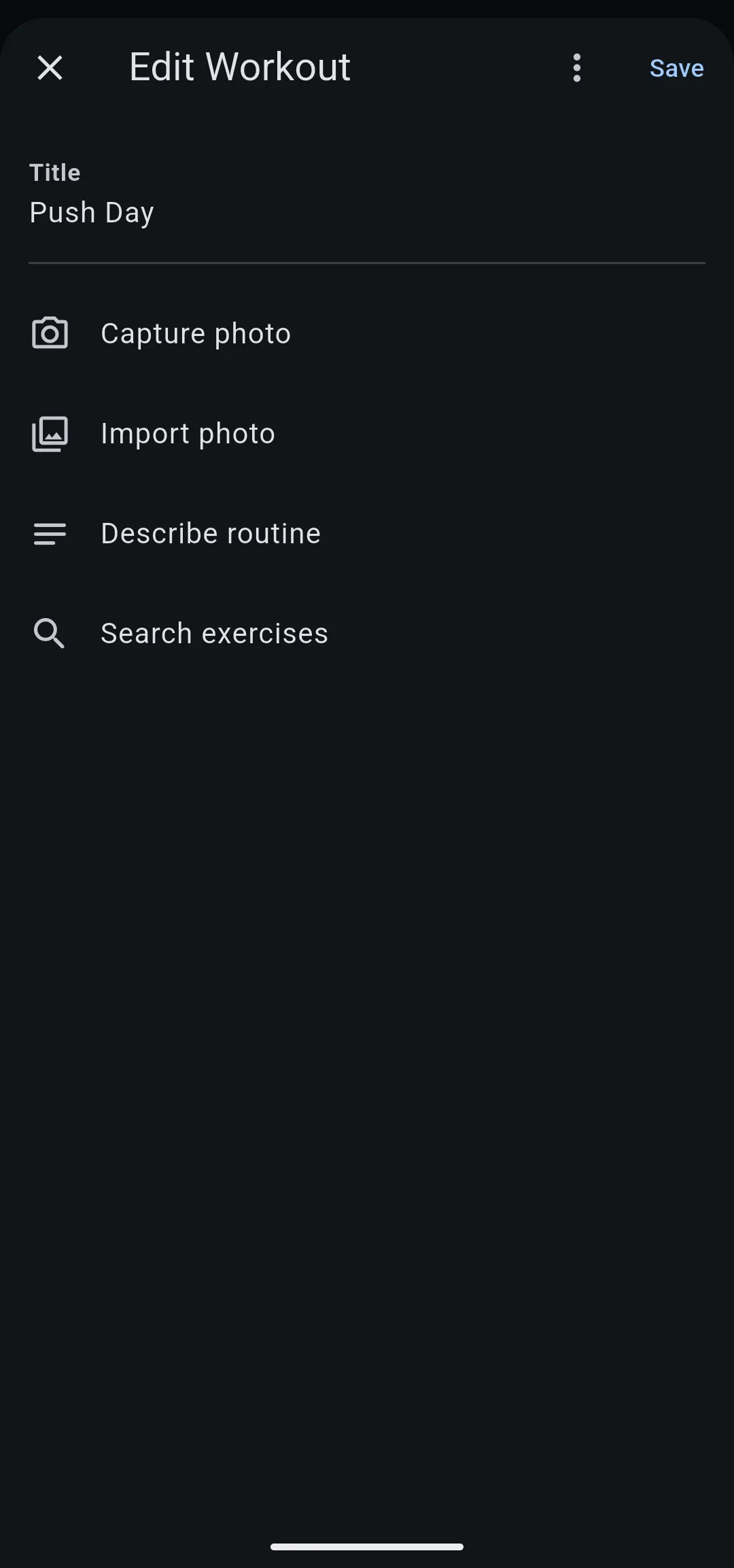
- Enter a name in Title.
- Tap Search exercises.
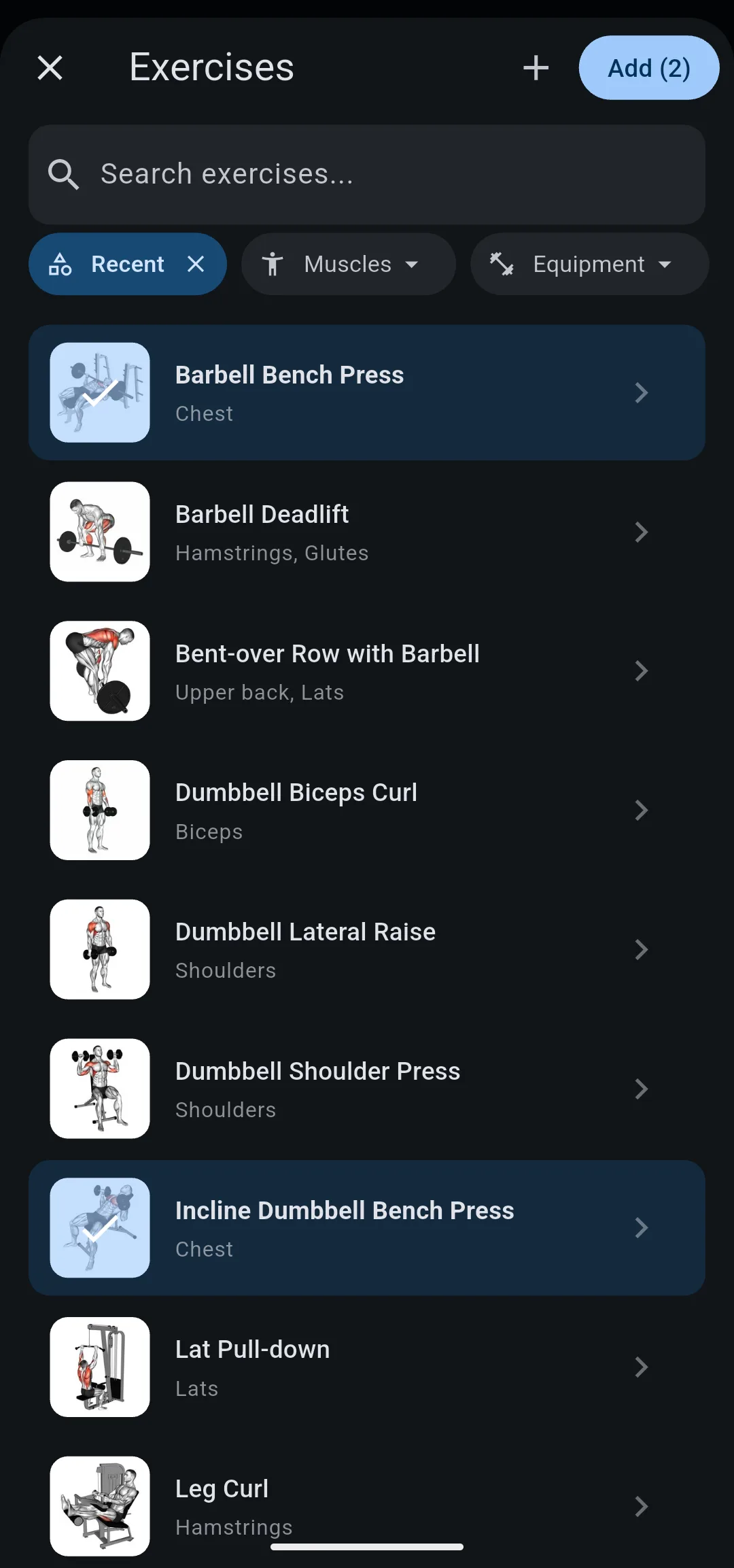
- Tap each exercise you want. Search by name, or narrow the list with Muscles and Equipment.
- Tap Add. The button shows how many exercises you chose, for example Add (2).
- 1 Tap New Workout
On the Workouts tab.
- 2 Name it
Enter a title, then tap Search exercises.
- 3 Choose exercises
Tap each one, then tap Add.
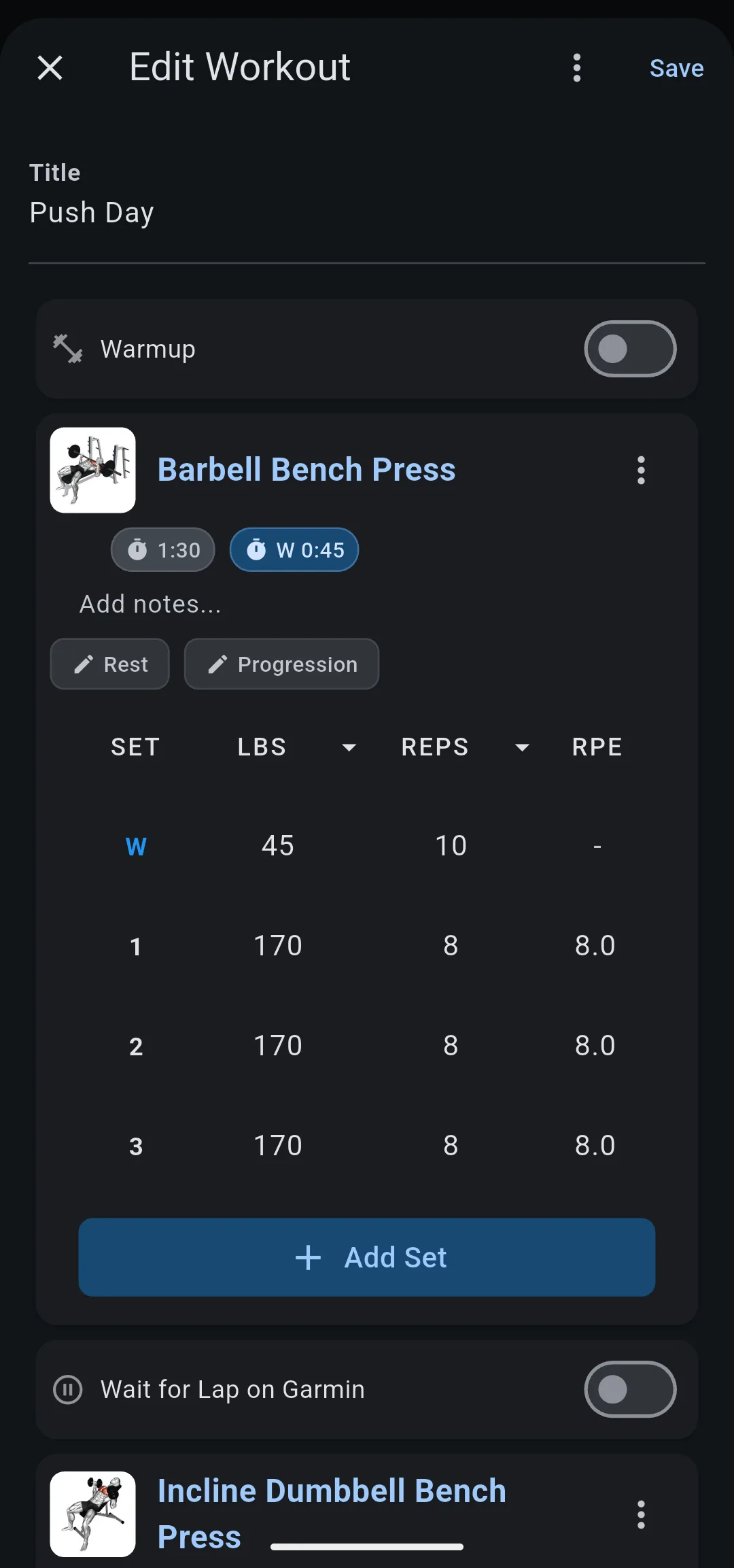
Each exercise appears on the Edit Workout screen as a card with its sets. If you did the exercise before, the sets start with the weight and reps from your last session. To start every new exercise with one empty set instead, turn off Prefill previous sets in HomeProfileWorkout Settings.
If an exercise is not in the list, tap the plus icon on the Exercises screen to create it. For the details, see how to create a custom exercise.
Set the weight, reps and sets
- On an exercise card, tap a weight, rep or RPE value and enter the new number.
- To add a set, tap Add Set. The new set copies the last set.
- To add a warmup set, touch and hold Add Set, then tap Warmup Set. Warmup sets show a W in the SET column.
- To remove a set, swipe it to the left.
- Optional: to switch an exercise from reps to a duration, tap REPS at the top of the card and choose TIME.
- 1
Options
Replace, superset, reorder or remove the exercise.
- 2
Rest and Progression
The rest timer and how the exercise grows after each session.
- 3
REPS
Tap to switch the exercise to TIME.
- 4
Warmup set
Warmup sets show W in the SET column.
- 5
Weight, reps and RPE
Tap a value to enter a new number.
- 6
Add Set
Copies the last set; touch and hold it for a warmup set.
Rest sets the rest timer for the exercise, and Progression sets how the weight or reps change after each session. To choose a progression, see how progressions work.
Change the exercises
Tap the options icon on an exercise card for these choices:
- Replace Exercise swaps it for another exercise in the same place in the workout.
- Add to Superset pairs it with another exercise, so you alternate between them set by set. To set the order and the rest between them, see how to create a superset.
- Reorder Exercises opens a list you can drag into a new order. Tap Done when finished.
- Remove Exercise takes it out of the workout.
To add more exercises, tap Add exercises at the end of the list.
Save the workout
Tap Save. The workout appears in its folder on the Workouts tab. If your Garmin is connected, LiftTrack also sends it to Garmin Connect.
Save stays off until the workout has a title. The app asks you to fix two other cases before it saves:
- Missing Sets: an exercise has no sets. Add at least one set to it.
- Too Many Steps: the workout has more than 100 steps. A Garmin watch counts each set and each rest as a step, so remove sets, exercises or rest timers until it fits.
To leave without saving, tap the close icon, then tap Exit Without Saving.


