How LiftTrack exercises work on your Garmin
LiftTrack adds exercises that Garmin's list lacks and marks them with its logo. On your watch they show as Go, with the name in the step description.
On this page
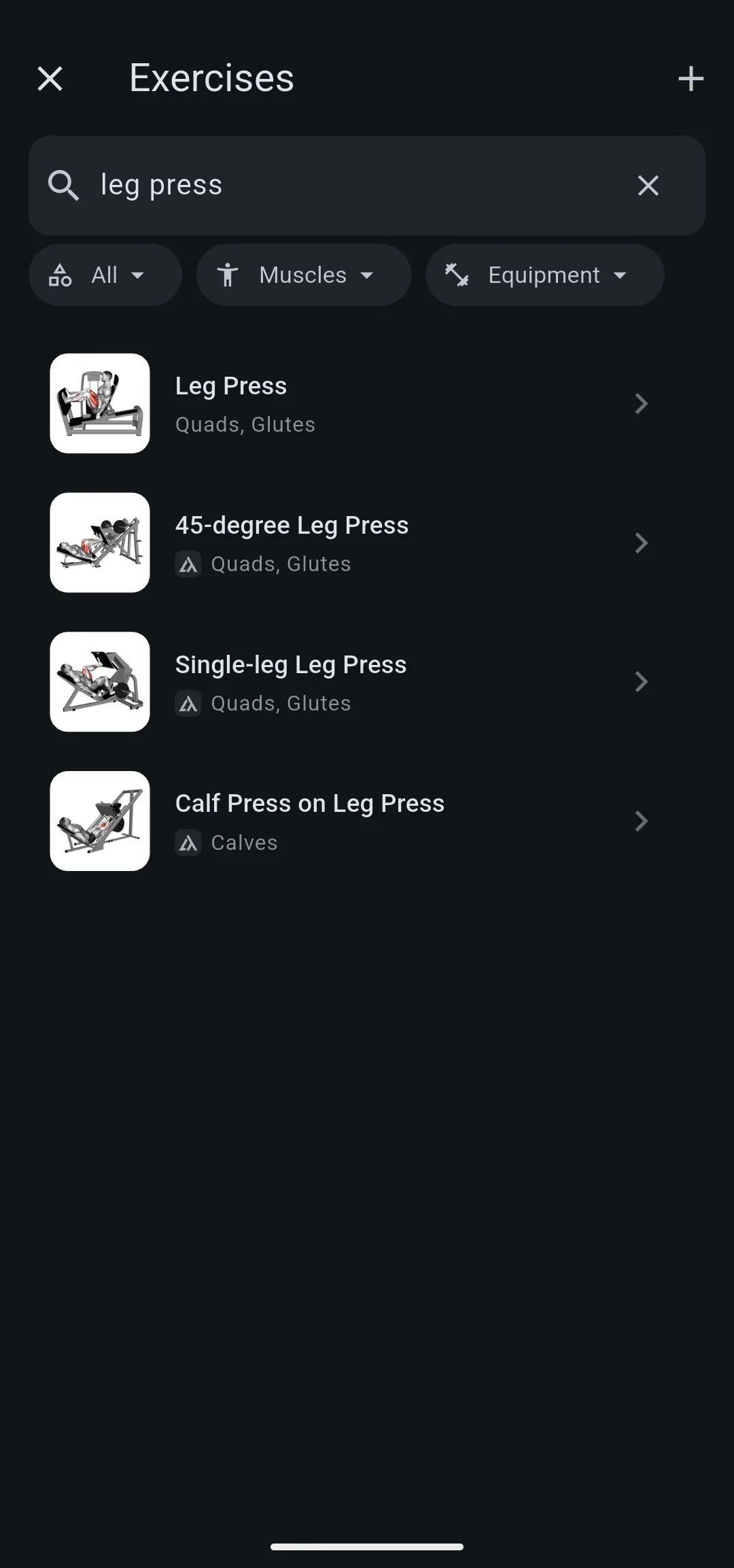
A Garmin exercise comes from Garmin’s own exercise list, so your watch shows it by name. A LiftTrack exercise is one LiftTrack added because Garmin’s list has no entry for it. It carries the LiftTrack marker, a small tile with the LiftTrack logo in front of its muscles.
Where does the LiftTrack marker show?
The marker shows wherever LiftTrack lists exercises to choose from. That includes the Exercises screen on the Workouts tab and the list you add exercises from while you build a workout. The workout editor and History show the exercise name without the marker.
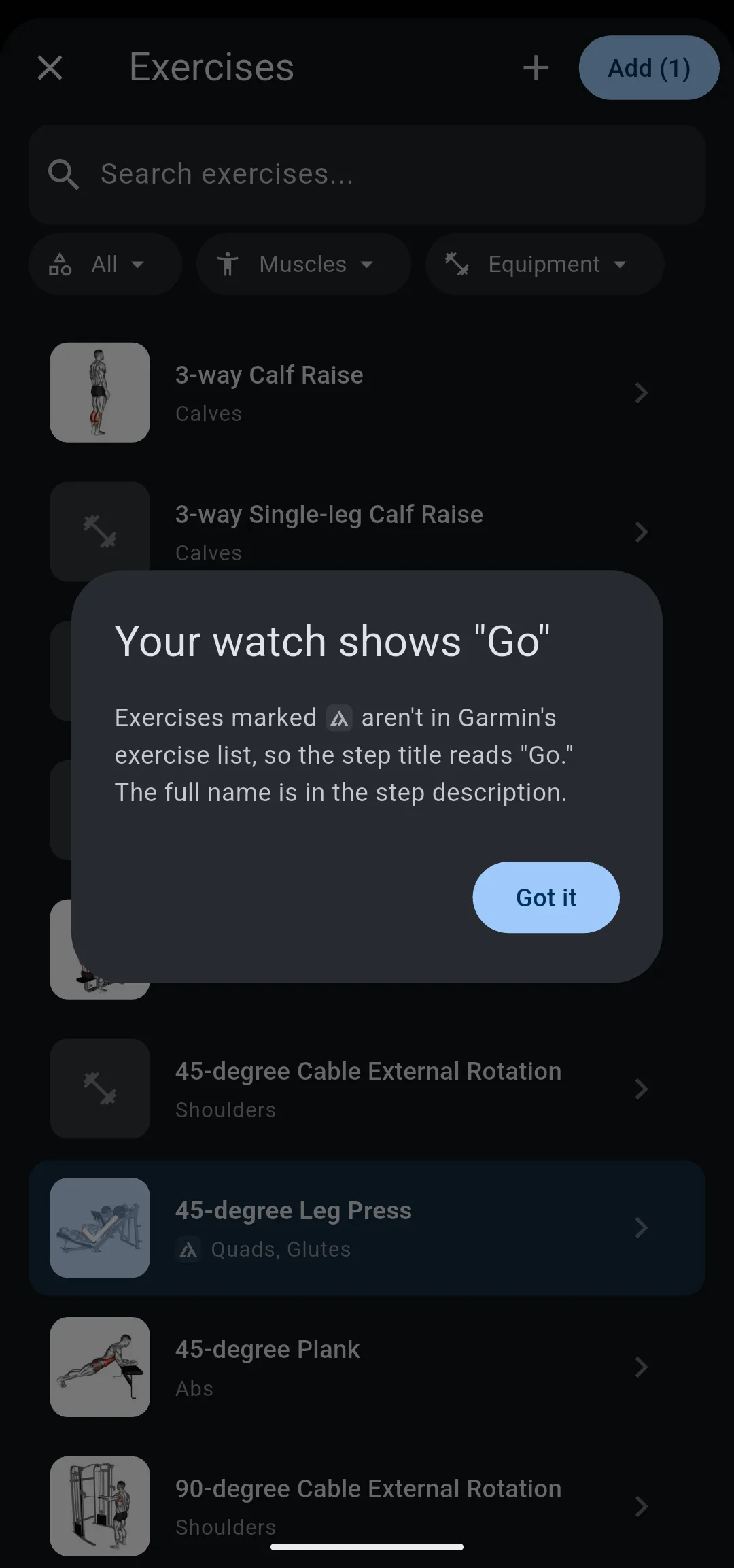
The first time you choose a LiftTrack exercise with your Garmin connected, LiftTrack shows Your watch shows “Go”, with the marker in its text. The tip appears once on each phone. If you already saw it for a custom exercise, it does not appear again.
Why does LiftTrack add its own exercises?
Garmin’s exercise list covers the common lifts, but it misses many gym machines, cable movements and variations. LiftTrack adds those exercises so you can choose them like any other, with muscles already set, instead of creating each one yourself.
A LiftTrack exercise works like a Garmin exercise inside LiftTrack. You add it to workouts, track its sets on your phone or your watch, and see its history and stats. The difference is only on your Garmin.
What does your watch show for a LiftTrack exercise?
Your watch titles the step Go, because Garmin watches only name exercises from Garmin’s own list. The step description holds the exercise name, then the RPE and notes you set for it in the workout.
Say a workout has Pec Deck Fly for 3 sets of 12 at 40 kg (90 lb), RPE 8 and the note “Pause at the squeeze”. Your watch shows three steps titled Go with the target of 12 reps and 40 kg. Each step description reads “Pec Deck Fly RPE: 8.0 Notes: Pause at the squeeze”.
The Instinct 2 shows only a few characters of each step description, so LiftTrack exercise names do not display on it.
Your watch records the sets, reps and weight for the step like any other exercise. When the session syncs back, History shows the sets under Pec Deck Fly, and they count toward the muscles LiftTrack lists for it.
What does Garmin Connect show?
Garmin Connect receives the step with no Garmin exercise attached, because Garmin has no entry to attach. The exercise name travels in the step description, the same text your watch shows.
Exercises you create work the same way on your Garmin. To compare, see how custom exercises work on your Garmin.
Why doesn’t LiftTrack send the closest Garmin exercise?
The closest Garmin exercise would put a name on the watch, but the wrong one. Your Pec Deck Fly sets would come back as a Garmin fly, mix with that exercise’s history and count toward its muscles.
Sending Go keeps the exercise exact from the workout to History. The trade off is on the watch: to see which exercise is next, you read the step description instead of the title.
LiftTrack, custom and Garmin exercises
| LiftTrack exercise | Custom exercise | Garmin exercise | |
|---|---|---|---|
| Who adds it | LiftTrack, for everyone | You | Garmin |
| Mark in the exercise list | LiftTrack marker | None; shows under the Custom filter | None |
| Edit or delete | No | Yes, from its options icon | No |
| Watch step title | Go | Go | The exercise name |
| Garmin Connect | No Garmin exercise; name in the step description | No Garmin exercise; name in the step description | The Garmin exercise |
| LiftTrack History | The exercise name | The exercise name | The exercise name |
What you can change
- Build a workout: add LiftTrack exercises to a workout and set their RPE and notes.
- Create a custom exercise: add a movement that is in neither list.
- Send your LiftTrack workouts to your Garmin watch: get the workout onto your watch.


