Create a workout from a photo or description
Turn a photo of a written workout, or a few lines describing it, into exercises and sets on the Edit Workout screen, ready to check and save.
On this page
Use this when the workout already exists somewhere else: a coach’s plan, a notebook page, a screenshot, or the gym whiteboard. LiftTrack reads the exercises, sets, reps and weights and adds them to the workout, and you check them before you save.
To fill in a session your Garmin recorded without a workout instead, see how to record on your Garmin and fill in the details after.
Before you start
- Premium. On a free account, the three options show a Premium badge, and tapping one opens the Premium offer.
- The photo or the text of the workout. A photo can be a picture of paper, a screen or a whiteboard, as long as the exercises and numbers are readable.
Start the workout from a photo
- On the Workouts tab, tap New Workout. The Edit Workout screen opens.
- Enter a name in Title. LiftTrack does not name the workout for you.
- Tap Capture photo to take a picture now, or Import photo to choose one from your photo library.
- Take or choose the photo. A card reading Reading your photo… appears where the exercises will go.
After a few seconds the card turns into exercise cards with their sets, and a message at the bottom of the screen says how many exercises were added.
Start the workout from a description
- On the Workouts tab, tap New Workout, then enter a name in Title.
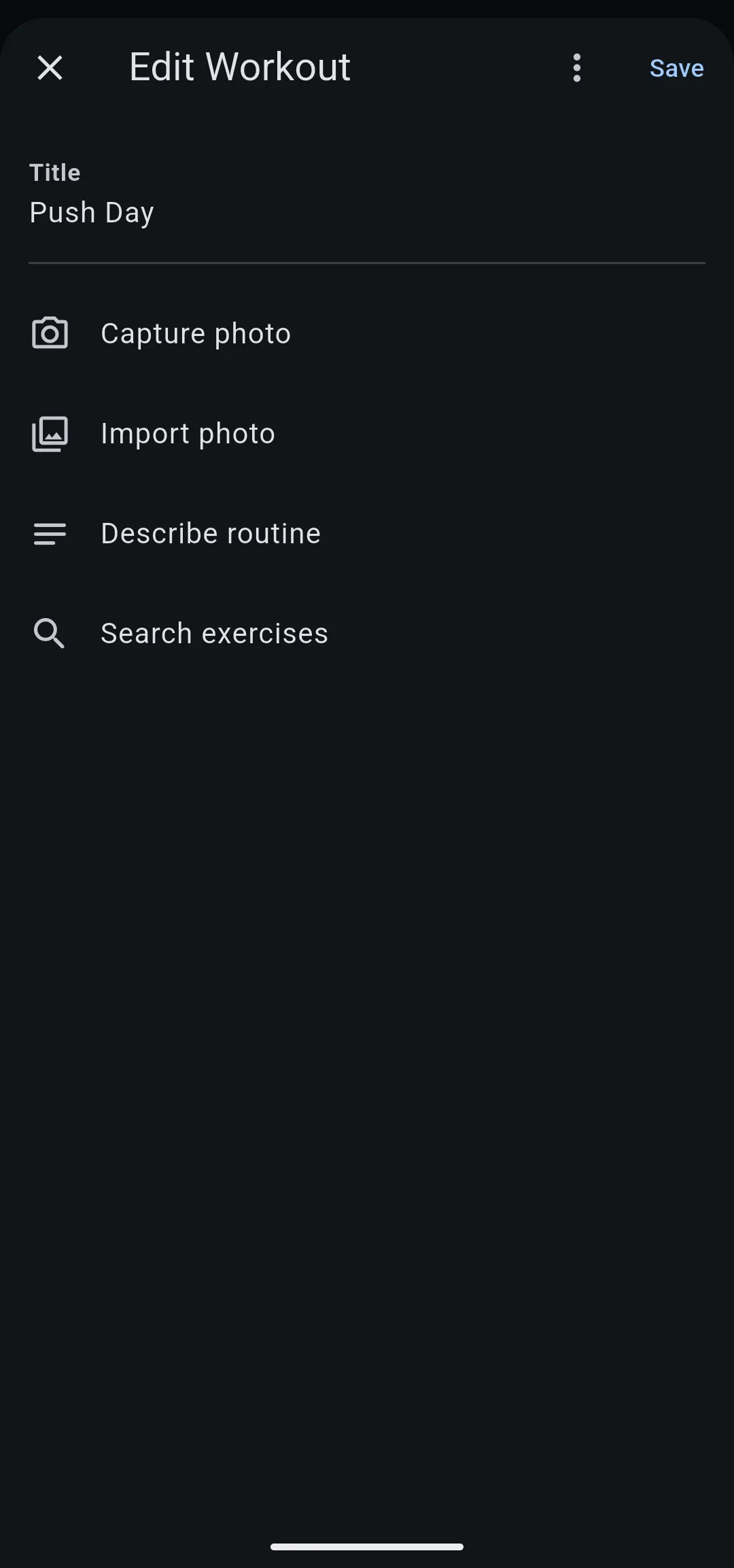
- Tap Describe routine. The Describe routine sheet opens.
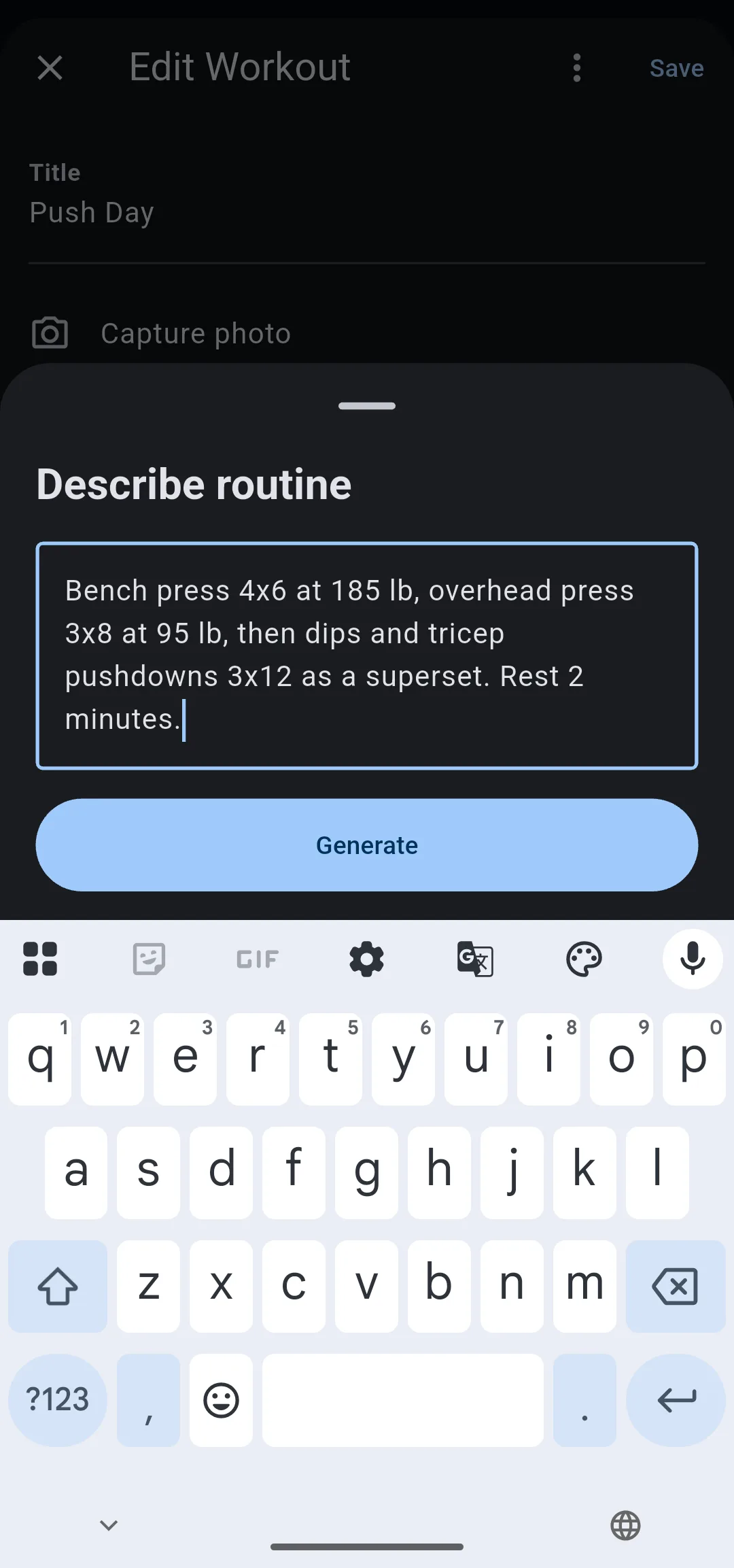
- Enter the workout in your own words: each exercise with its sets, reps and weight, for example “Bench press 4x6 at 185 lb, overhead press 3x8 at 95 lb”.
- Tap Generate. The sheet closes and a card reading Reading your description… appears.
- 1 Tap Describe routine
On a new workout, under Title.
- 2 Describe the workout
Exercises, sets, reps and weights, then Generate.
- 3 Wait for the exercises
Tap Cancel to stop.
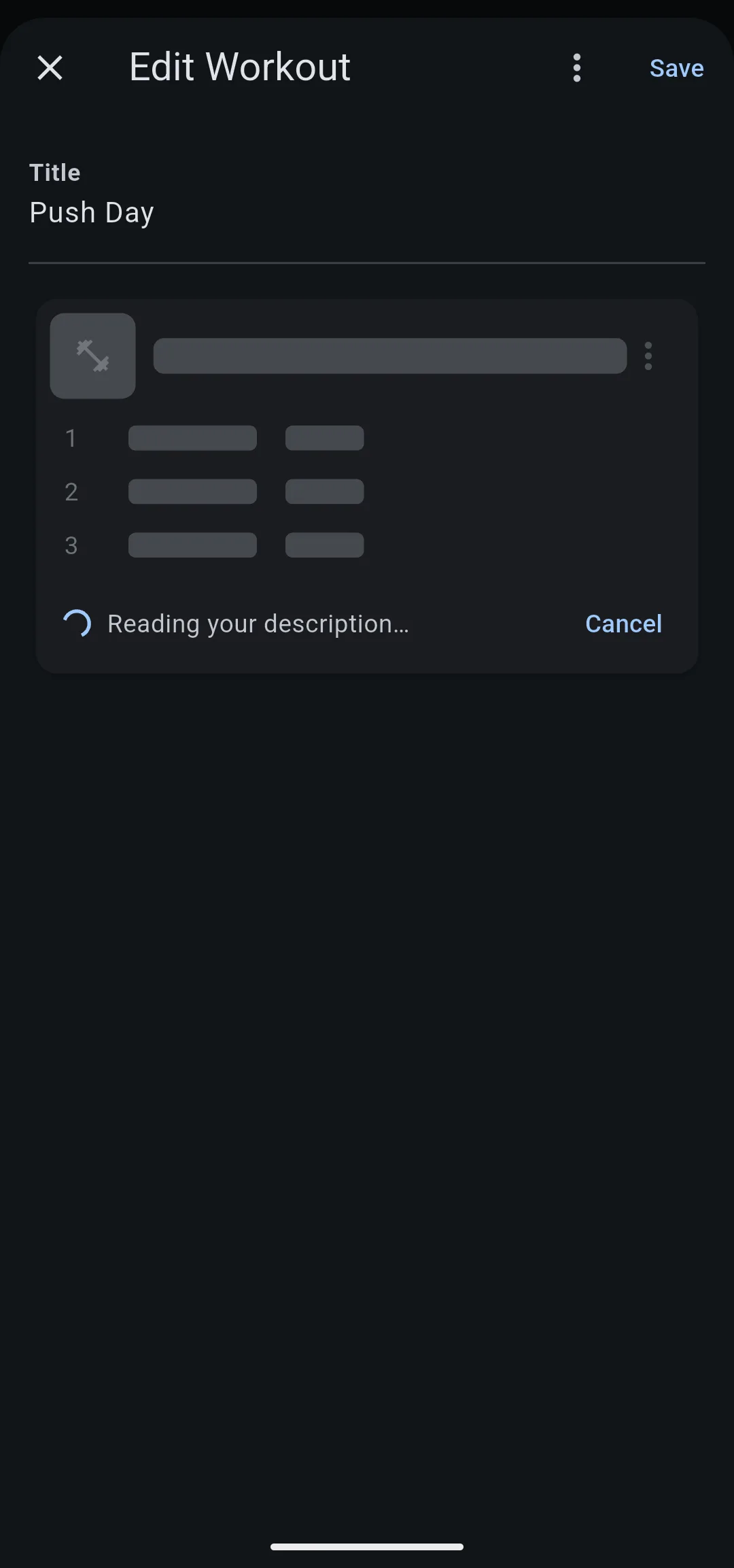
To stop while the card is showing, tap Cancel. Nothing is added.
Check the exercises before you save
The exercises from the photo or description are ordinary exercises from the LiftTrack catalog, so you change them like any other. For the details, see how to build a workout.
- Weights: a weight written with a unit (lb or kg) keeps that unit. A weight with no unit is read in the unit you use in LiftTrack. An exercise with no weight given starts at 0.
- Rest: each exercise starts with your default rest time when LiftTrack does not read one from the source. Tap Rest on the card to change it.
- Warmup sets: if the source lists warmup sets, they are added as warmup sets and Warmup turns on.
- Supersets: exercises the source groups together are added as a superset.
- Notes: notes about an exercise go in its notes.
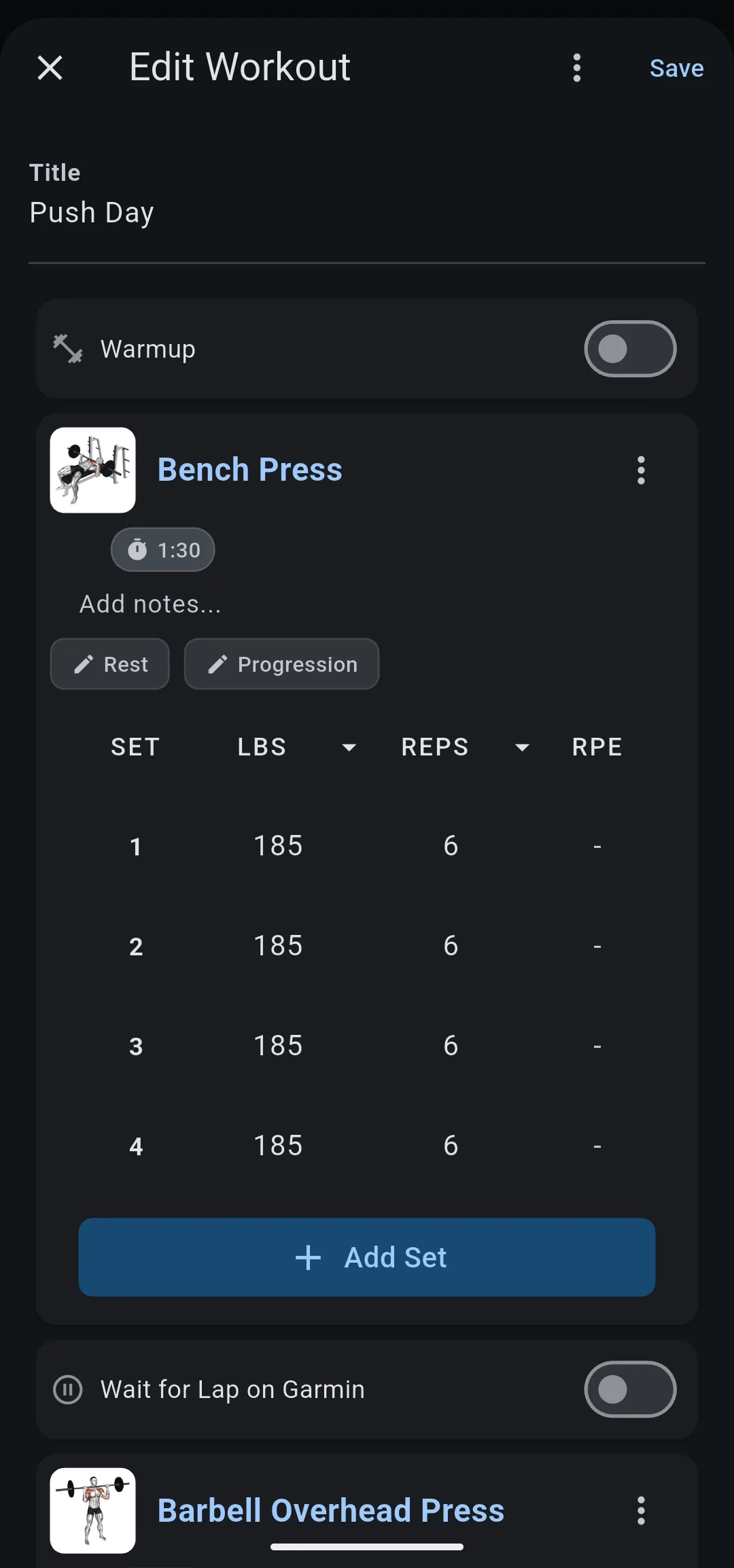
When the workout looks right, tap Save. It appears in its folder on the Workouts tab.
Add exercises to a workout that already has some
The photo and description options also add to a workout you already built. The new exercises go at the end, after the ones already there.
- On the Edit Workout screen, tap the options icon next to Save.
- Tap Capture photo, Import photo or Describe routine, then continue as for a new workout.
If some exercises are missing
LiftTrack adds only exercises it finds in the catalog or among your custom exercises. The message at the bottom of the screen lists the rest after Not found:. Tap Add exercises at the end of the list to add each one yourself.
If LiftTrack finds nothing it can use, it adds nothing and shows one of these messages instead:
- No exercises were found. Try a clearer photo or a more specific description. Take the photo closer and in better light, or name each exercise with its sets and reps. Tap Retry to send the same photo or description again.
- None of those exercises matched the catalog. Try again or search for them. Use the exercise names from the catalog, or tap Search exercises and add them yourself.
- That photo is too large to send. Try a smaller one. Crop the photo or choose a smaller one.


