Record on your Garmin, fill in the details after
Lift with your Garmin's Strength activity and no plan, then add every exercise, set and weight in LiftTrack for a complete History entry. About 10 minutes.
On this page
You train with nothing loaded on your watch and finish with a full entry in LiftTrack. The example session is Barbell Deadlift for 3 sets of 5 at 225 lb and Bent-over Row with Barbell for 3 sets of 8 at 135 lb. Use your own lifts and numbers.
Before you start
- A Garmin watch paired with the Garmin Connect app on your phone.
- Your Garmin connected to LiftTrack. In LiftTrack, go to Profile > Connections and tap Connect Garmin Account if it is still there.
- The LiftTrack app, signed in, with notifications allowed if you want an alert when the session arrives.
Record the session on your watch
- On your watch, start the Strength activity without choosing a workout, and lift as usual.
- When you finish, save the activity on the watch.
- Open the Garmin Connect app on your phone so the watch syncs.
Garmin Connect passes the session to LiftTrack. When it arrives, LiftTrack sends a notification titled Workout Uploaded.
Open the session in LiftTrack
- Tap the Workout Uploaded notification, or open LiftTrack. Workout Complete opens on its own for a session you have not reviewed yet.
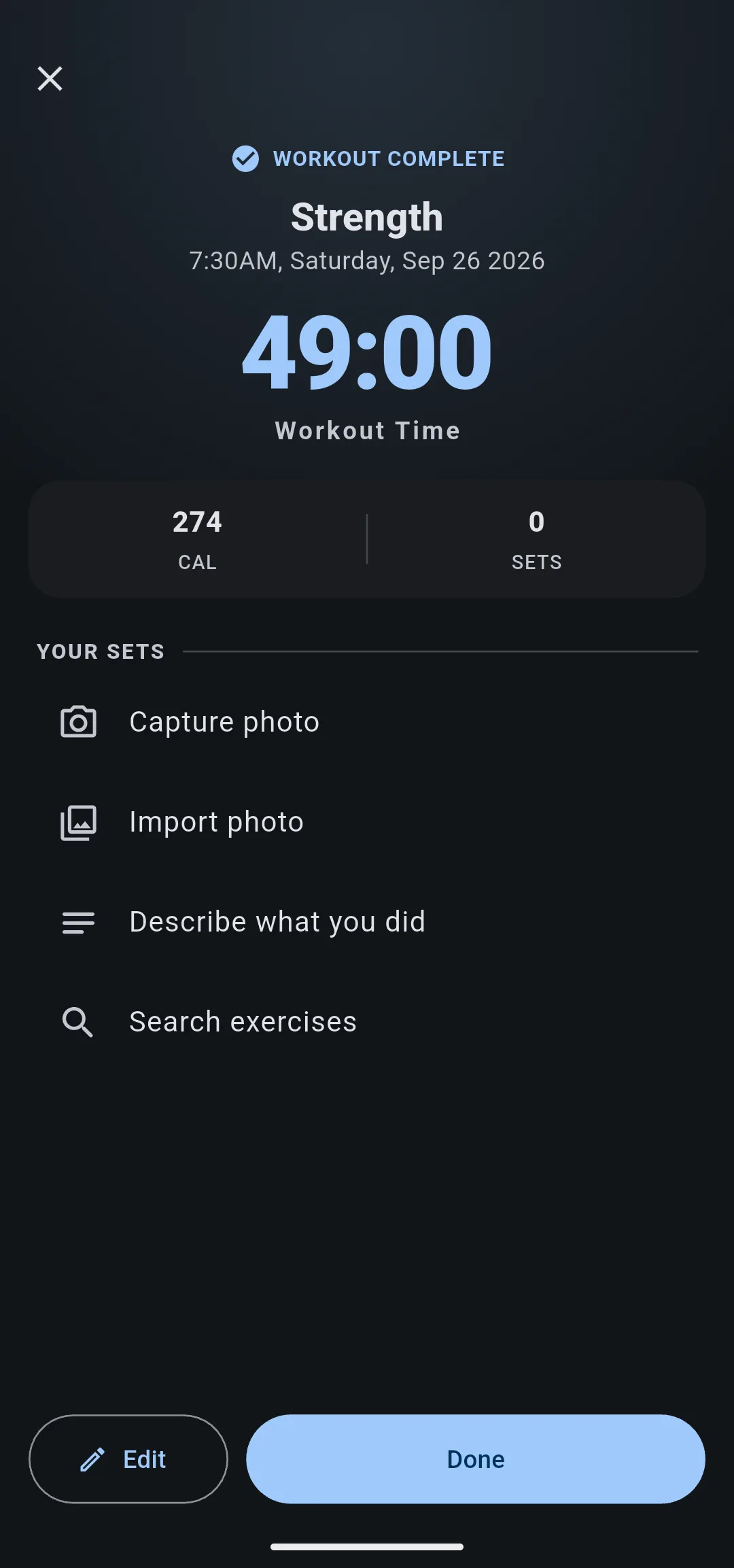
- Check the top of the screen. The session is named Strength and shows the time you started, the workout time and the calories your watch recorded.
- Look under Your Sets. It shows 0 sets, because the watch recorded no exercises, and offers Capture photo, Import photo, Describe what you did and Search exercises.
Add the exercises you did
- Under Your Sets, tap Search exercises. The Exercises screen opens.
- Tap Barbell Deadlift, then tap Bent-over Row with Barbell. The add button now reads Add (2).
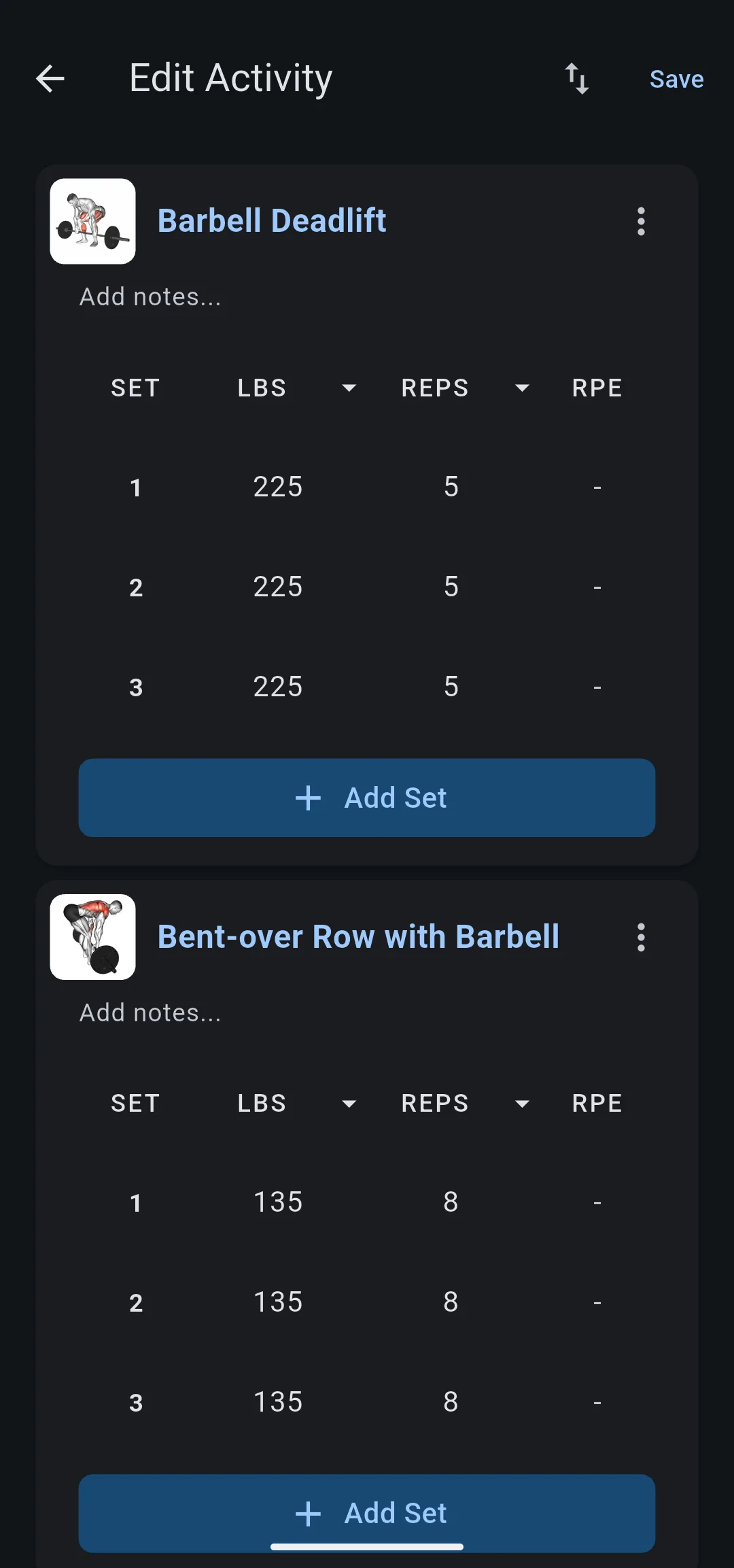
- Tap Add (2). Edit Activity opens with one card for each exercise, each with one empty set.
Enter your sets and save
- On the Barbell Deadlift card, tap the weight in set 1 and enter
225lb (or100kg). Tap the reps and enter5. - Tap Add Set twice. Each new set copies the previous set, so the card shows 3 sets of 5 at 225 lb.
- On the Bent-over Row with Barbell card, enter
135lb (or60kg) and8reps in set 1, then tap Add Set twice. - Tap Save. Edit Activity closes and you are back on Workout Complete.
- 1 Enter each set
Weight and reps in set 1, then Add Set.
- 2 Check the review
Workout Complete now lists every set.
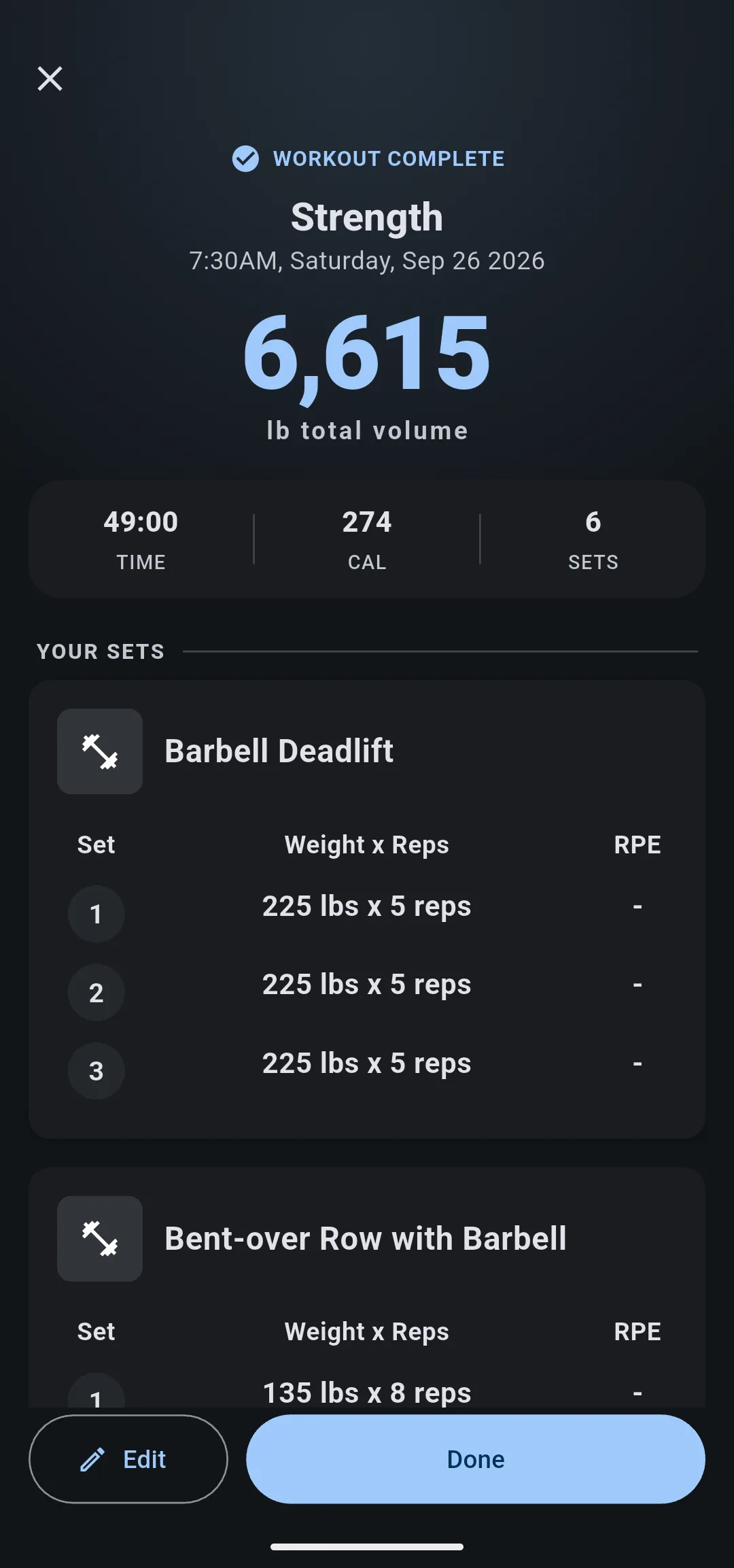
Workout Complete now shows 6 sets and a total volume of 6,615 lb. Tap Done to finish the review. The session is now in Workout History on the Progress tab, with every set you entered.
If you close Workout Complete before adding your sets, the session’s card on the Home tab reads Finish your review. Tap it to reopen the review.
Take it to the gym
- Send a workout to your Garmin: build the session you repeat as a LiftTrack workout, and your watch comes back with every set already filled in. See how to send a workout to your watch.
- Track it on your phone: open a workout on the Workouts tab and tap Track to check off each set as you lift.
Other ways to fill in the details
- From a photo: on Workout Complete, tap Capture photo or Import photo and take a picture of your notes or the gym whiteboard. LiftTrack fills in the exercises and sets, the same way it does when you create a workout from a photo or description. This needs Premium.
- From a description: tap Describe what you did and write the session in your own words, such as “deadlift 3x5 at 225, rows 3x8 at 135”. This needs Premium.
- Later, from History: to fix a set or add an exercise after the review, open the session’s options and tap Edit. See how to edit a completed workout.
To see how LiftTrack handles sessions that come from a LiftTrack workout instead, see how Garmin sync works.


