Fix a Garmin workout missing from LiftTrack
What to check when a strength session you recorded on your Garmin watch is not in your LiftTrack Workout History, most likely fix first.
On this page
- If the session is not in Garmin Connect yet
- If Profile shows Connect Garmin Account
- If the session shows 0 sets
- If History shows Exercise details couldn’t sync
- If you ran a workout built in Garmin Connect
- If you recorded it as another activity type
- If you have more than one LiftTrack account
- If none of these fixed it
When a session from your watch is not in LiftTrack, the usual cause is that your watch has not synced with Garmin Connect since you saved it. LiftTrack gets each session from Garmin Connect, so nothing arrives until Garmin Connect has it.
- You saved the session on your watch as a Strength activity.
- Your watch synced with the Garmin Connect app, and the session shows in Garmin Connect.
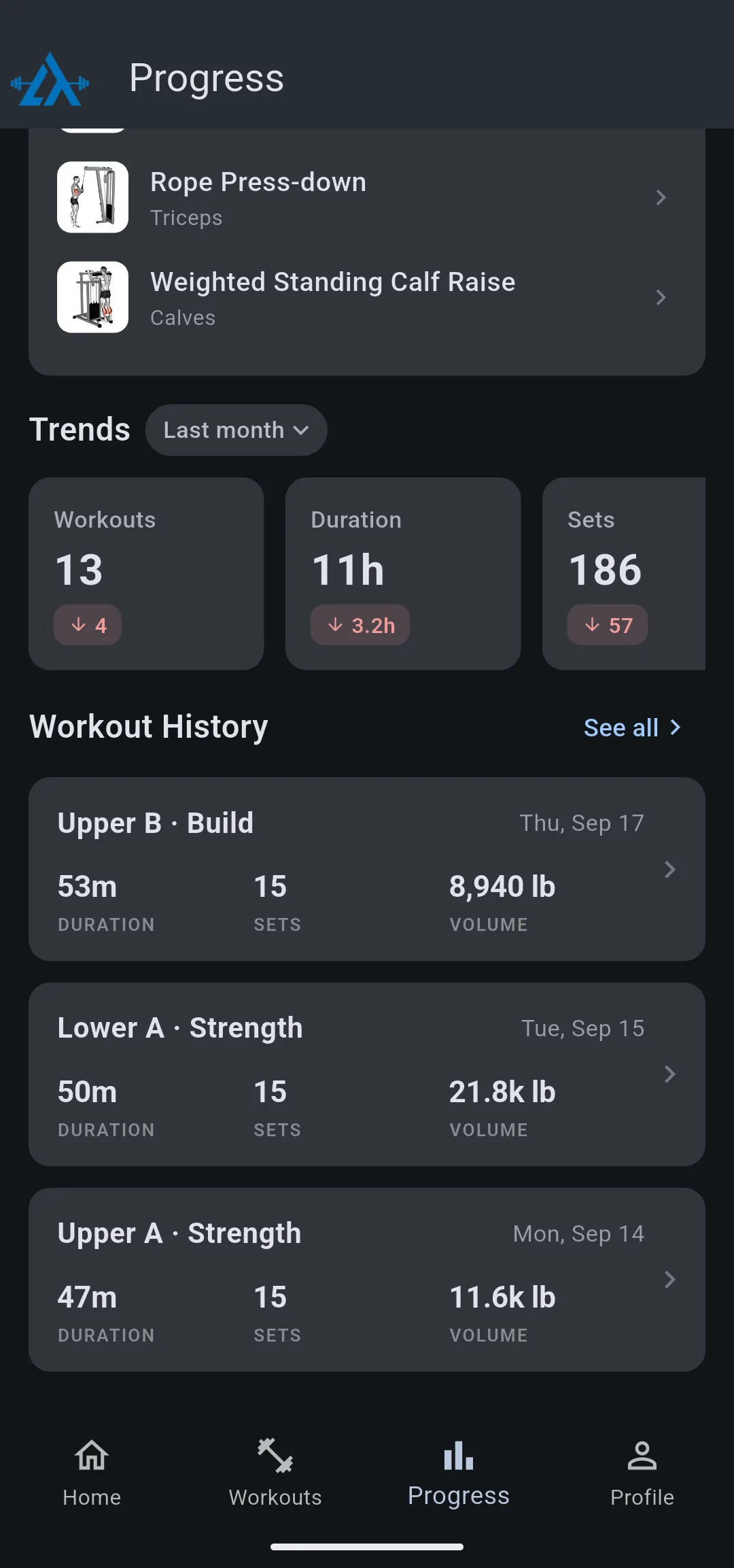
- LiftTrack sends a Workout Uploaded notification, and the session is under Workout History on the Progress tab.
If the session is not in Garmin Connect yet
Your watch still holds the session. LiftTrack receives it only after Garmin Connect does.
- Open the Garmin Connect app on your phone so your watch syncs with it.
- Check that the session now shows in Garmin Connect.
- In LiftTrack, open the Progress tab and look under Workout History. To see every session, tap See all.
If Profile shows Connect Garmin Account
Your Garmin is not connected to LiftTrack, or the connection expired. Go to ProfileConnections. A connected Garmin shows Unlink Garmin Account; Connect Garmin Account means LiftTrack is not receiving your sessions.
- Tap Connect Garmin Account. Your browser opens Garmin’s sign in page.
- Sign in to Garmin and allow LiftTrack access. The browser returns you to LiftTrack, and the row changes to Unlink Garmin Account.
Sessions you save from then on come to LiftTrack. A session recorded while your Garmin was not connected does not arrive later; it stays in Garmin Connect. To add it to LiftTrack, log it as a completed workout if it was scheduled that day.
If the session shows 0 sets
The session is in LiftTrack, but you recorded it with the watch’s Strength activity and no workout, so the watch sent no exercises. Workout Complete shows 0 under Your Sets and offers ways to add them.
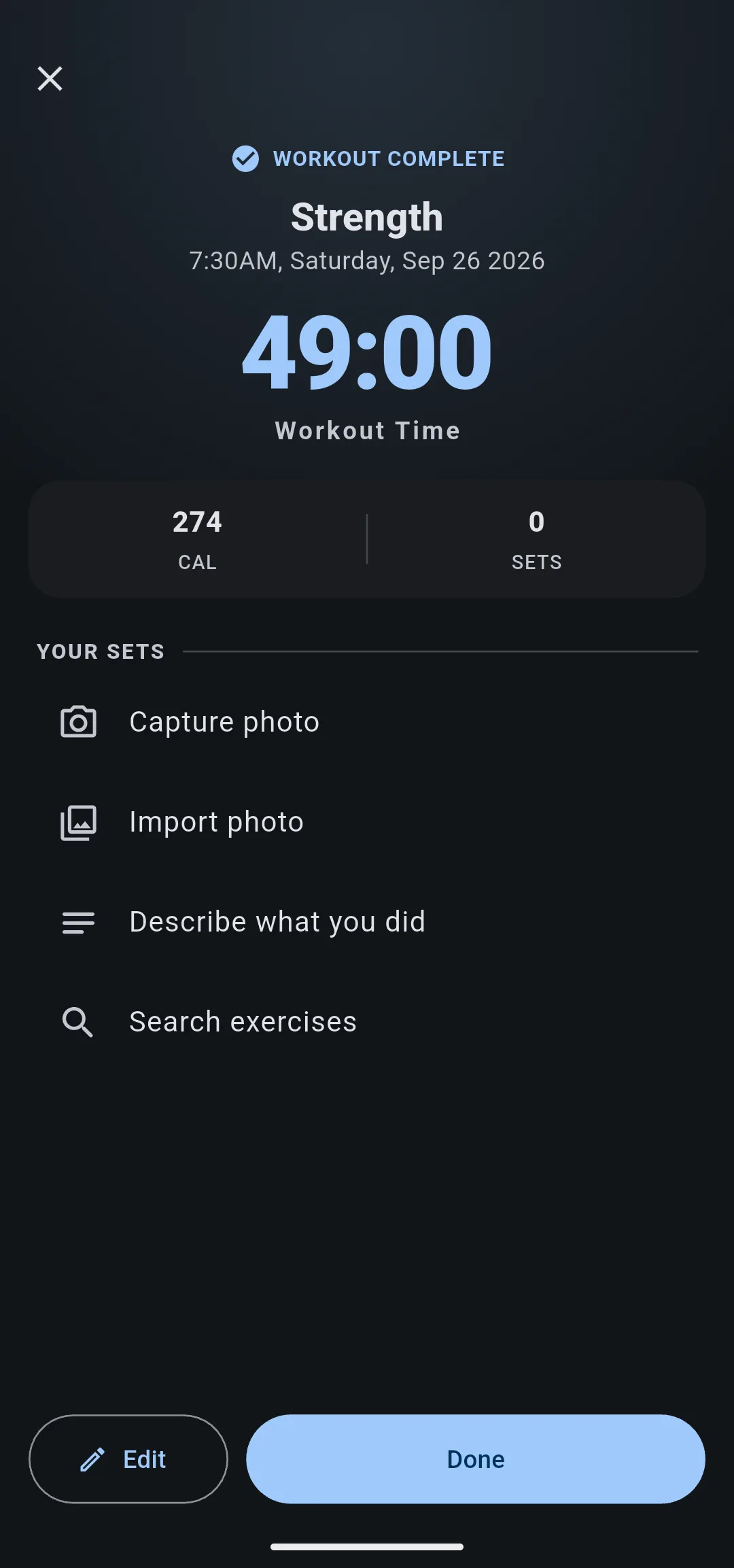
Tap Search exercises, add what you did, and enter each set. The full steps are in record on your Garmin, fill in the details after.
If History shows Exercise details couldn’t sync
Your watch ran an old copy of the workout that no longer exists in Garmin Connect, so LiftTrack could not match the sets to exercises. This happens when the workout was deleted from Garmin Connect, or sent again as a new copy, after your watch last synced. The session still shows in Workout History with its duration, sets and volume, marked Exercise details couldn’t sync.
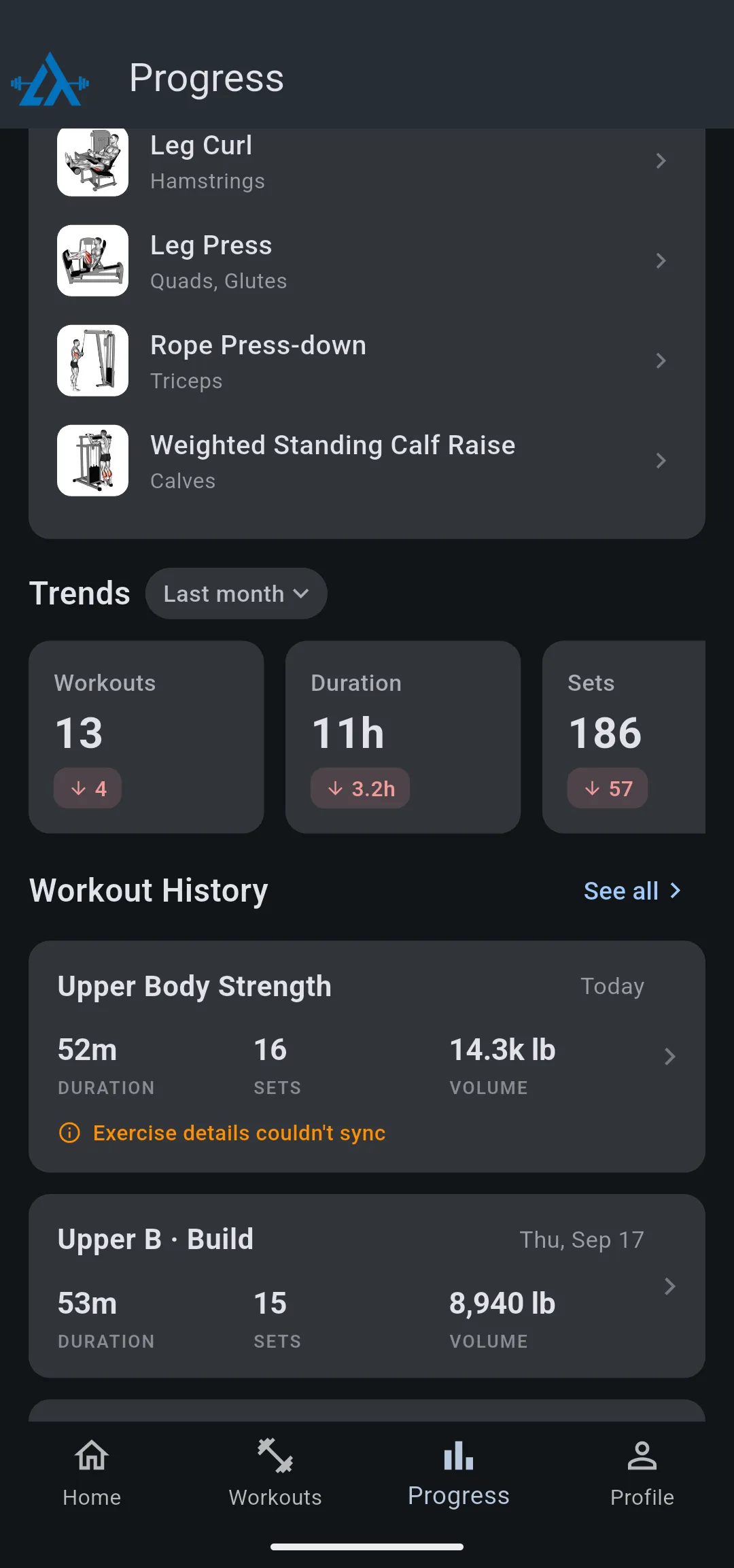
This is a known limitation: the sets from that session cannot be recovered in LiftTrack, and the session does not count toward exercise history or progressions. The full activity stays in Garmin Connect.
- On the Progress tab, tap the session under Workout History. The sheet reads Watch copy was out of sync and shows the duration, sets, reps, volume, calories and heart rate the watch recorded.
- Tap Got it to keep the entry, or tap Delete from history, then Delete, to remove it.
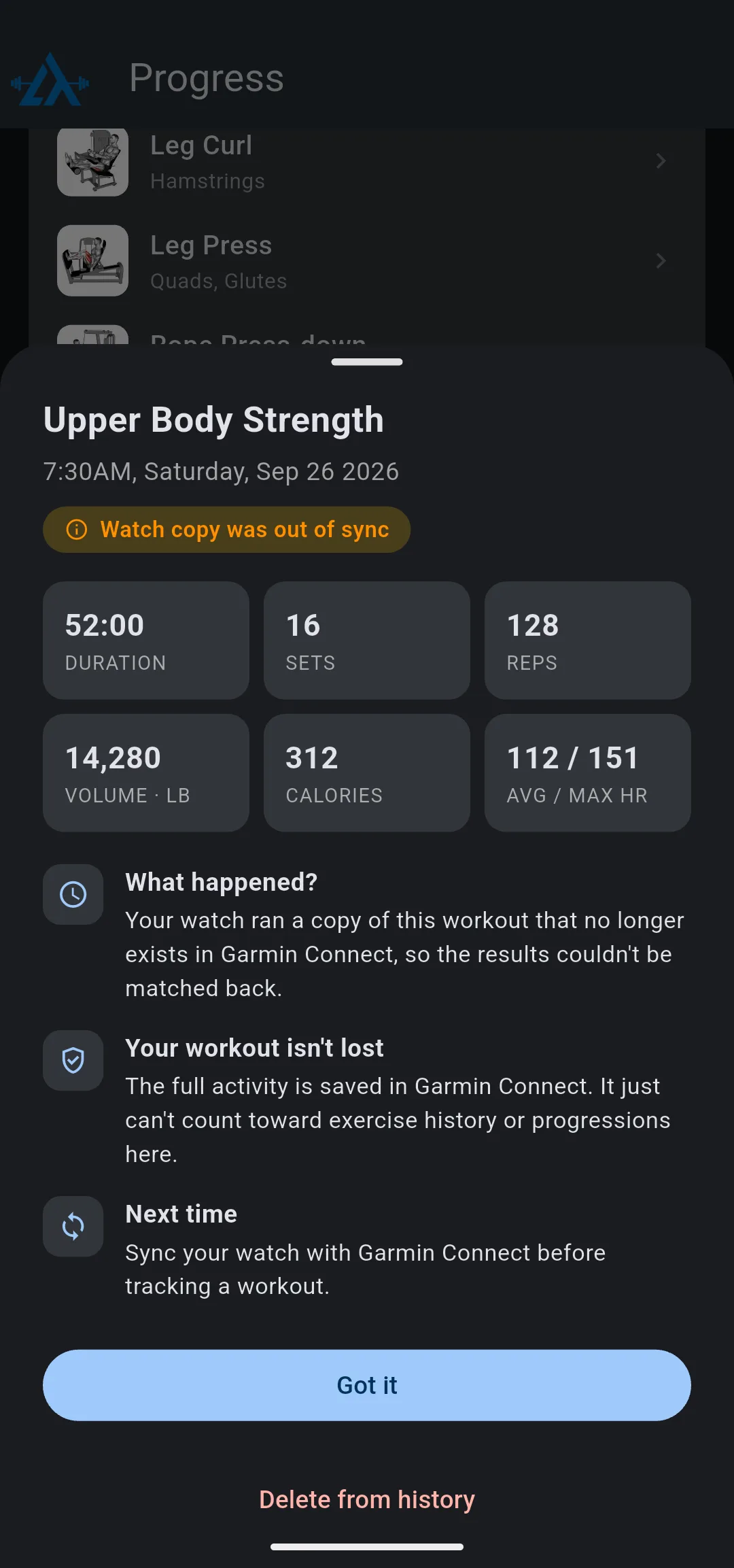
If the workout was scheduled that day, the workaround is to delete the entry and log the session by hand with Log completed workout. To avoid it next time, open the Garmin Connect app so your watch syncs before you start a workout.
If you ran a workout built in Garmin Connect
LiftTrack imports two kinds of Strength sessions: workouts sent from LiftTrack, and sessions recorded with no workout. A workout you built in Garmin Connect, or added to Garmin Connect from another app, does not come to LiftTrack.
The workaround is to build the workout in LiftTrack and send it to your watch. Sessions from it come back with every set filled in.
If you recorded it as another activity type
LiftTrack imports only Strength activities. A session saved as Cardio, HIIT, Yoga or any other activity type does not come to LiftTrack. Next time, start the Strength activity on your watch, or start the workout LiftTrack sent.
If you have more than one LiftTrack account
Sessions go only to the LiftTrack account your Garmin is connected to. If you signed in with a different email, the session is in the other account. Sign in with the account that shows Unlink Garmin Account under ProfileConnections, or connect your Garmin to the account you use now.
If none of these fixed it
Contact support with the date and time of the session, your watch model, the activity type the watch saved it as, and whether it shows in Garmin Connect. To understand how a session travels from your watch back to LiftTrack, see how Garmin sync works. Contact support


