Review a completed workout
Check the sets, records and next targets of a workout you just finished, then find the session again later from Home or the Progress tab.
On this page
The review is where a session’s numbers get confirmed before LiftTrack uses them for your next workout. You can open any session again afterwards, from the day you did it or from your History.
Before you start
- A finished session: one you tracked on your phone, or one you recorded on your Garmin from a workout LiftTrack sent. A Garmin session recorded without a workout works too; to add its sets, see how to fill in a Garmin session.
Check your sets on Workout Complete
Workout Complete opens when you tap Save workout on your phone. For a session recorded on your Garmin, it opens the next time you open LiftTrack after the session arrives.
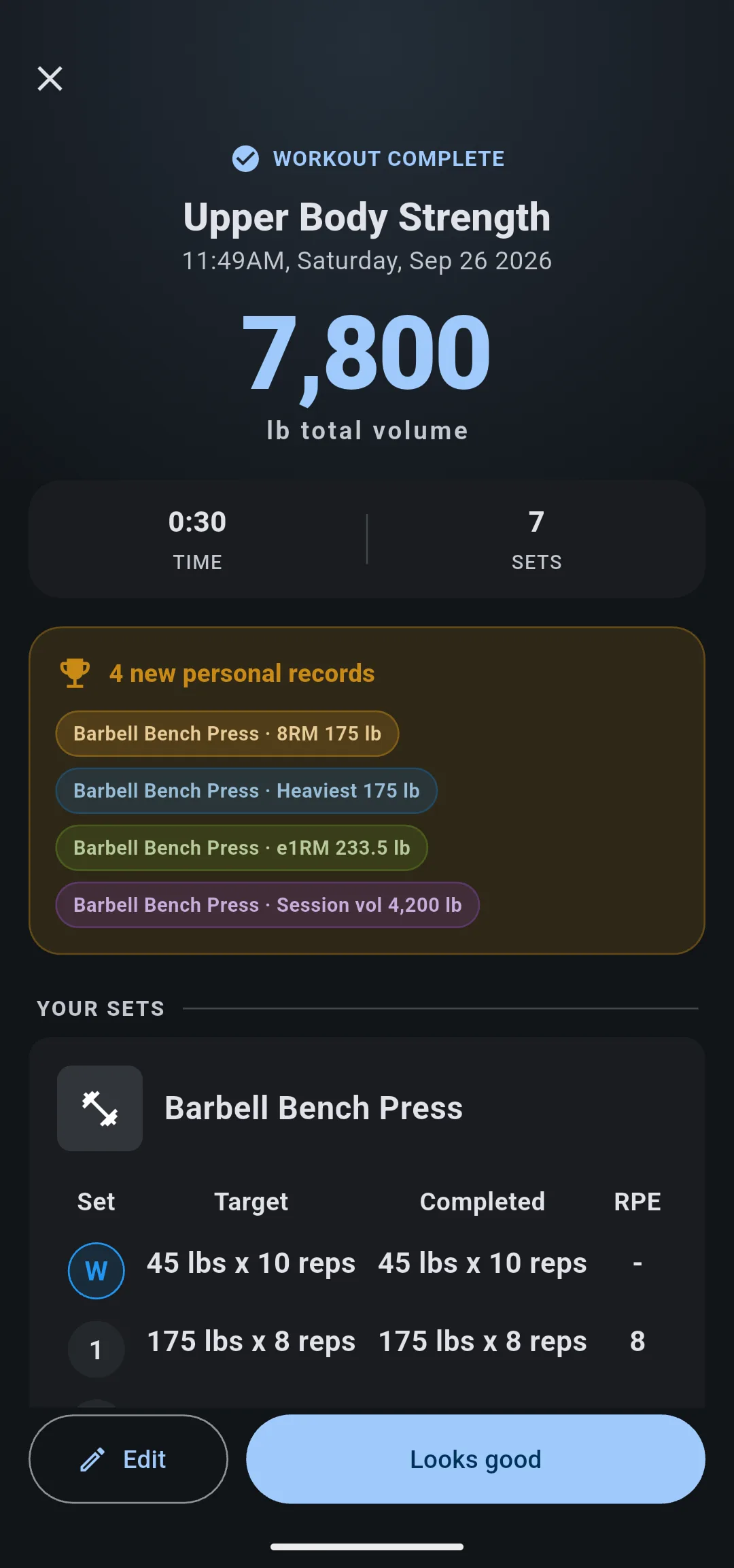
- Read the session summary. The large number is the total volume, or the workout time when no set has a weight. The row under it shows Time, Cal when your watch recorded calories, and Sets.
- If the session set a record, the new personal records banner lists each one by exercise. The records are a rep max such as 8RM, Heaviest, e1RM (estimated one rep max) and Session vol. Your all time bests stay on each exercise’s personal records.
- Under Your Sets, check each exercise. Target is what the workout planned and Completed is what you did. A completed weight or rep count is green when it beats the target and red when it falls short. Rows marked W are warmup sets.
- Optional: to record that you did exactly what was planned, tap Match target under the exercise. Every set of that exercise takes its target weight and reps, or the time for a timed set. Tap Undo to put your numbers back.
- Optional: to fix a set, add an exercise or change anything else, tap Edit.
- Tap Looks good. For a session that did not come from a workout, the button reads Done and the review ends here.
Choose what changes next time
What comes after Looks good depends on the workout.
If the workout has progressions
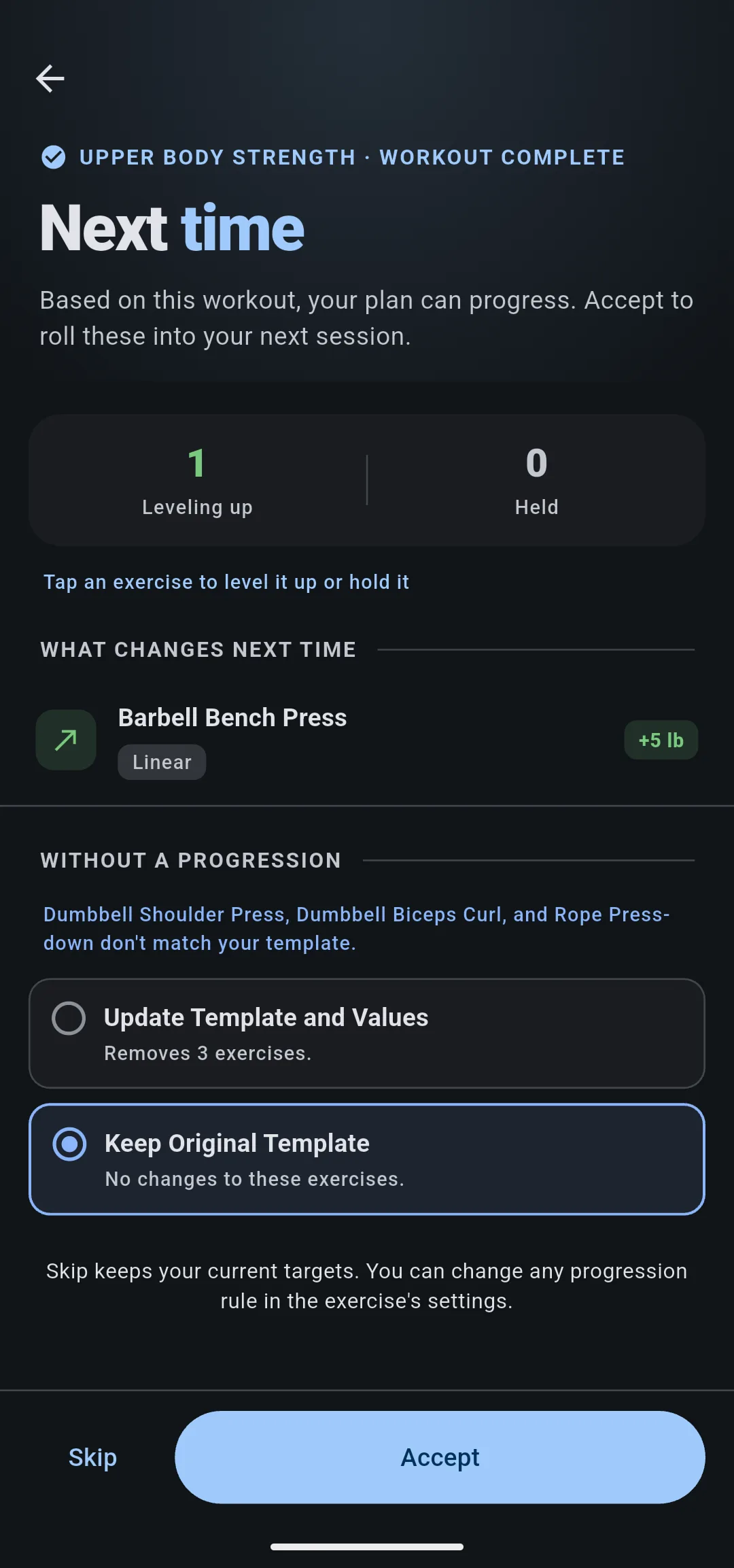
Next time lists every exercise with a progression and what it changes: +5 lb when the weight goes up, or held when it stays the same. The counts show how many exercises are Leveling up and how many are Held.
- Optional: tap an exercise to switch it between leveling up and held.
- Optional: if exercises without a progression differ from the workout, choose under Without a progression whether to update the workout with your numbers or tap Keep Original Template.
- Tap Accept to apply the changes to your workout, or tap Skip to keep your current targets.
If the workout has no progressions
When your session differs from the workout, Update Template opens. Tap Update Values Only, Update Template and Values or Keep Original Template. When the session matches the workout, the review closes.
To learn what each choice changes, see how LiftTrack updates a workout from your session.
Finish a review you closed
If you close Workout Complete before the last step, it does not open on its own again. The session’s card on the Home tab reads Finish your review; tap the card to go back to the review.
Open a past session
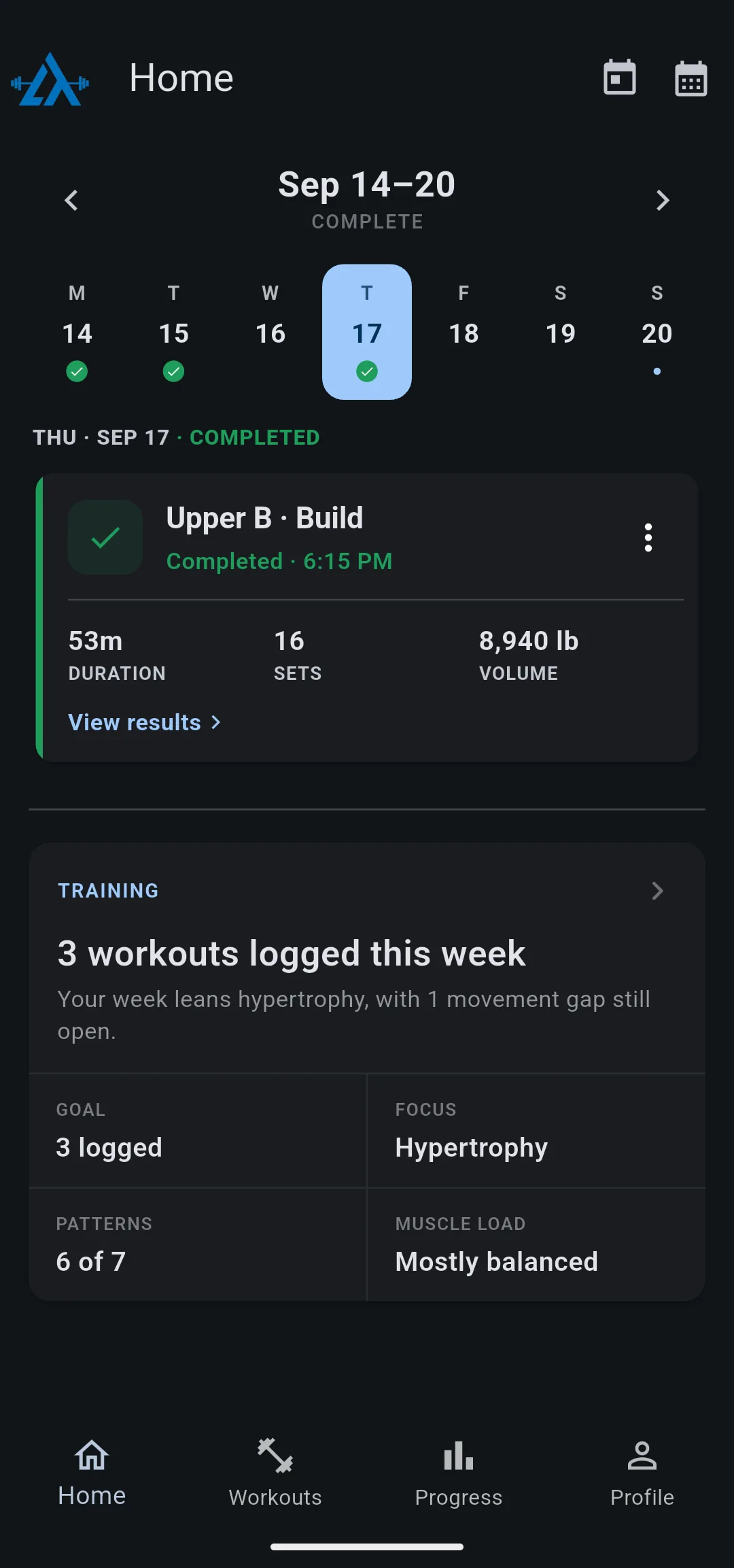
- On the Home tab, tap the day you trained. Days with a session have a check under the date; to reach an earlier week, tap the arrow next to the week’s dates.
- On the session’s card, tap View results. Activity Details opens.
To see every session in date order, open the Progress tab. Workout History shows your three most recent sessions; tap See all for the full list, then tap a session.
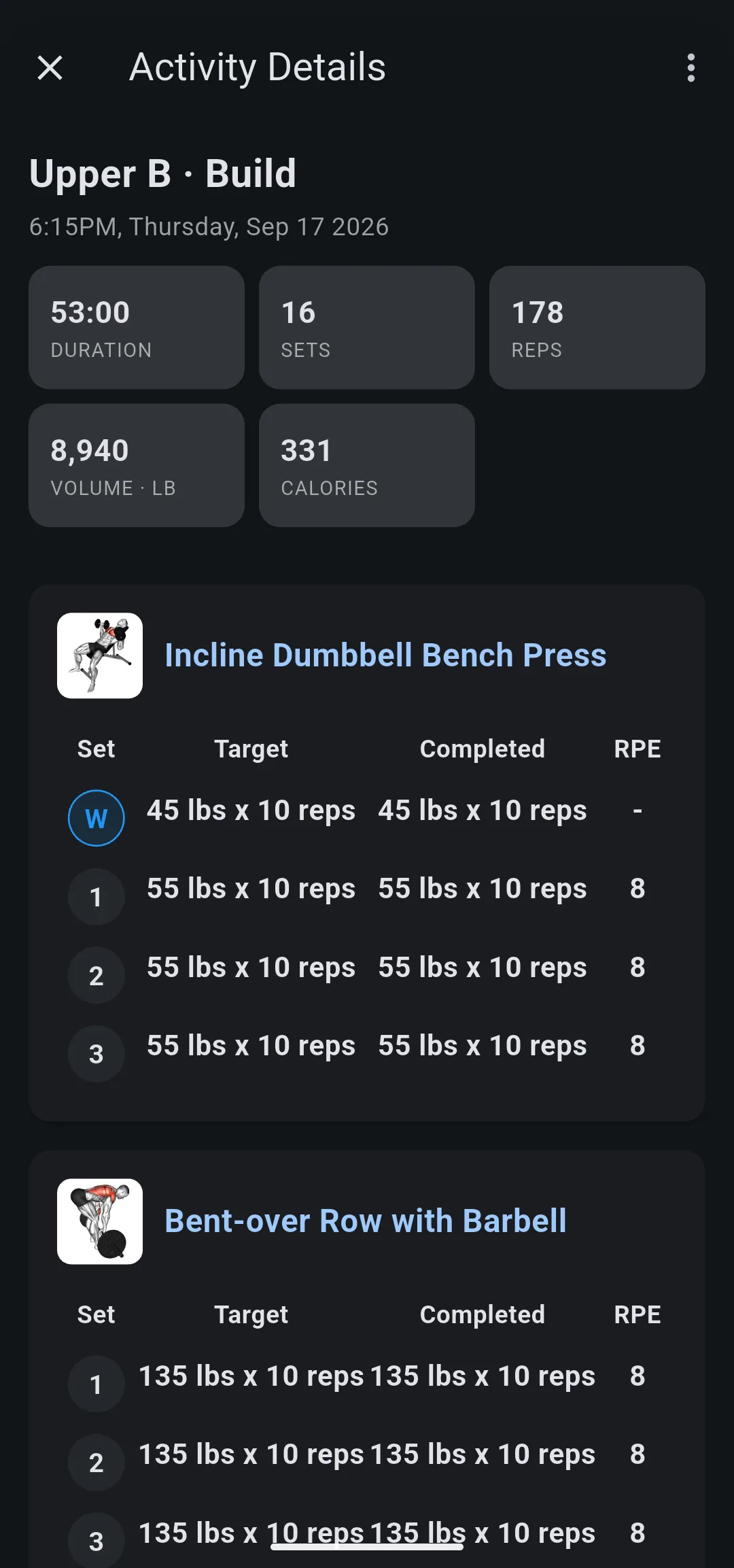
Activity Details shows the session’s Duration, Sets, Reps and Volume, and Calories when your watch recorded them. Each exercise lists its notes and every set, with the target next to what you did. Tap an exercise to open its page, with its History and Progress tabs.
Share or copy a session
- On the session’s card on Home, or in Activity Details, tap the more icon.
- Choose what to do:
- Share opens Share Workout, which turns the session into an image you can post or save.
- Copy as text copies the exercises and sets as plain text. LiftTrack shows Workout copied to clipboard.
The same menu has Edit, Rename and Delete to edit a completed workout or remove it.


