Track a workout on your phone
Log each set of a workout on your phone as you lift, with a rest timer between sets, and save the session to your LiftTrack History.
On this page
A session tracked on your phone saves to LiftTrack only. Garmin Connect gets a session only when you record it on your watch.
Before you start
- A workout. To make one, see how to build a workout.
Start the workout
- On the Workouts tab, tap the workout.
- On the workout screen, tap Track. The tracking screen opens with the exercises and the sets you planned, weights and reps filled in.
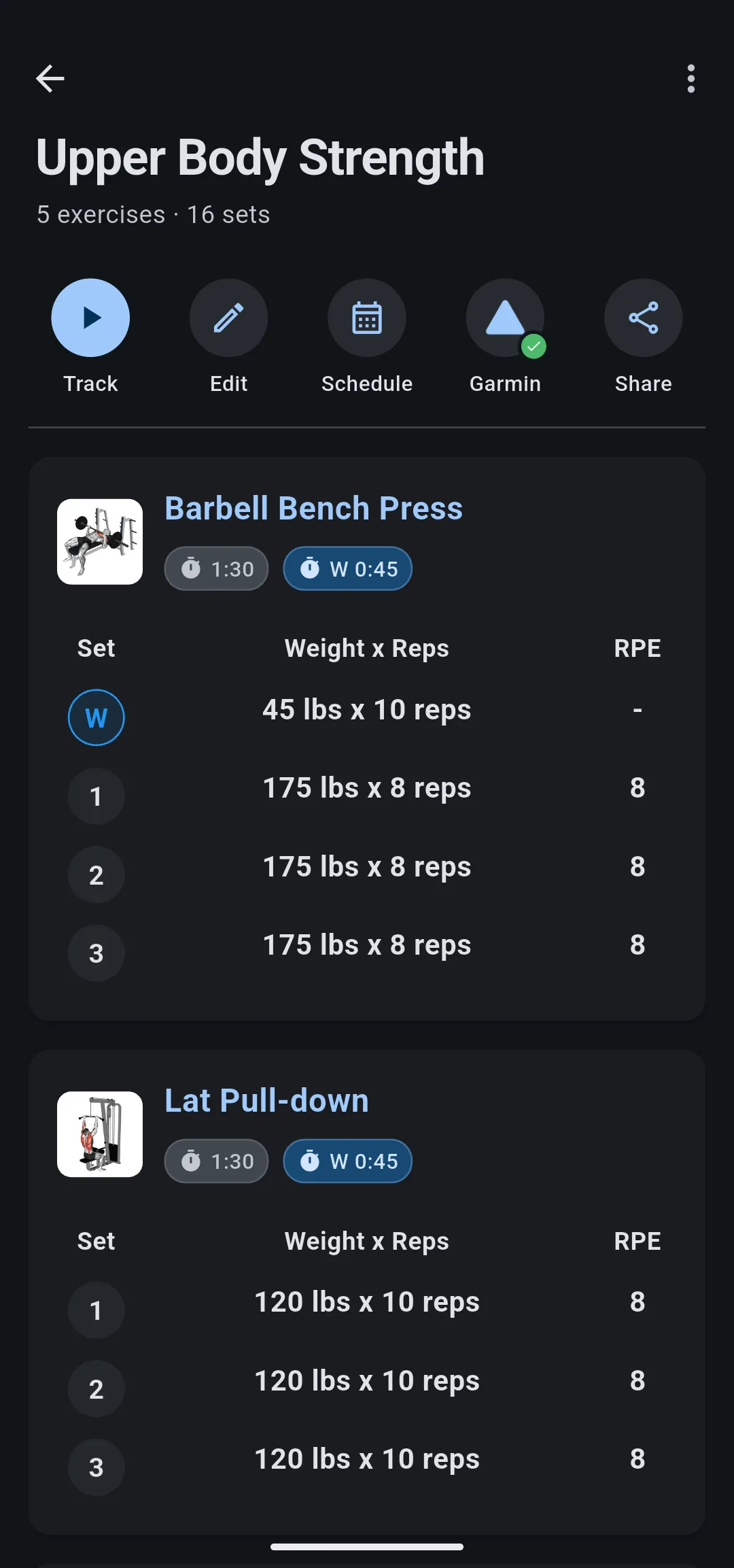
If the workout is scheduled for today, you can also tap Track Workout on its card on the Home tab.
The first time you track, LiftTrack shows Tracking here stays in LiftTrack. Tap Track in LiftTrack to start.
Send to watch instead closes the sheet without starting and, if your Garmin is not connected yet, opens the Garmin sign in. To record on your watch instead, see how to send a workout to your watch.
Log your sets
The strip at the top of the tracking screen shows Duration, Volume and Sets logged out of the total. The set you are on has an outline.
- Optional: to change what you did, tap the weight, reps or RPE of the set and enter the new value.
- Tap the check at the end of the set row. The row turns green, and the rest countdown starts if the exercise has rest.
- Repeat for each set.
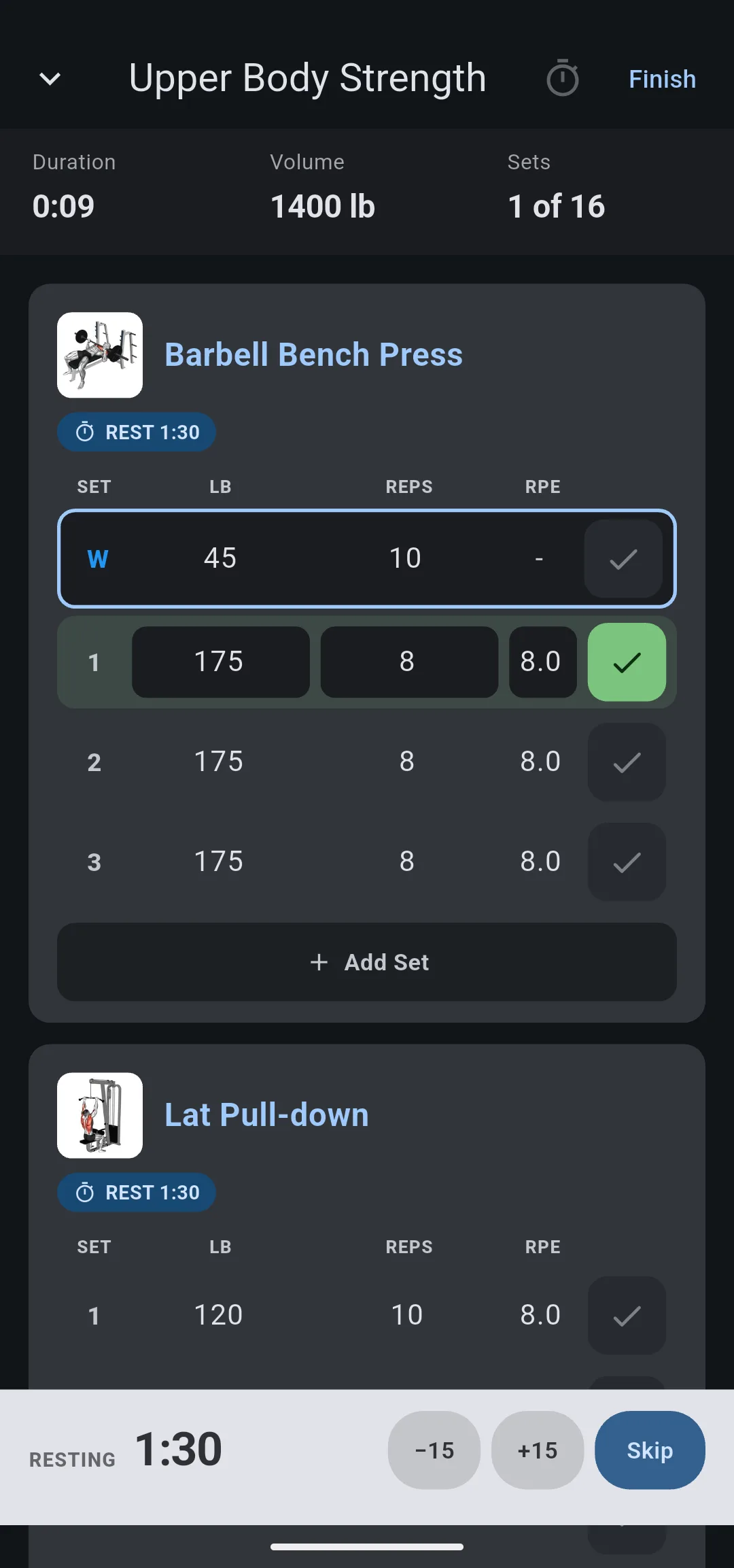
- 1
Session strip
Duration, volume, and sets logged out of the total.
- 2
Current set
The outline marks the set you are on, here the warmup.
- 3
Check
Tap to log the set; the row turns green.
- 4
Rest countdown
Starts when you log a set, with −15, +15 and Skip.
To undo a set, tap its check again. When every set of an exercise is logged, the card folds into one line with its sets, volume and best set. Tap the line to open the card again.
Rows marked W are warmup sets; log them the same way. RPE takes values from 6 to 10 and can stay empty. To learn what each value means, see how RPE works.
Add or remove a set
- To add a set, tap Add Set under the exercise. The new set copies the weight and reps of the last one.
- To remove a set, swipe its row to the left.
Changes to sets apply to this session only. The workout keeps the sets you planned.
Rest between sets
After you log a set, a Resting bar counts down at the bottom of the screen. Tap −15 or +15 to change the time left by 15 seconds, or tap Skip to end the rest.
The length comes from the rest set on the exercise in the workout, shown on its card as Rest. Warmup sets use the warmup rest. To change it, edit the workout; the tracking screen does not change the workout.
To learn how rest works on your phone and your watch, see the rest timer.
To start a rest without logging a set, tap the timer icon next to Finish, set the time with −15 and +15, then tap Start rest.
If you use Android and notifications for LiftTrack are turned off, the tracking screen shows Hear when rest ends. Tap Enable notifications so the rest timer alerts you while LiftTrack is in the background.
Leave the tracking screen
To check something else in the app mid workout, tap the down arrow next to the workout name. A bar over the tab bar shows the workout, the time, the sets logged and any rest left. Tap the bar to go back to the tracking screen.
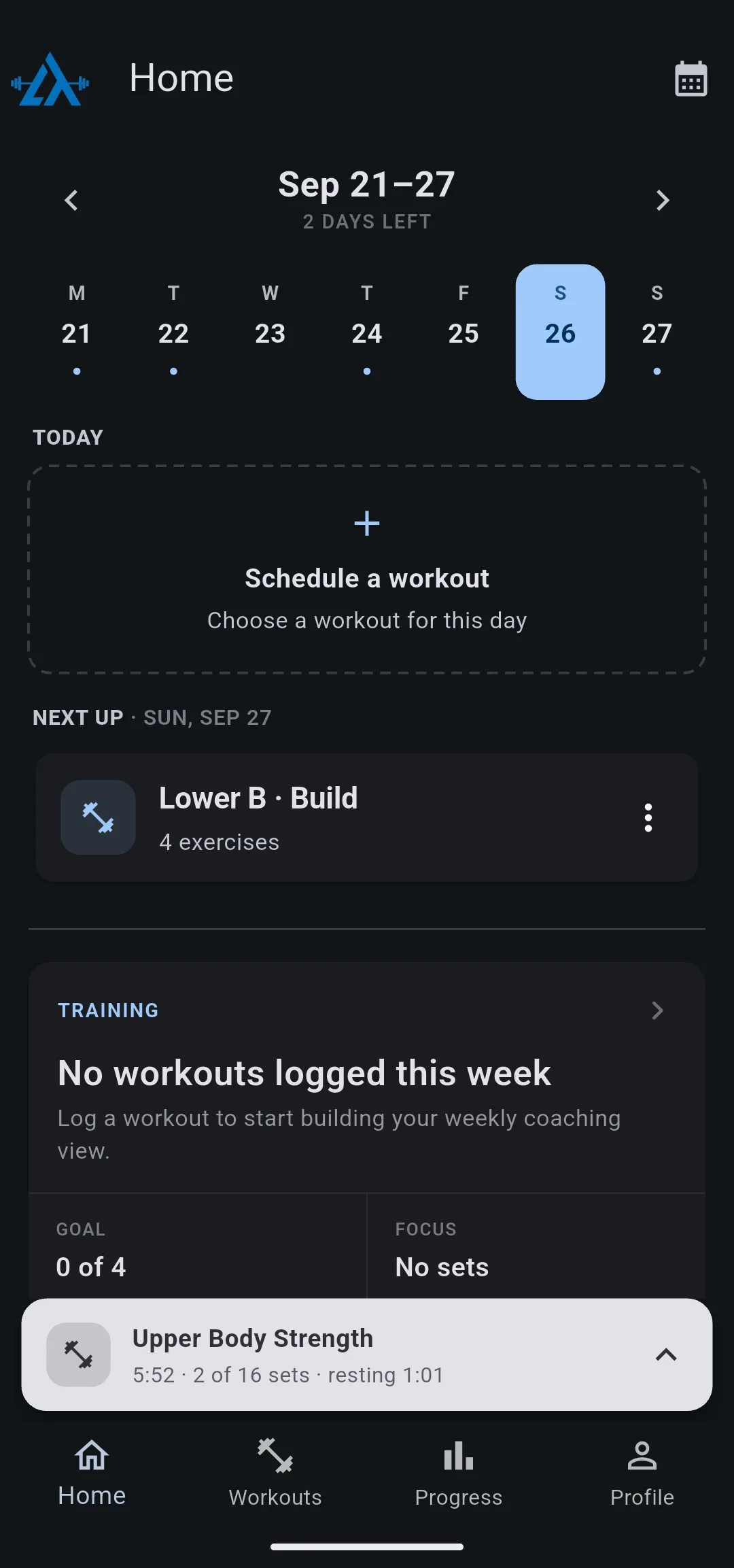
The duration keeps counting while you are away. LiftTrack keeps the session on your phone, so closing the app does not lose it: it comes back when you open LiftTrack again with the same account.
If you tap Track on another workout while a session is open, LiftTrack shows Workout in progress. Tap Resume active workout to go back to it.
Warning: Discard and start new workout deletes the open session and every set logged in it.
Finish and save
- On the tracking screen, tap Finish. Finish this workout? opens and lists the sets you have not logged. Sets that are not logged are not saved.
- Tap Save workout. You need at least one logged set to save.
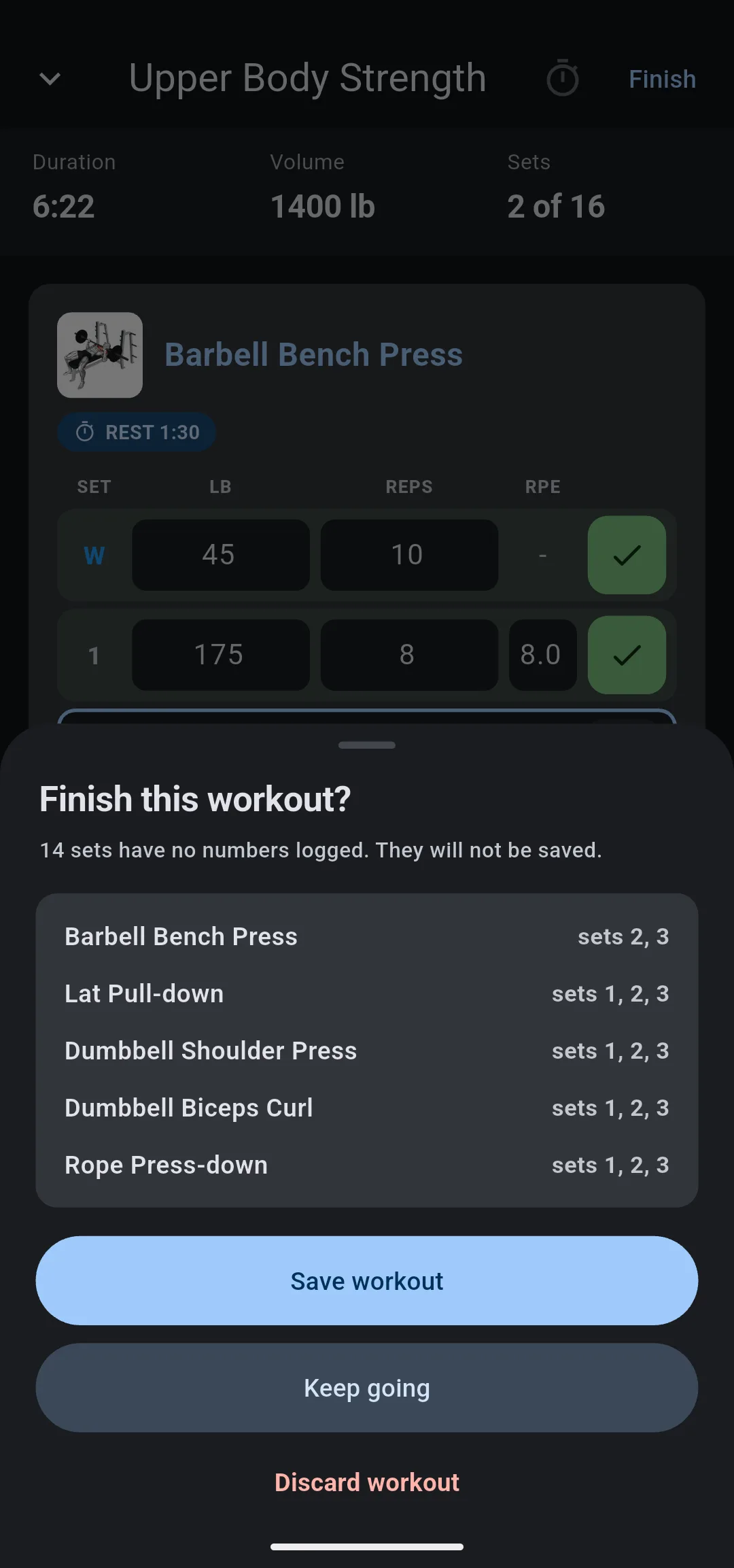
Workout Complete opens with the review of the session. Keep going returns you to the tracking screen instead.
The saved session is in your History under Workout History on the Progress tab.
To stop without saving, tap Finish, then tap Discard workout.
Warning: Discard workout deletes the session and every set logged in it, with no second step.


