Track timed sets on your phone
Time planks, holds and carries on your phone with a clock on each set, and save the time you actually held to your LiftTrack History.
On this page
A timed set shows a time where other sets show weight and reps. The clock on each set counts up from 0:00, so the time you log is the time you held, and the planned time is only the target.
Before you start
- A workout with a timed exercise. Planks, carries, holds and cardio exercises are timed as soon as you add them to a workout.
- The workout open on the tracking screen. To start it, see how to track a workout on your phone.
Make an exercise timed
To time an exercise that starts with reps, change it in the workout.
- On the Workouts tab, tap the workout, then tap Edit.
- On the exercise card, tap Reps in the column headings and choose Time.
- If the exercise already has sets, Confirm Target Change opens. Warning: Switching between reps and time removes every set of the exercise and leaves one empty set. Tap Confirm.
- Tap the time of a set, choose the minutes and seconds under Duration, then tap Done. This time is the target you aim for.
- Tap Add Set for each extra set. Then tap Save.
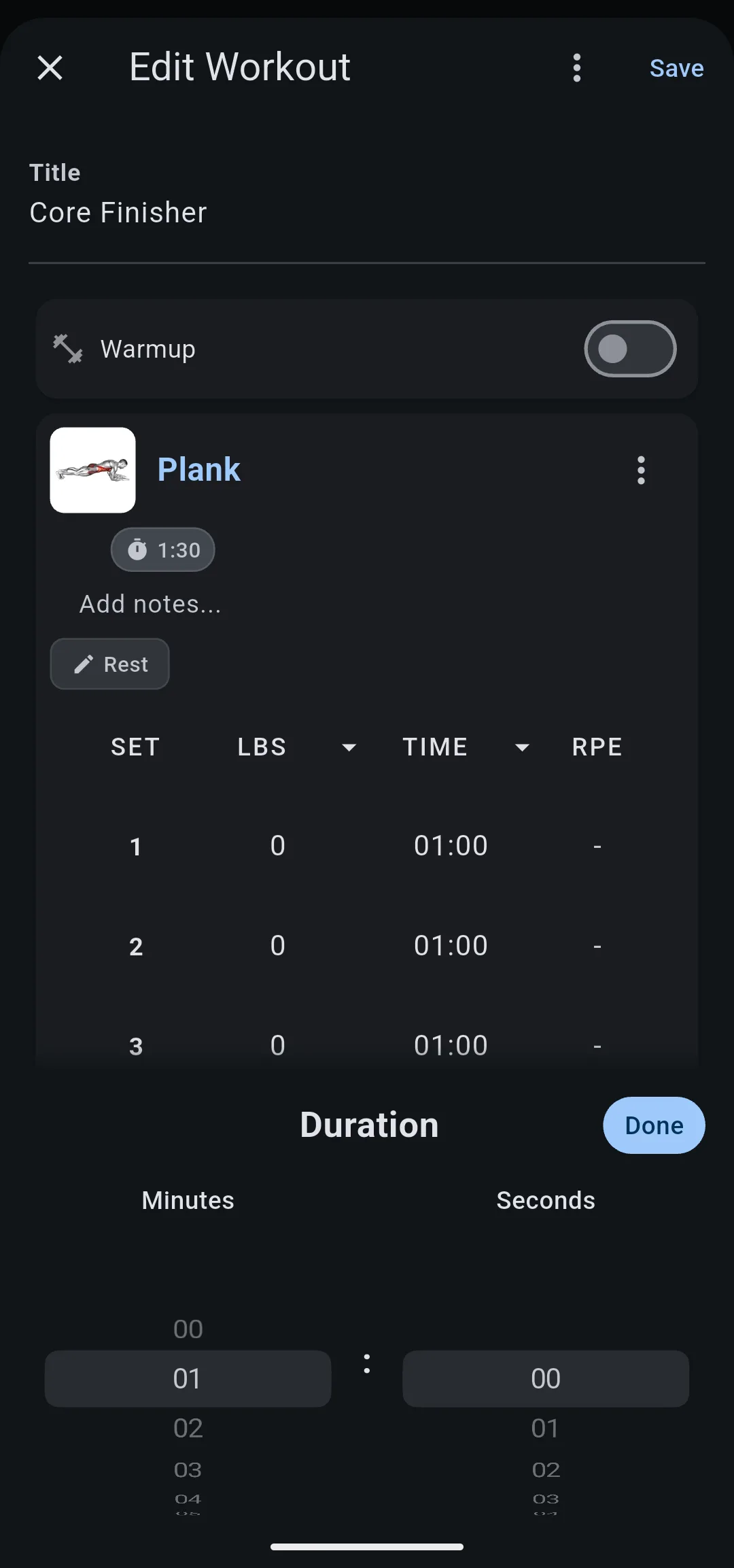
Progressions are not available for timed sets. Switching an exercise to time removes its progression. To learn what a progression changes, see how progressions work.
Time a set
On the tracking screen, a timed exercise has a Time column and an RPE column, and no weight column. Each set row has a play icon next to its time.
- Tap the play icon on the set. The time changes to a clock that counts up from 0:00.
- When you finish the set, tap the check at the end of the row. LiftTrack saves the time on the clock as the set’s time, and the rest countdown starts if the exercise has rest.
You don’t need to stop the clock before you tap the check.
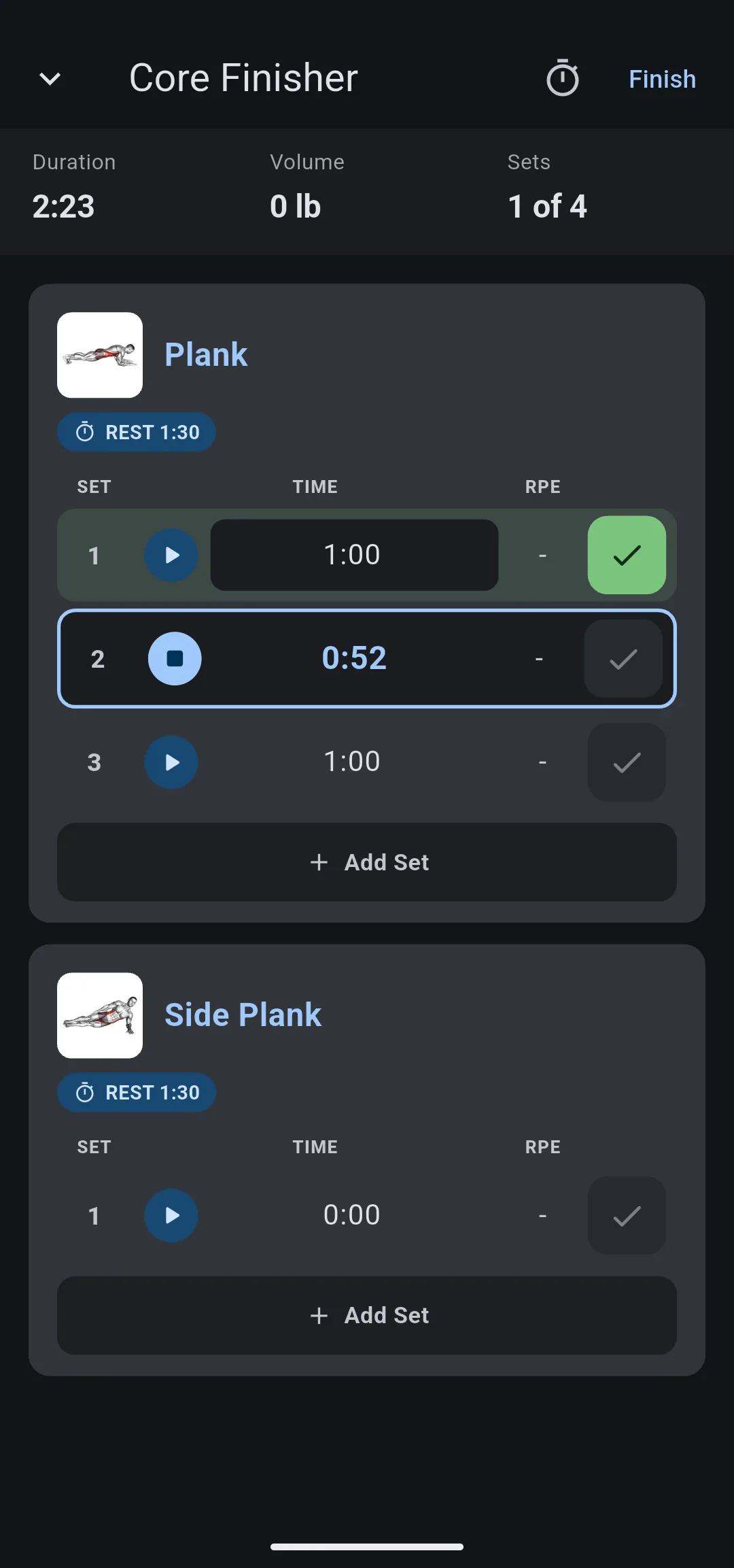
The clock keeps counting while you use another app or lock your phone. If your phone closes LiftTrack, the session comes back when you open it again, but the clock does not: enter the time by hand.
Pause the clock
Tap the stop icon to pause the clock. The time turns green, which is the time the check saves. Tap the play icon to continue from that time.
Only one set has a clock at a time. Starting the clock on another set clears the clock on the first one, which goes back to its planned time.
Enter a time instead
If you timed the set some other way, enter the time before you log it.
- Tap the time of the set.
- Choose the minutes and seconds under Duration, then tap Done.
- Tap the check at the end of the row.
A set you log without starting the clock keeps the time it shows. While the clock runs, the time cannot be edited. To correct a set after you log it, tap its time and choose the new one.
When every set of a timed exercise is logged, its card folds into one line with the number of sets and the longest time, shown as best.


