See an exercise's stats and personal records
Open any exercise on its Progress tab to chart your e1RM, volume or heaviest set over time and see your personal records with the date you set them.
On this page
Every exercise you have tracked has its own Progress tab, filled from the sessions in your History. Warmup sets are left out of every number on it.
Open an exercise’s Progress tab
- On the Progress tab, tap an exercise under Tracked Exercises, or tap View all and choose one from the full list. The exercise opens on its Progress tab.
- For an exercise that is not in the list, open it from Exercises on the Workouts tab or from a session in Workout History. It opens on Info; tap Progress.
The Tracked Exercises card lists the exercises you did most in the last 28 days.
Change what the chart shows
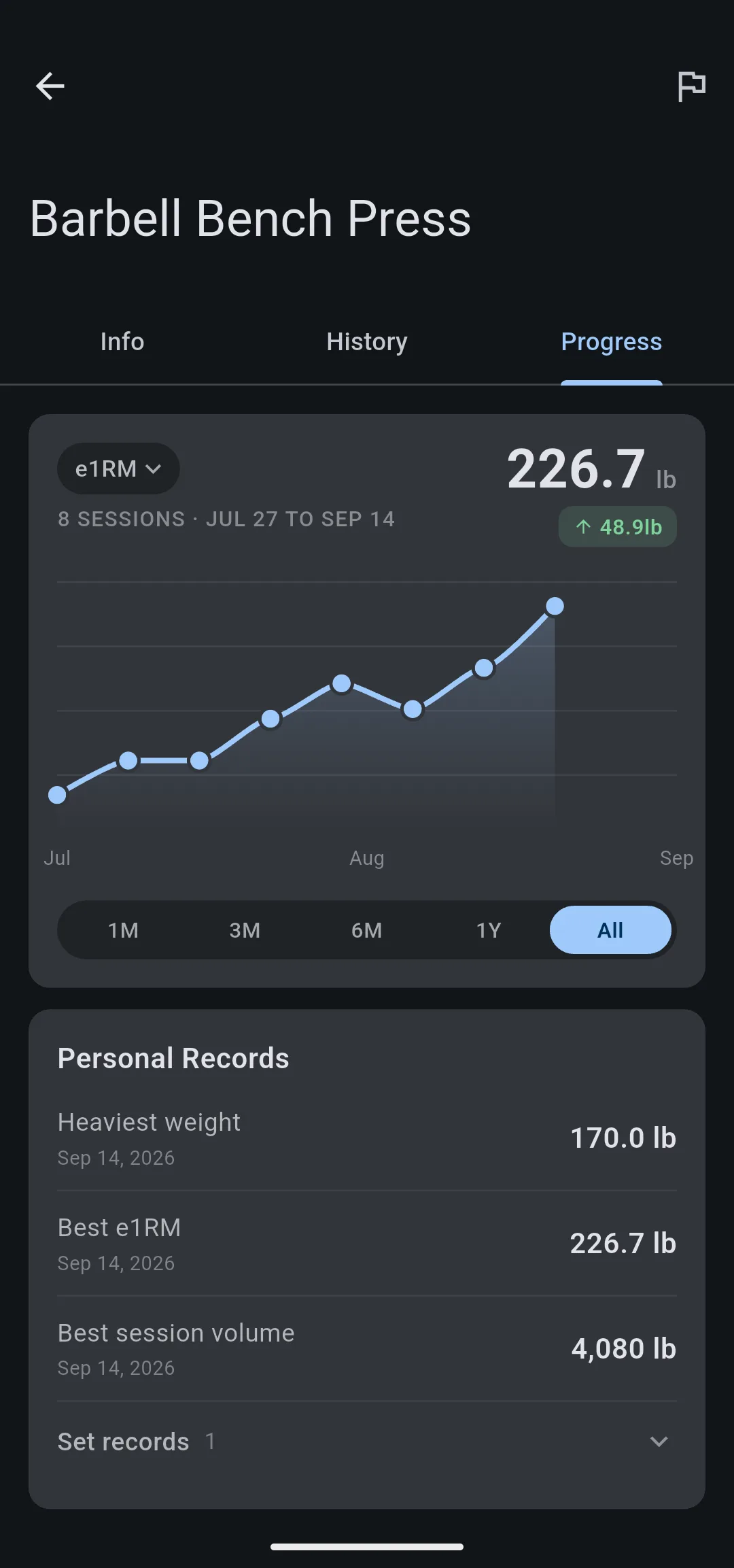
The chart plots one value per day you did the exercise. The large number is your latest value, and the badge under it is the change from the first to the last point in the range.
- 1 Metric. Tap to choose what the chart plots.
- 2 Latest value. The value from your most recent session in the range.
- 3 Sessions plotted. How many sessions the chart shows, and the dates they span.
- 4 Change. The difference from the first point to the last.
- 5 Range. How far back the chart reaches; 6M is the default.
- On the exercise’s Progress tab, tap the metric chip, which reads e1RM by default.
- Choose a metric.
- Tap a range: 1M, 3M, 6M, 1Y or All. 6M is the default.
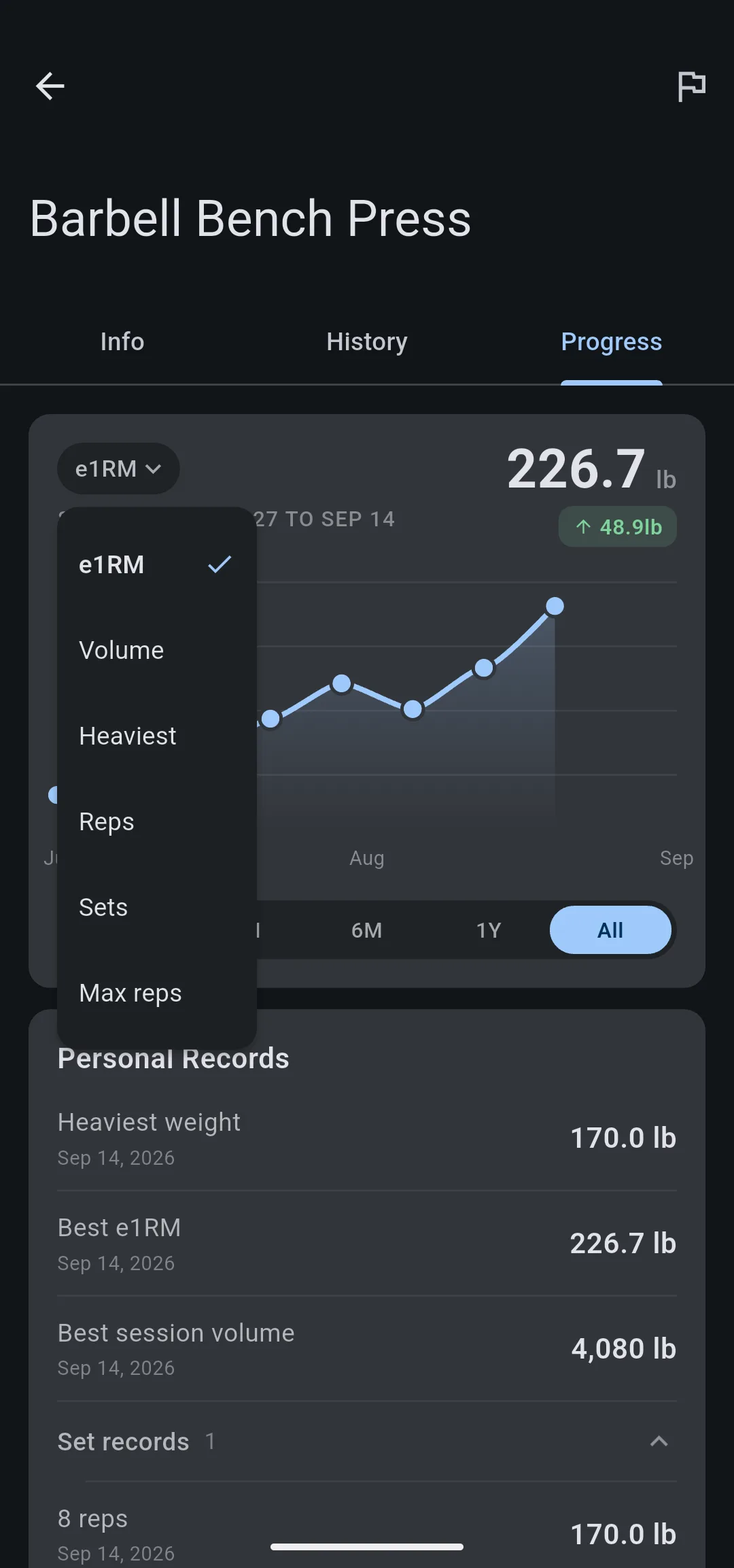
| Metric | What each point shows |
|---|---|
| e1RM | Your estimated one rep max for the session |
| Volume | Weight × reps of every working set, added up |
| Heaviest | The heaviest working set |
| Reps | Total reps |
| Sets | Total working sets |
| Max reps | The most reps in one set |
Tap a point on the line to see its date and value. The line under the metric chip shows how many sessions are plotted and the dates they span, which can be shorter than the range you chose. On a day with two sessions, Volume, Reps and Sets add up, and the other metrics take the better session.
LiftTrack remembers the metric and range you chose for each exercise on this phone.
Read your personal records
Personal Records sits under the chart. Each record shows the date of the session that set it.
| Record | What it is |
|---|---|
| Heaviest weight | The heaviest working set you have lifted |
| Best e1RM | Your highest estimated one rep max from one session |
| Best session volume | The most weight × reps in one session |
| Set records | The heaviest weight for each rep count, such as 8 reps |
Tap Set records to open the list; the number beside it is how many rep counts have a record.
LiftTrack estimates your e1RM from the heaviest working set with the Epley formula. If you logged an RPE of 8 or higher on a set, it uses the heaviest of those sets and adds the reps you had left.
Weights show in the unit set in Weight unit under ProfileWorkout Settings.
Fix a record set by mistake
A record only goes up when a session is saved or changed, so lowering a wrong weight in the session leaves the record in place. To remove it, delete the session that set it. LiftTrack then recalculates the records from your remaining sessions.
An exercise with no sessions yet shows No records yet. Its records appear after your next workout with that exercise.


