Edit a completed workout
Correct the sets, exercises or name of a session you already did from its options menu, or delete it from your History for good.
On this page
Your changes update the session’s totals, each exercise’s history and stats, and the numbers on the Progress tab. The session on Garmin Connect stays as your watch recorded it.
Before you start
- A session in your History. To find one, see how to open a past session.
Open a session’s options
- Open the session. On the Home tab, tap the day you trained; or on the Progress tab, tap the session under Workout History.
- On the session’s card on Home, or in Activity Details, tap the more icon. The options sheet lists Edit, Share, Copy as text, Rename and Delete.
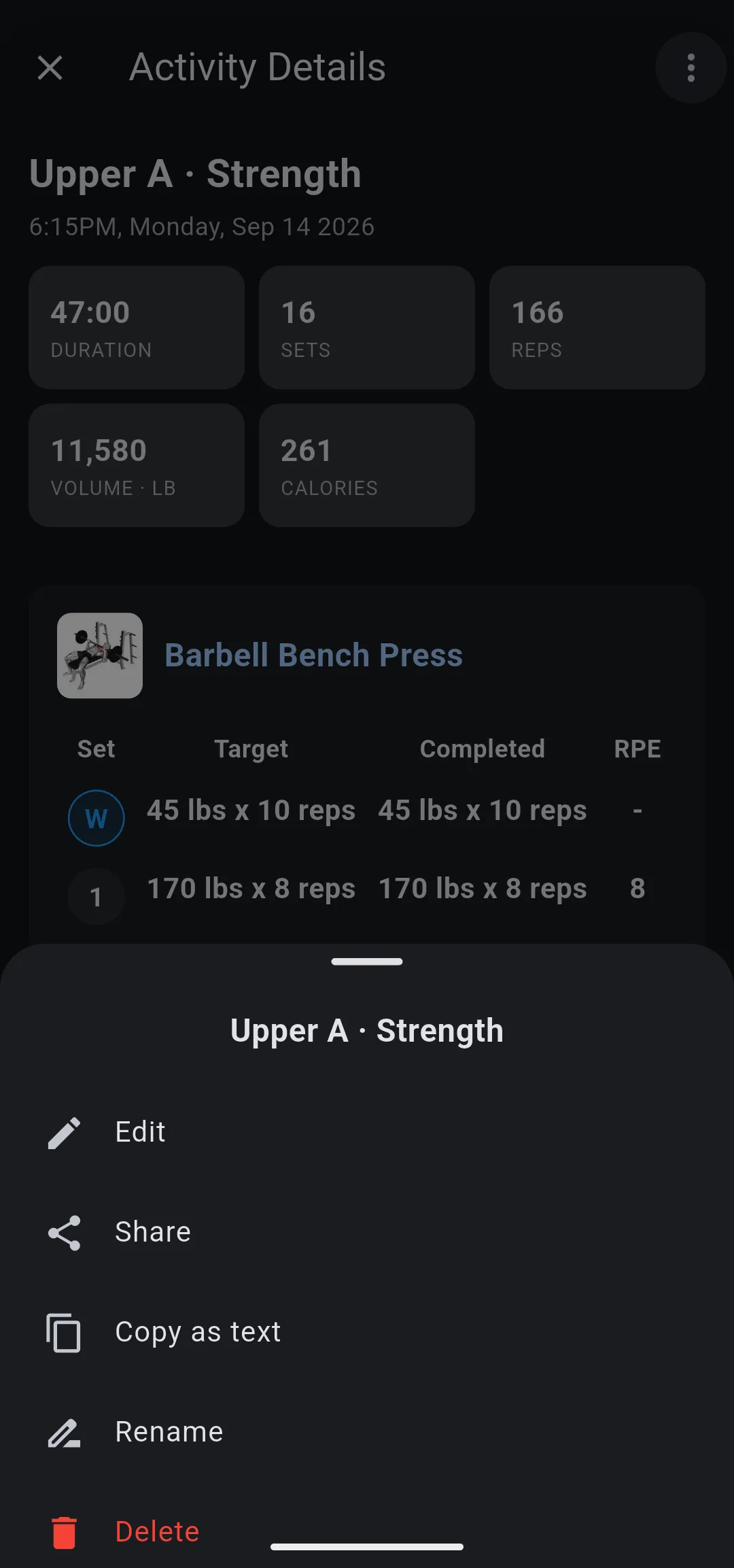
Change the sets
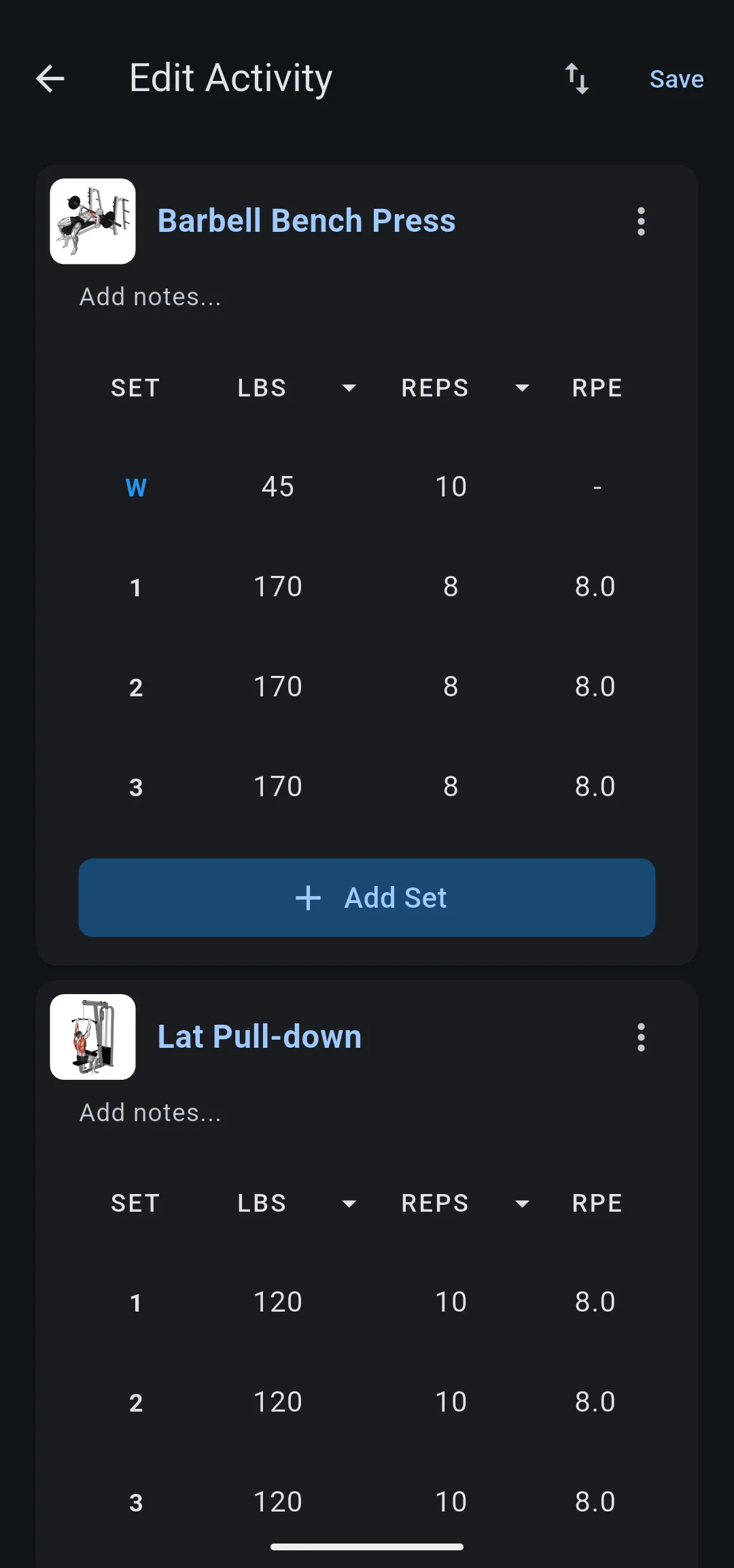
- In the options sheet, tap Edit. Edit Activity opens with every exercise and set of the session.
- To correct a set, tap its weight, reps or RPE and enter the right value. The change applies to that set only.
- To add a set, tap Add Set under the exercise. To choose its type first, touch and hold Add Set, then tap Working Set or Warmup Set.
- To turn a set into a warmup set or back, tap its set number and choose Warmup or Working.
- To remove a set, swipe it to the left.
- Optional: tap Add notes… under the exercise name to add a note of up to 50 characters.
- Tap Save.
If you leave without saving, LiftTrack asks Discard Changes? Tap Keep Editing to go back, or Exit Without Saving to drop your changes.
Add, replace or remove an exercise
These changes happen in Edit Activity too, and take effect when you tap Save.
- Add: tap Add exercises, then Search exercises, choose one or more and add them. Each new exercise starts with one empty set to fill in. With Premium, you can also tap Capture photo, Import photo or Describe what you did, and LiftTrack adds the exercises from a photo or description. Check the sets it fills in before you save.
- Replace: on the exercise, tap the more icon, then Replace Exercise, and choose the exercise you did. The sets stay as they are.
- Remove: on the exercise, tap the more icon, then Delete Exercise, and tap Delete to confirm. The exercise and all its sets are removed.
- Reorder: with two or more exercises, tap the reorder icon. In Reorder Exercises, drag each exercise by its handle, then tap Done. Sets and notes move with their exercise.
A Garmin session you recorded without a workout has no exercises until you add them; to do that from the start, see how to fill in a Garmin session.
Rename a session
- In the options sheet, tap Rename. Rename workout opens with the current name.
- Enter the new name, up to 80 characters, and tap Save. Save stays unavailable until the name changes.
LiftTrack shows Workout renamed, and the new name appears on the session’s card and in your History. When the session is linked to a Strava activity through your Strava connection, LiftTrack updates the Strava title and description too.
Delete a session
Warning: Deleting a session removes it and all its sets from your History, your exercise history and the Progress tab. It cannot be undone.
- In the options sheet, tap Delete.
- In Confirm Delete, tap Delete.
LiftTrack shows Activity deleted. The activity on Garmin Connect is not deleted.


