Create a custom exercise
Create a custom exercise in LiftTrack for a movement that is not in the exercise list, then add it to workouts and track it on your Garmin.
On this page
A custom exercise works like any other exercise once it is saved: you can add it to workouts, track its sets and see its history.
Create a custom exercise
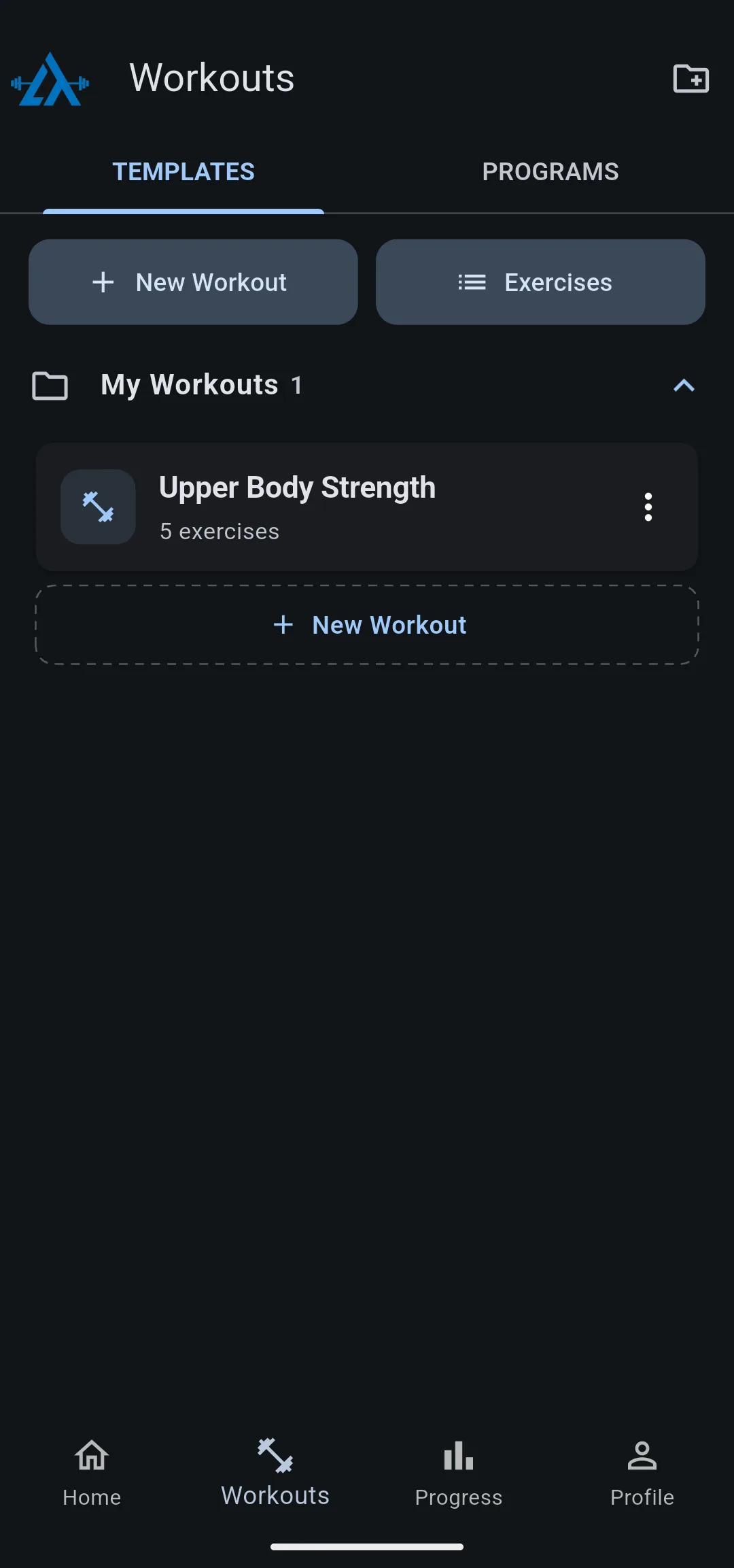
- On the Workouts tab, tap Exercises. The Exercises screen opens.
- Tap the plus icon. The Create Exercise screen opens.
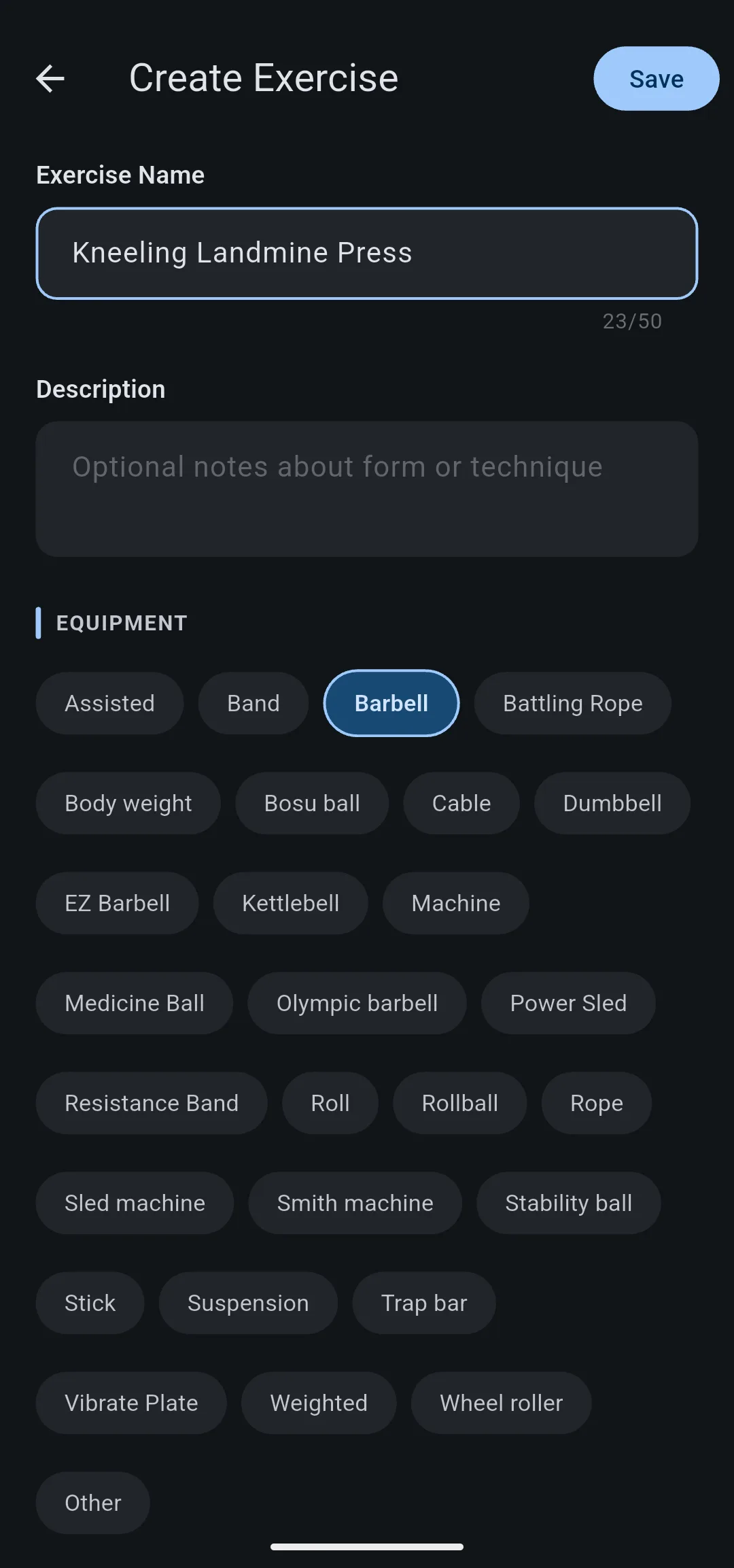
- Enter a name in Exercise Name, up to 50 characters.
- Optional: enter form or technique notes in Description.
- Under Equipment, choose one option. If nothing fits, choose Other.
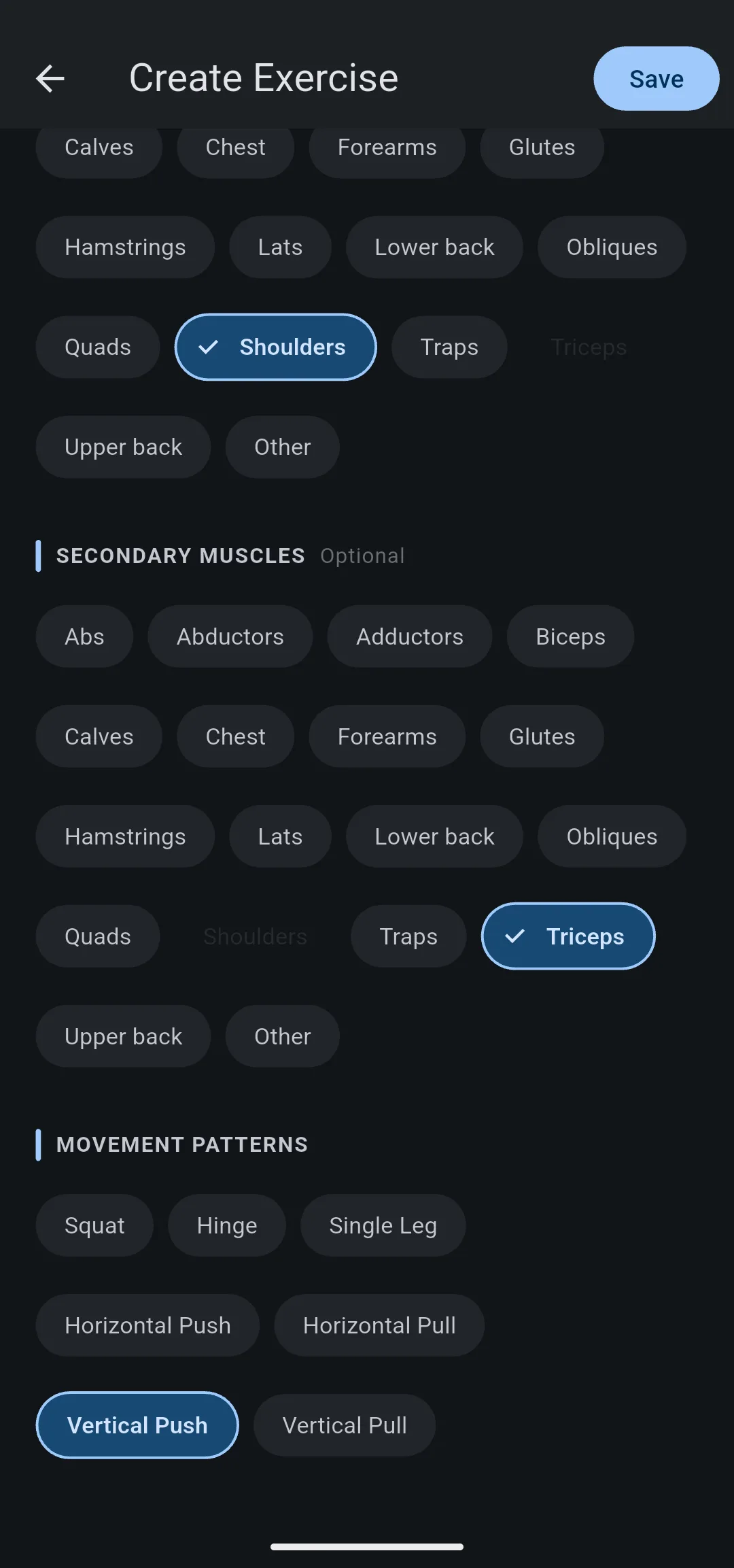
- Under Primary Muscles, choose at least one muscle.
- Optional: choose Secondary Muscles and Movement Patterns. A muscle chosen as primary cannot also be secondary.
- Tap Save.
- 1 Tap Exercises
On the Workouts tab, then tap the plus icon.
- 2 Name it
Enter the name and choose the equipment.
- 3 Choose muscles
At least one primary muscle, then tap Save.
If you have not seen it before, the app then shows Your watch shows “Go”, which explains how the exercise appears on your Garmin. Tap Got it.
The new exercise appears on the Exercises screen. To list only the exercises you created, tap the category filter and choose Custom.
The muscles and movement patterns you choose decide where the exercise counts in LiftTrack’s muscle and movement pattern stats.
Create one while building a workout
When you build a workout and the exercise you need is not in the list, create it without leaving the workout.
- On the Edit Workout screen, tap Search exercises.
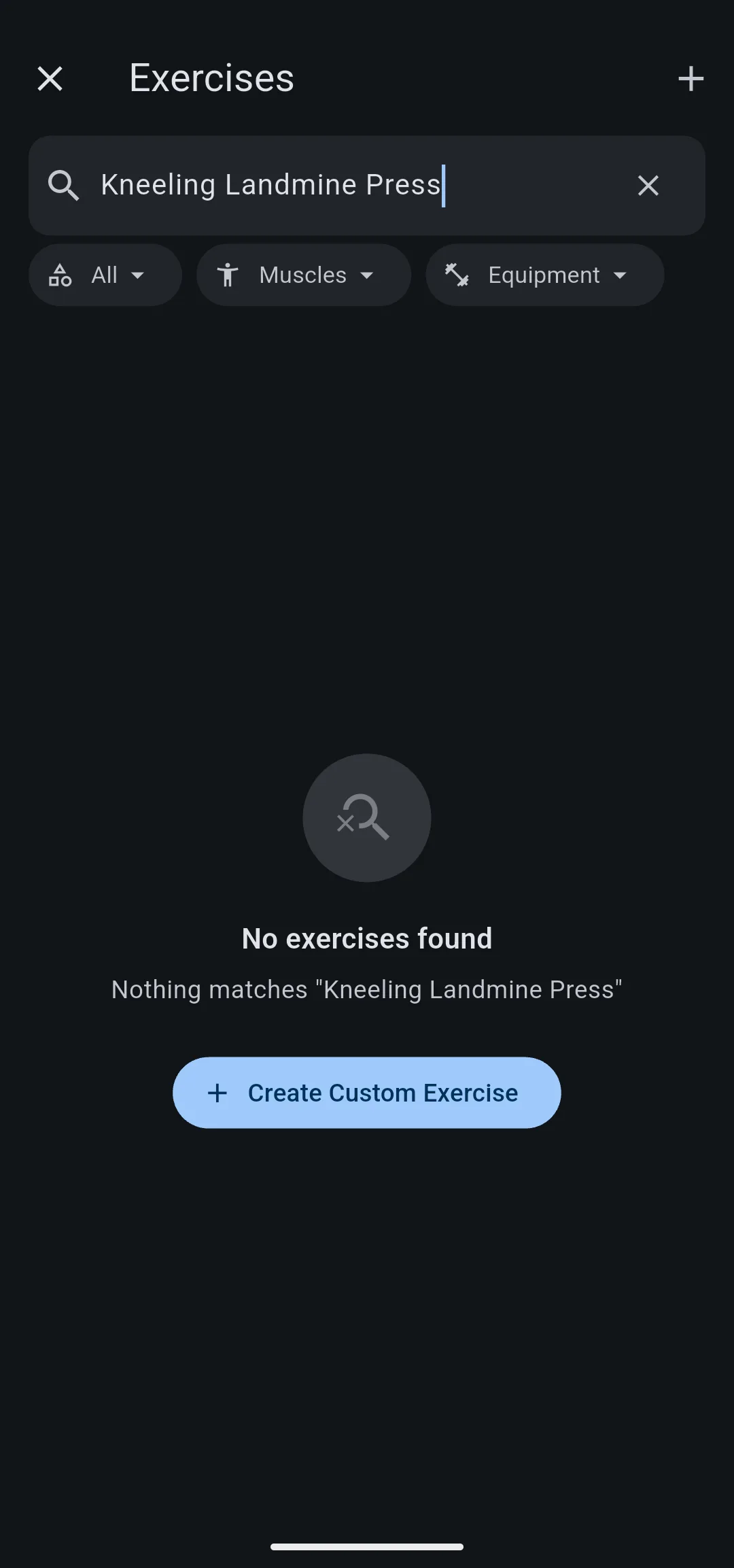
- Enter the exercise name in the search field. If nothing matches, the screen shows No exercises found.
- Tap Create Custom Exercise. The Create Exercise screen opens with your search already in Exercise Name.
- Fill in the rest of the form, then tap Save. You return to the list.
- Tap the new exercise, then tap Add.
Fix an exercise that will not save
Save checks the form first and names what is missing:
- Exercise Name is empty. Enter a name.
- No muscle is chosen under Primary Muscles. Choose at least one.
- No option is chosen under Equipment. Choose one, or Other.
- The app says an exercise with this name already exists. The name matches an exercise in the LiftTrack list or one of your custom exercises, including one you deleted. Change the name.
Edit or delete a custom exercise
- On the Exercises screen, find the custom exercise. Choose Custom in the category filter to narrow the list.
- Tap the options icon on the exercise.
- Tap Edit to change its name, description, equipment, muscles or movement patterns, then tap Save. Or tap Details to open its history and progress.
Warning: Deleting a custom exercise cannot be undone, and its name stays taken, so you cannot create a new exercise with the same name.
To delete it, tap the options icon, tap Delete Exercise, then tap Delete. The exercise leaves the Exercises screen.
How a custom exercise shows on your Garmin
Garmin watches only name exercises from Garmin’s own exercise list. When LiftTrack sends a workout with a custom exercise to your Garmin, the step title on the watch reads Go, and the full name is in the step description.
Your watch records the sets, reps and weight for the step like any other exercise. When the session syncs back to LiftTrack, History shows it under your custom exercise name.
To see what Garmin Connect shows and how LiftTrack matches the sets to your exercise, see how custom exercises work on your Garmin.


