Build your program with AI
Have Max build a 4 week program from your coach profile, with every workout on your calendar and your first session ready to lift. About 5 minutes.
On this page
You start with a blank coach profile and finish with 4-Week Upper/Lower, a program Max wrote for you. It has an Upper Body and a Lower Body workout, 4 days a week, starting next Monday. Choose the answers that fit you instead; the steps are the same.
Before you start
- Premium. Creating a program needs Premium; without it, Create Program opens the Premium offer first.
- The days of the week you can train. This example uses Monday, Tuesday, Thursday and Friday.
- The equipment you can use, such as a barbell, dumbbells, a cable station and machines.
- Optional: a Garmin watch connected to LiftTrack, if you want each workout on your watch.
Fill in your coach profile
Max builds the program from your coach profile, so it comes first.
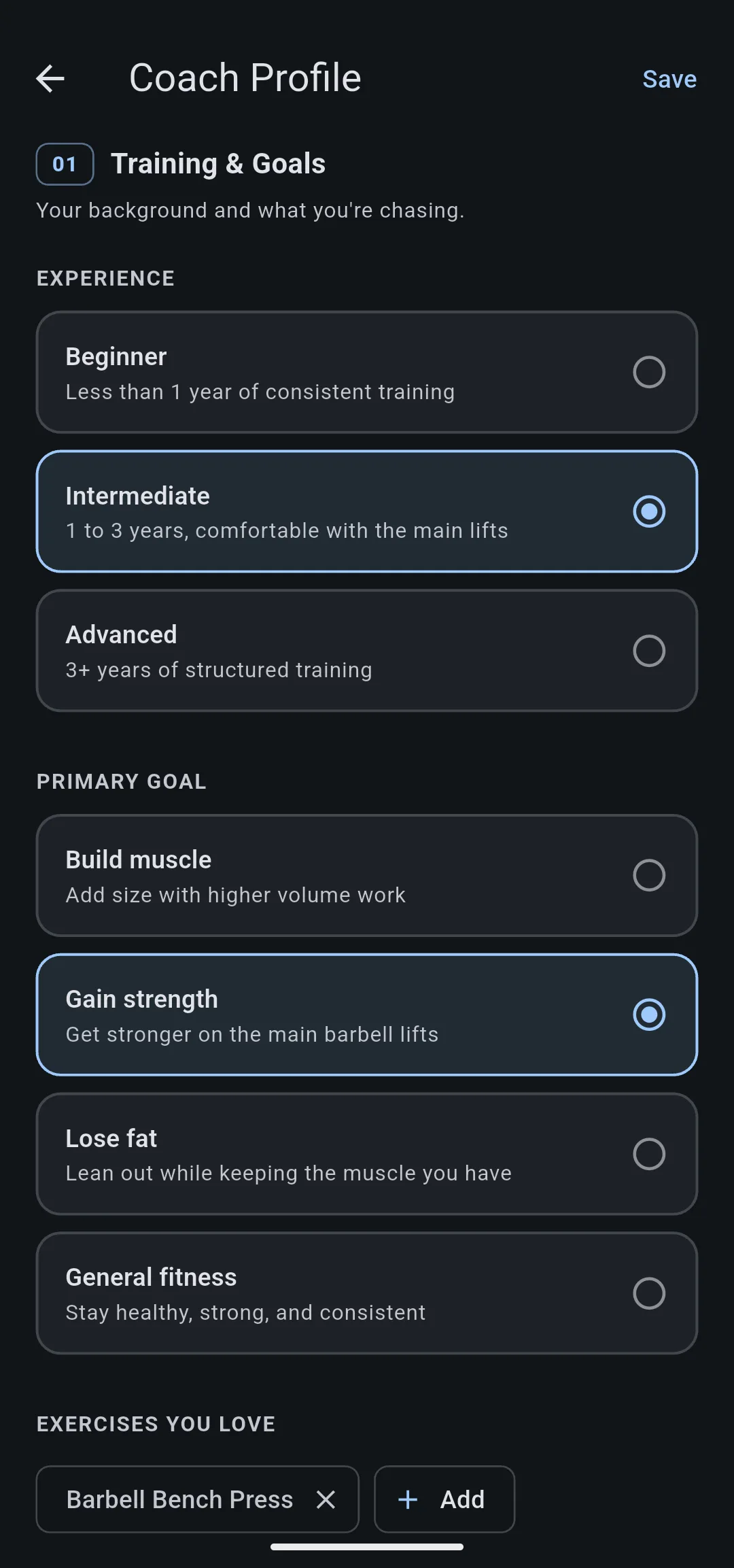
- Open the Profile tab and tap Coach Profile. It opens at Training & Goals.
- Under Experience, tap Intermediate. Under Primary goal, tap Gain strength.
- Optional: under Exercises you love, tap Add and choose Barbell Bench Press. Use Exercises to avoid and Injuries and limitations for anything Max should program around.
- Scroll to Schedule & Equipment. Under Days per week, tap 4. The Upper / lower option under Training split now shows Recommended.
- Under Training split, tap Upper / lower.
- Under Equipment, tap Add equipment, choose Barbell, Dumbbell, Cable and Machine, then tap Done (4). Each one appears under Equipment.
- Tap Save profile. LiftTrack shows Profile saved and goes back.
Choose your days and start date
- Open the Workouts tab and tap Programs. With no program yet, the screen reads Start a program.
- Tap Create Program. The Create Program screen opens with Your coach profile at the top.
- Under Training days, LiftTrack has already chosen M, T, T and F from the 4 days in your profile. The line under the days reads 4 days a week · Monday, Tuesday, Thursday, Friday. To train on other days, tap a chosen day to clear it and tap the day you want.
- Under Program length, leave 4 weeks. The plus and minus buttons set any length from 1 to 12 weeks.
- Under Start date, tap Next Monday. The date row and the range under it update: 4 weeks from Monday.
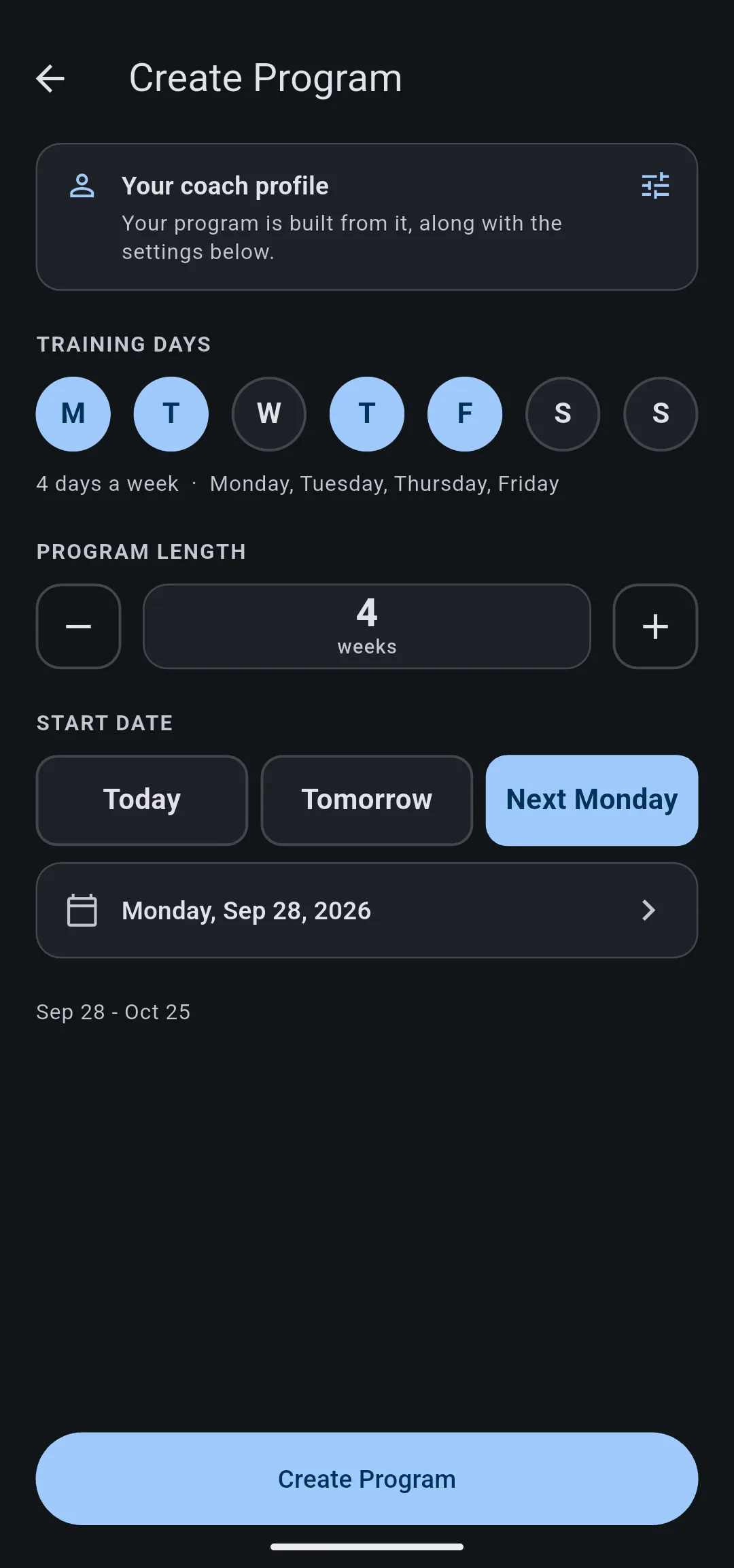
Create Program stays unavailable until you choose at least one day. If your coach profile is empty, the screen reads Set up your coach profile and the button stays locked until you fill it in.
Let Max build the program
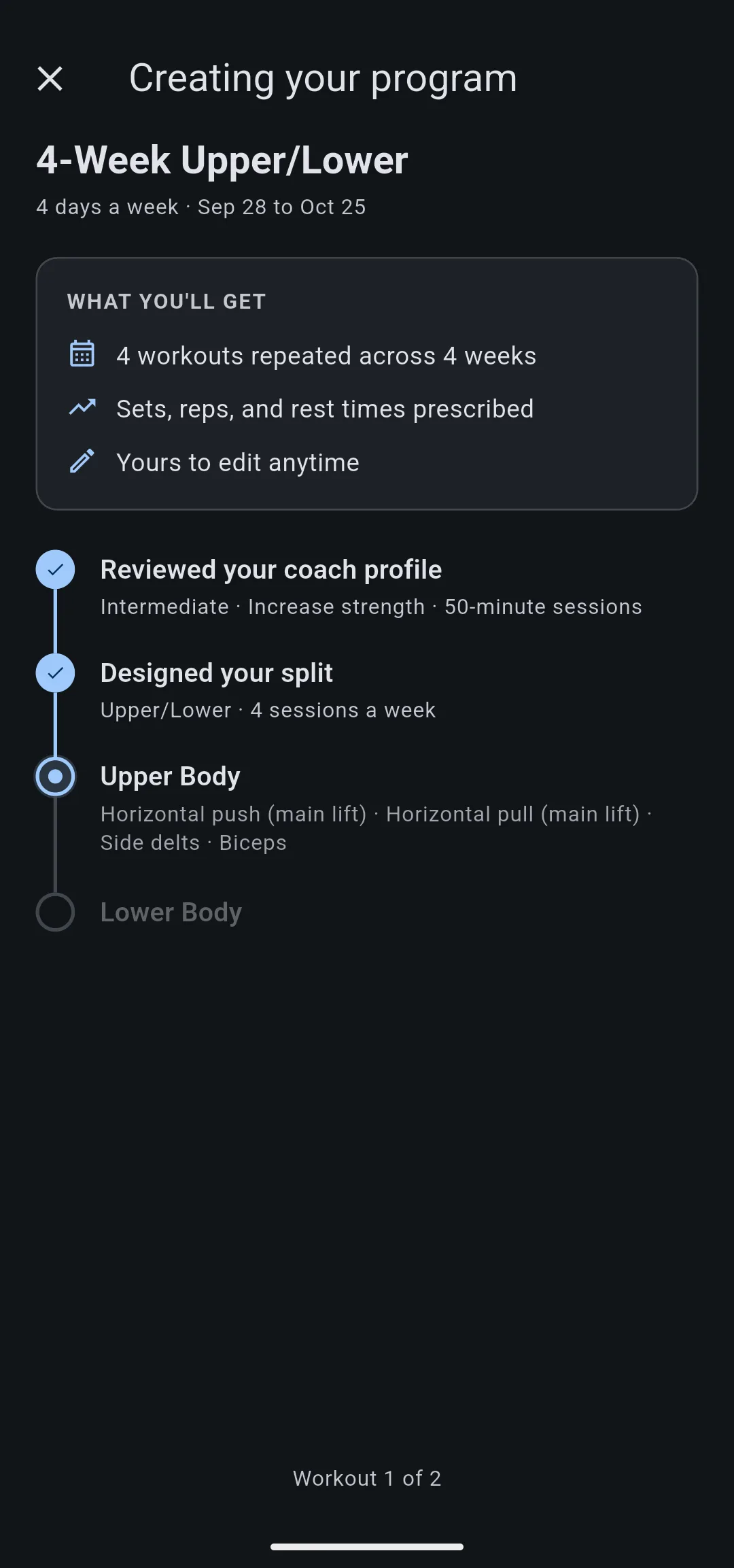
- Tap Create Program. The Creating your program screen opens with a checklist, and the program name appears at the top: 4-Week Upper/Lower.
- Watch the checklist fill in. Reviewed your coach profile and Designed your split come first, then one row for each workout, Upper Body and Lower Body, with the exercises Max chose.
- When the last rows read Program saved and Program started, the title changes to Program ready. The Program started row counts the workouts added to your calendar: 16 for 4 days over 4 weeks.
If you already follow a program, LiftTrack keeps it running. The last row reads Current program kept, and the new program waits on the Programs screen until you tap Start program.
Open the Monday workout
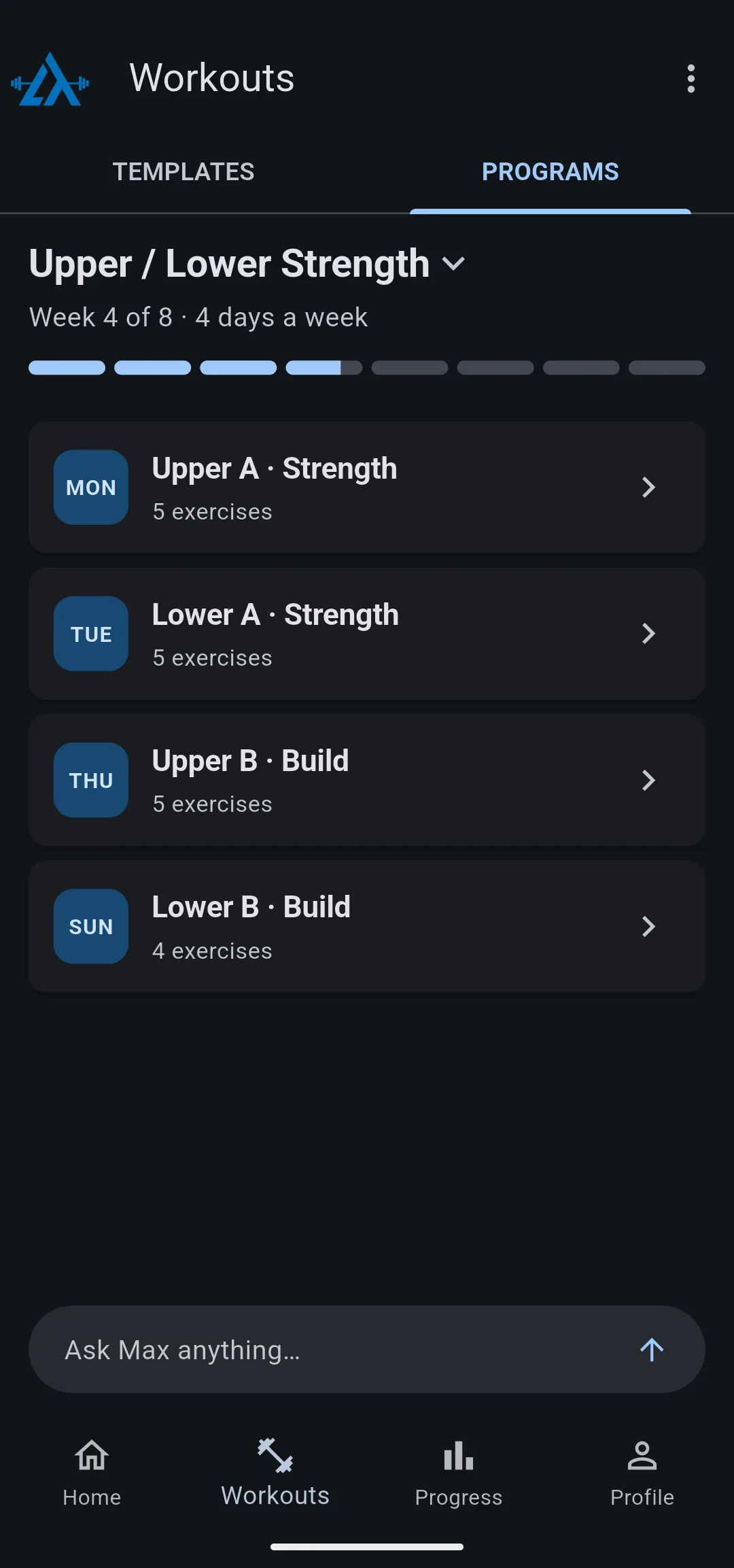
- Tap View program. The Programs screen opens on 4-Week Upper/Lower, with Upper Body on Monday and Thursday and Lower Body on Tuesday and Friday.
- Tap Upper Body. The workout opens with its exercises, sets, reps and rest times already filled in.
- Open the Home tab. Upper Body is on next Monday.
You now have a 4 week program built around your goal, your days and your equipment. The workouts belong to you: open any of them to change an exercise, a set or a weight. To move a single session to another day, see how to schedule your workouts.
Take it to the gym
- Track it on your phone: on the Programs screen or the Home tab, tap the day’s workout, then tap Track. Check off each set as you finish it.
- Send it to your Garmin: with your watch connected, each scheduled program workout goes to your Garmin Connect calendar and reaches your watch when it syncs. See how to send a workout to your watch.
Other ways to plan with AI
- ChatGPT or Claude: connect LiftTrack to your AI assistant, describe what you want, and it creates the workouts in your LiftTrack account. Connect LiftTrack to your AI assistant
- A coach built program: skip the profile and choose a finished program from Explore Programs. Start a program


