Reschedule program workouts
Move a program workout to another day of the program when your week changes, without changing the program's training days or its end date.
On this page
Each move changes one day on your calendar. The rest of the program stays on its usual days, and a connected Garmin gets the new date too.
Before you start
- A program in progress. Reschedule Workouts shows only while a program is running; to start one, see start a program.
- If the program is paused, resume the program first.
Move a workout to another day
- Open WorkoutsPrograms. If you follow more than one program, tap the program name and choose the one to change.
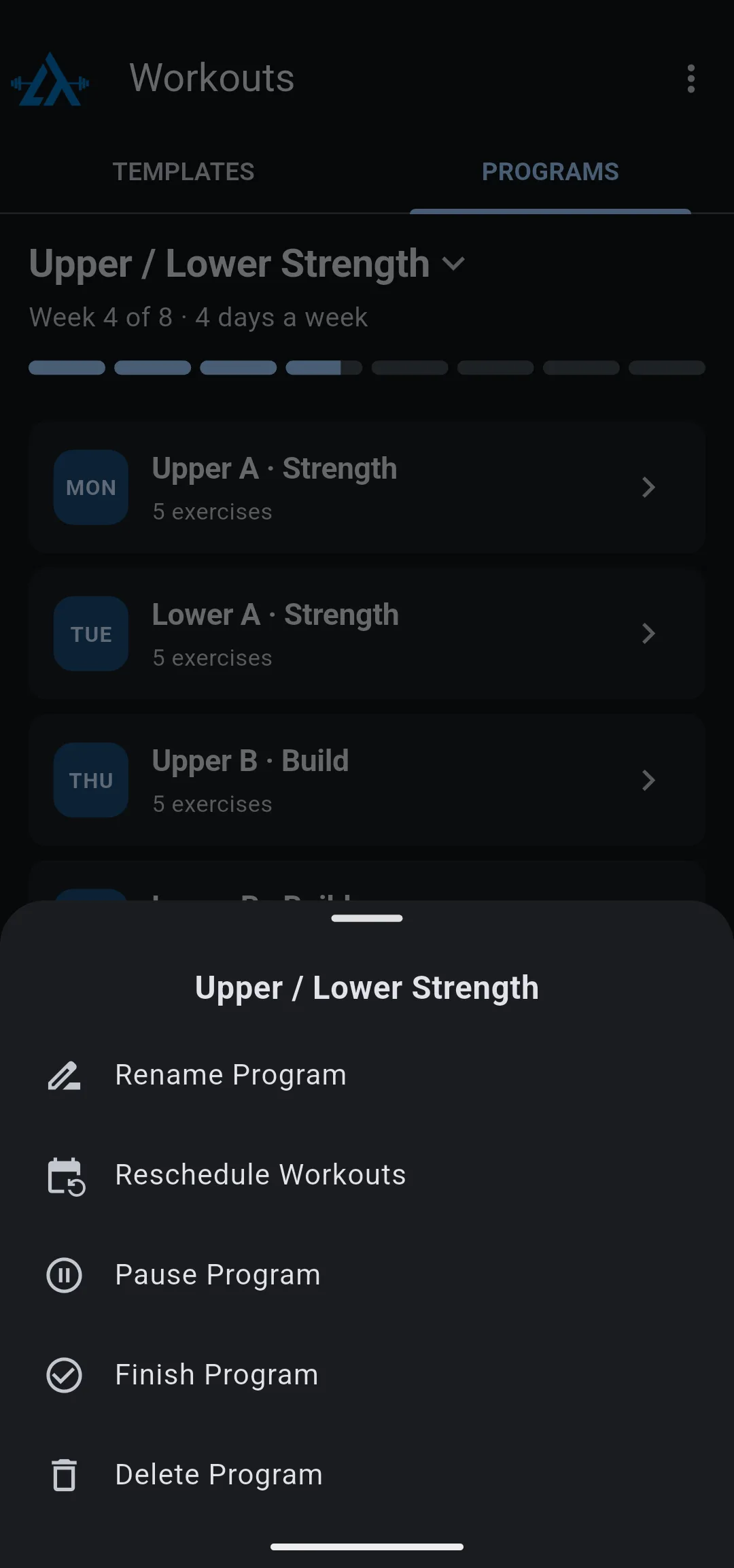
- Tap the three dots icon, then tap Reschedule Workouts. The screen lists every week of the program, Monday to Sunday, and opens on this week.
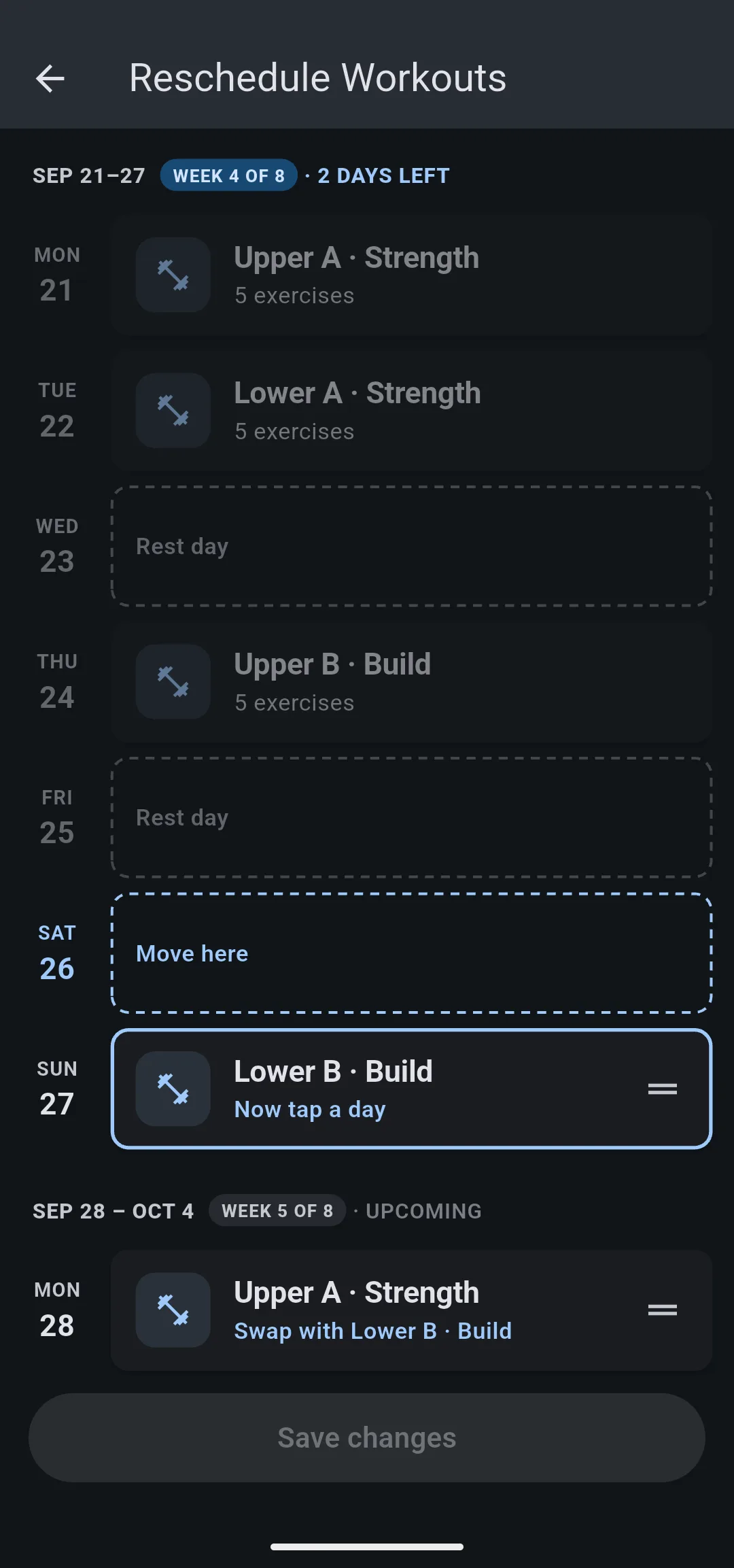
- Tap the workout you want to move. Its card reads Now tap a day.
- Tap the day you want. A free day reads Move here; a day that already has a workout reads Swap with and the name of the workout you picked.
- Optional: move more workouts the same way.
- Tap Save changes.
- 1 Open Reschedule Workouts
The three dots icon on the program opens its options.
- 2 Pick the workout
Free days read Move here, busy days offer a swap.
- 3 Save the move
The moved card reads Moved until you tap Save changes.
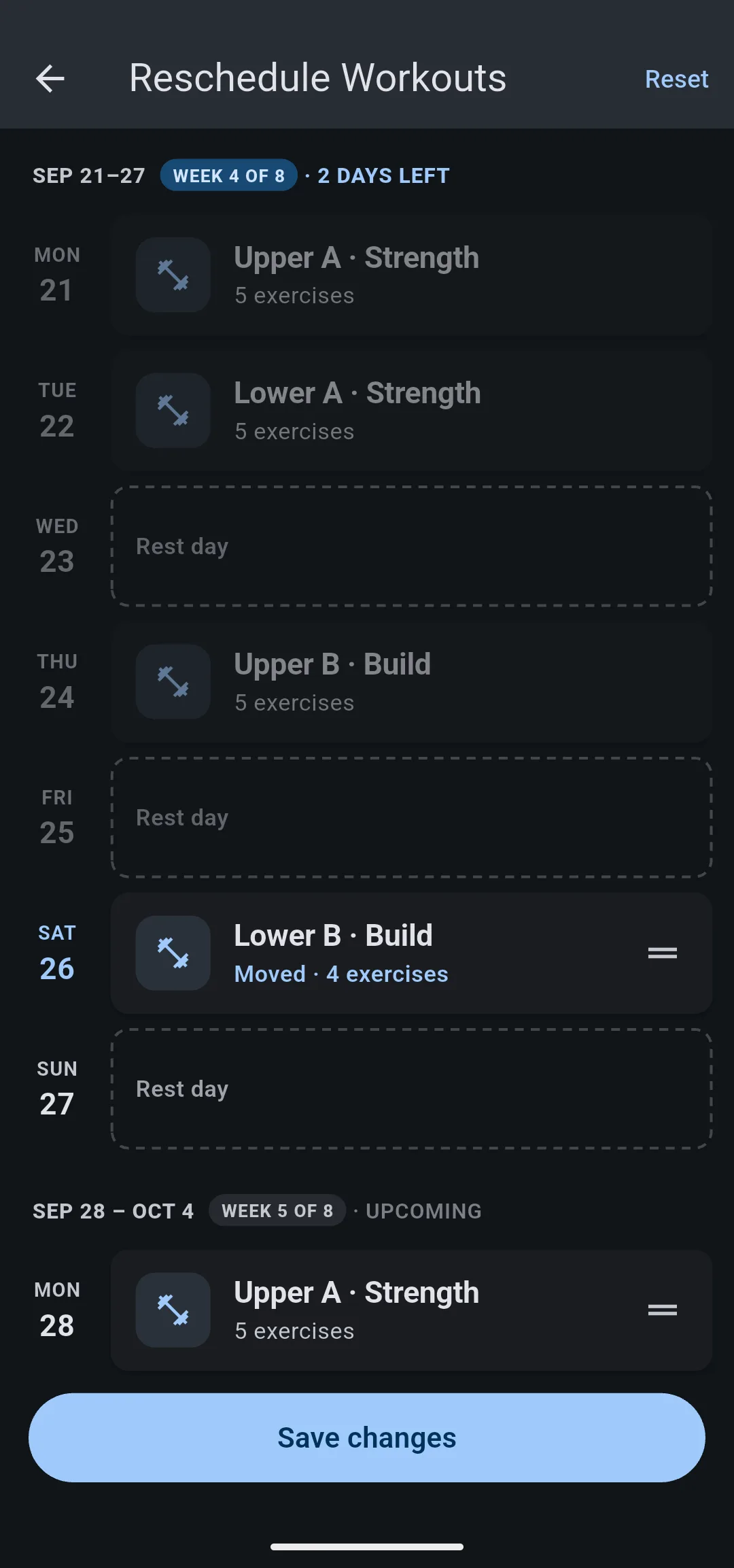
A message confirms the move, for example Moved Lower B · Build to Sat, Sep 26, or Schedule updated when you moved more than one workout. The workout shows on its new day on the Home tab, and on your Garmin Connect calendar if your Garmin is connected.
To drag instead of tapping, drag a card by its handle to another day. Cards you cannot move have no handle.
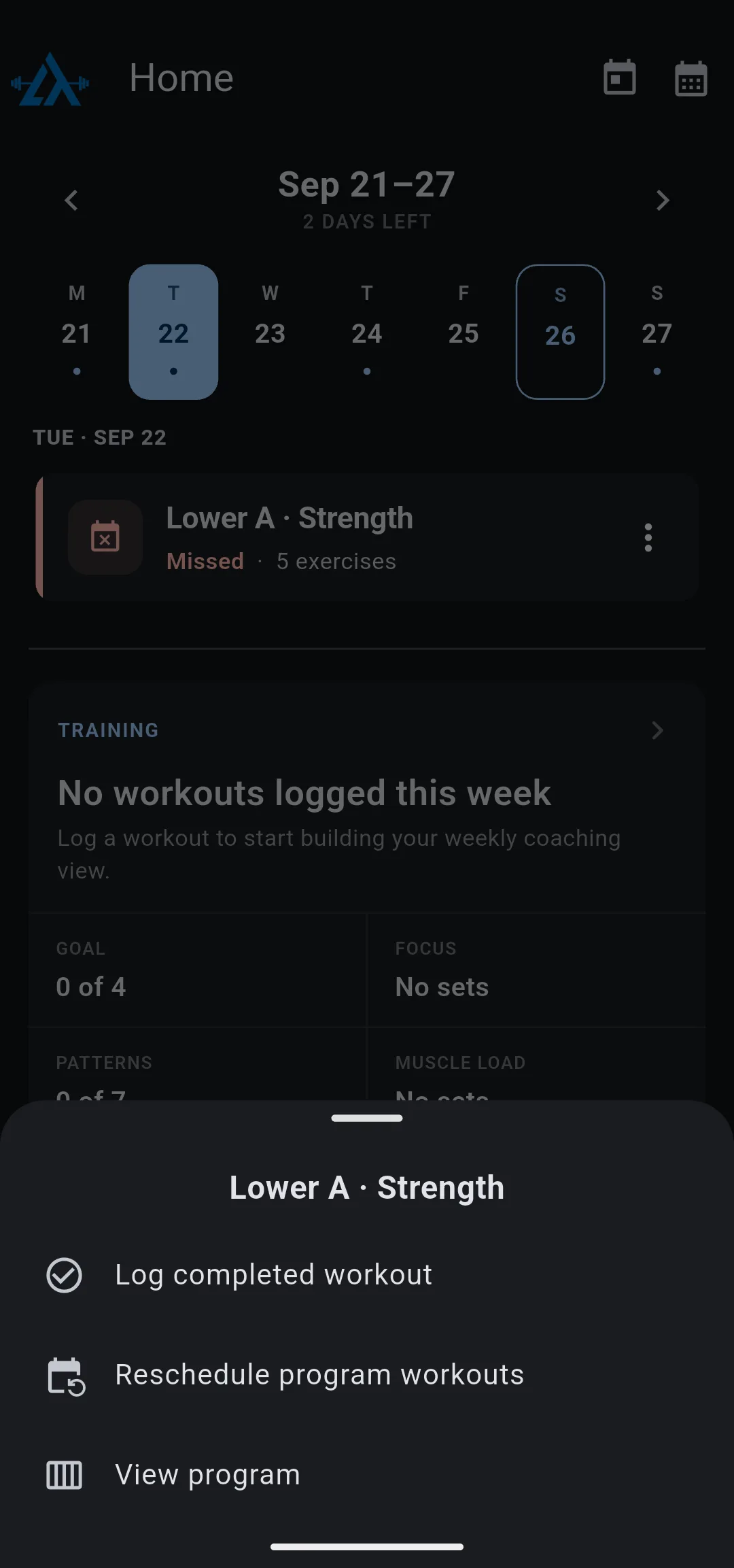
Start from a workout on Home
On the Home tab, tap the options icon on a program workout’s card, then tap Reschedule program workouts. The same Reschedule Workouts screen opens. To mark a missed workout as done instead of moving it, see log a workout you already completed.
What you can and cannot move
- One workout per day. Moving a workout onto a day that has one swaps the two.
- Today and later only. Days before today are greyed out, and a workout you completed stays on its day with Completed in green.
- Inside the program. The screen shows only the program’s weeks, so a workout cannot move before the program starts or after its last week.
- One date at a time. A move changes that one workout’s date. The program’s training days, its other weeks and its end date stay as they are. To move every remaining workout later, pause the program instead.
Undo moves before you save
Tap Reset, then Reset changes, to put every workout back where it was when you last saved. To leave without saving, go back and tap Discard changes; tap Keep editing to stay.
If saving fails, LiftTrack shows Could not update the schedule. Try again. and keeps your moves on screen, so you can tap Save changes again.


