Pause and resume a program
Pause a program for a trip, an injury or a busy week, then pick it back up where you left off, with its remaining workouts moved to match.
On this page
Pausing keeps your place in the program. You choose when you’re back, and LiftTrack moves or skips the workouts that fall during the break, on your calendar and on your Garmin.
Before you start
- A program you have started. Only a program in progress shows Pause Program; to start one, see start a program.
Pause a program
- Open WorkoutsPrograms. If you follow more than one program, tap the program name and choose the one to pause.
- Tap the three dots icon, then tap Pause Program.
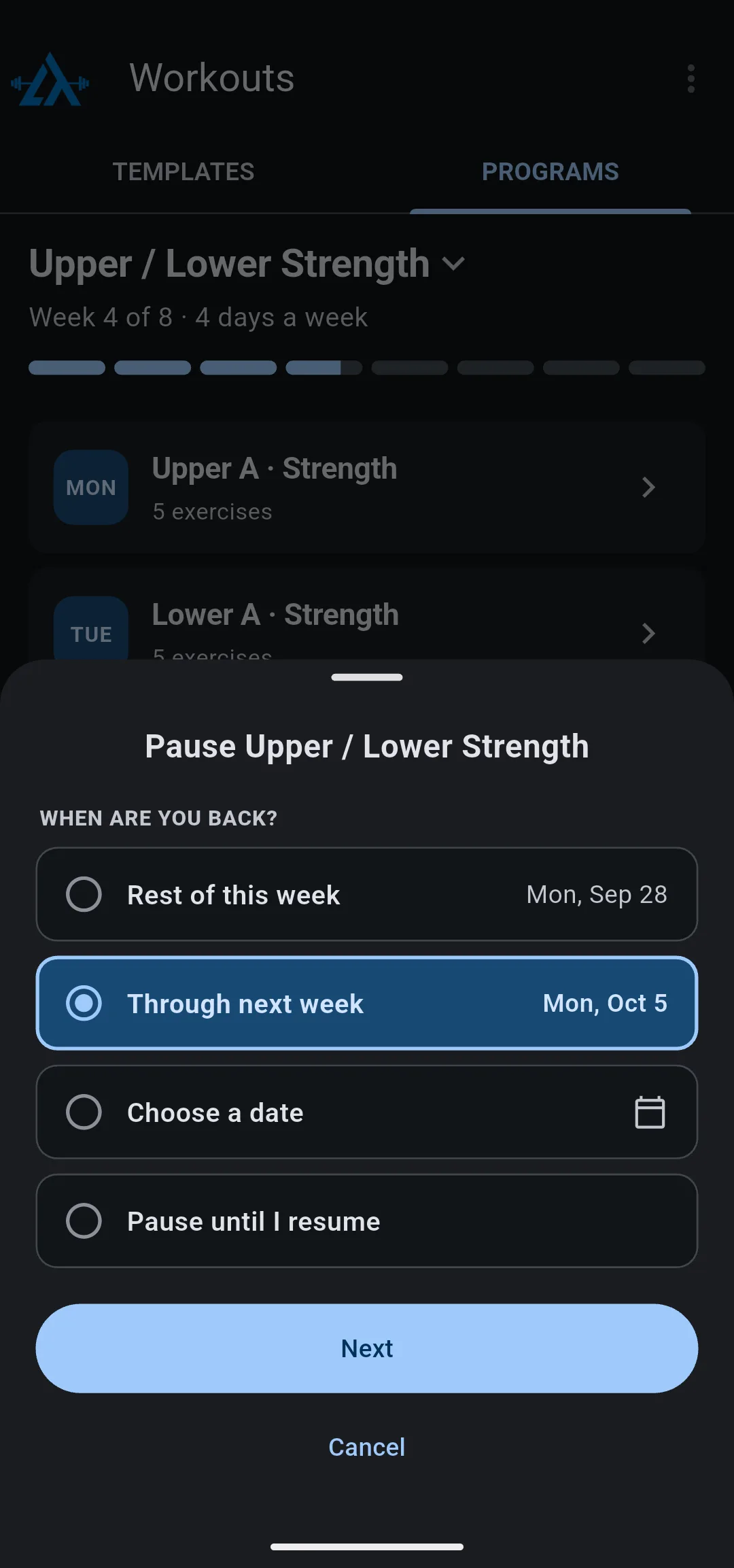
- Under When are you back?, choose one:
- Rest of this week: back on the coming Monday.
- Through next week: back on the Monday after that.
- Choose a date: pick any day from tomorrow up to a year ahead.
- Pause until I resume: no date yet.
- Tap Next. If you chose Pause until I resume, the button reads Pause program and the program pauses now; skip the last two steps.
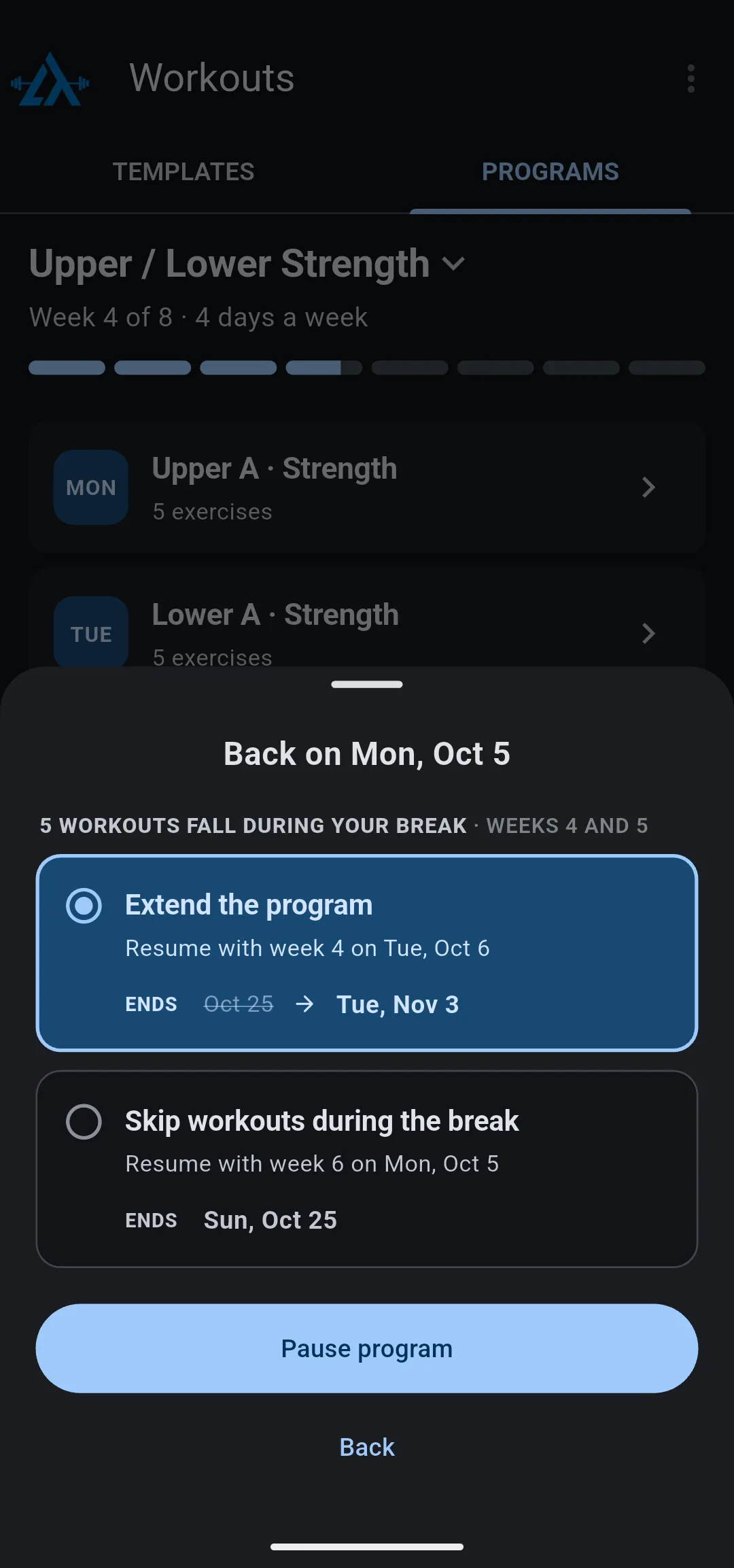
- Choose what happens to the workouts during your break. The sheet counts them and names the weeks they fall in.
- Extend the program: every remaining workout moves later by the length of the break. You keep every week, and the end date moves.
- Skip workouts during the break: those workouts are dropped, and the program rejoins at the week your return date falls in. The end date stays the same.
- Tap Pause program.
- 1 Pick your return
Through next week brings you back on Monday, Oct 5.
- 2 Keep or skip the workouts
Each option shows the week you resume with and the new end date.
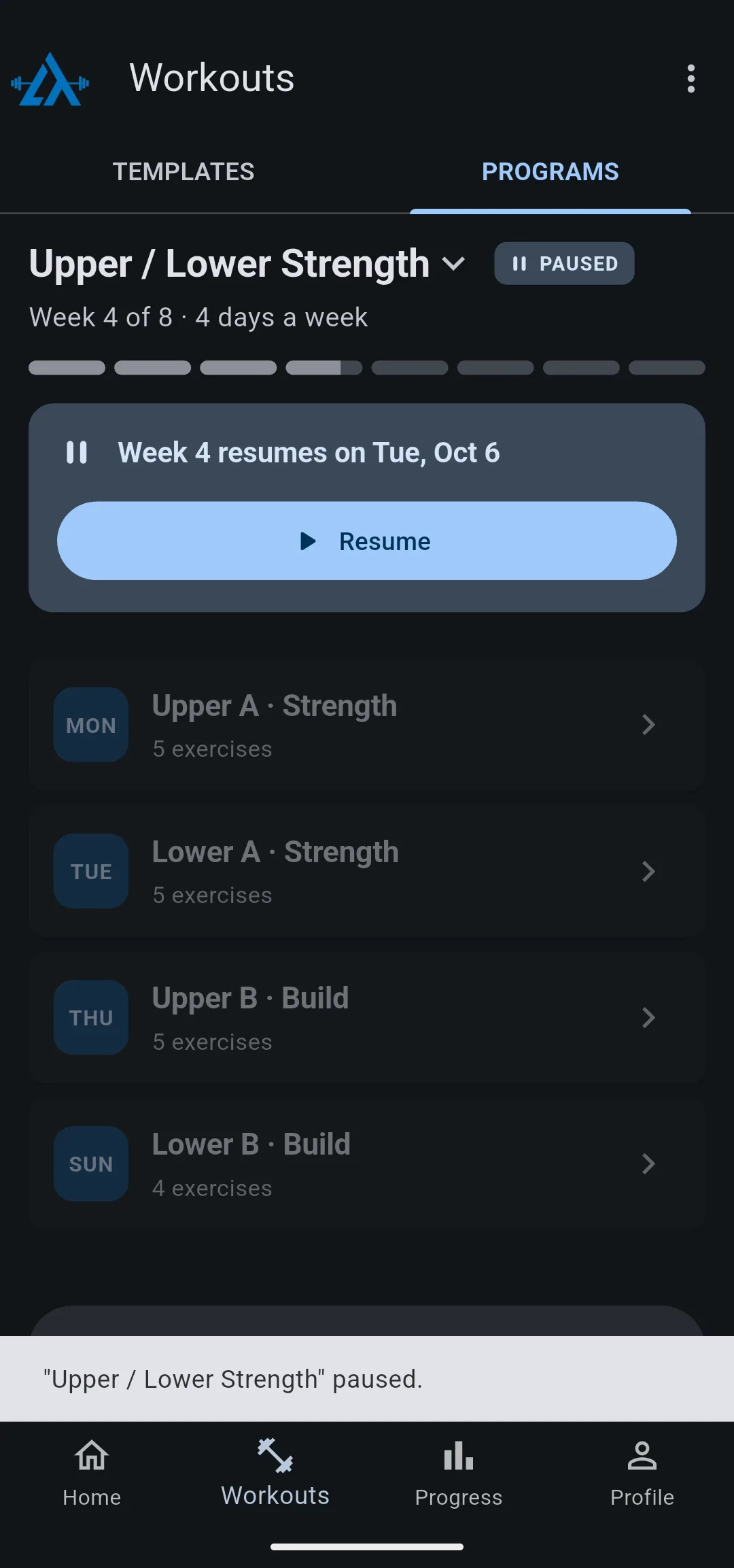
A message confirms the pause, for example “Upper / Lower Strength” paused.
The Programs screen marks the program Paused and reads Week 4 resumes on Tue, Oct 6, with your own week and date. With a return date, the remaining workouts already sit on their new dates, so your Garmin has them when you’re back.
If the break covers every workout left in the program, Skip workouts during the break is not available. Tap Finish the program now instead to end it, or choose Extend the program.
Pause until you know your return date
Pause until I resume takes every remaining workout off your calendar and off your Garmin. On the Programs screen, the program reads Paused until you resume and each workout reads off calendar. Nothing is scheduled until you resume, and the choice between extending and skipping waits until then.
Resume a program
- Open WorkoutsPrograms.
- On the paused program, tap Resume. You can resume any day, including before the return date you chose.
- If workouts fell between the day you paused and today, a Welcome back sheet counts the missed workouts. Choose Extend the program or Skip workouts during the break, then tap Resume program. To leave the program paused, tap Stay paused.
A message confirms it, for example “Upper / Lower Strength” resumed.
The Paused badge goes away. The remaining workouts are back on your calendar, and on your Garmin if it’s connected.


