Set up your coaching profile
Tell LiftTrack your experience, goal, schedule and equipment on one screen, so Max and your AI assistant plan around you without asking.
How to
On this page
Every field is optional, and you can change any of them later. Max reads the saved profile with every message you send, and Create Program builds from it.
Open your coaching profile
Open ProfileCoach Profile. It opens at Training & Goals.
You can also open it from these places:
- In a chat with Max: tap the sliders icon next to the plus icon. If your profile is empty, the chat shows a Set up your coaching profile card; tap Set up profile.
- On the Training screen: tap the sliders icon, or tap Set a weekly goal on the Weekly goal card.
- On Create Program: tap Set up your coach profile, or Your coach profile once you have one.
Fill in training and goals
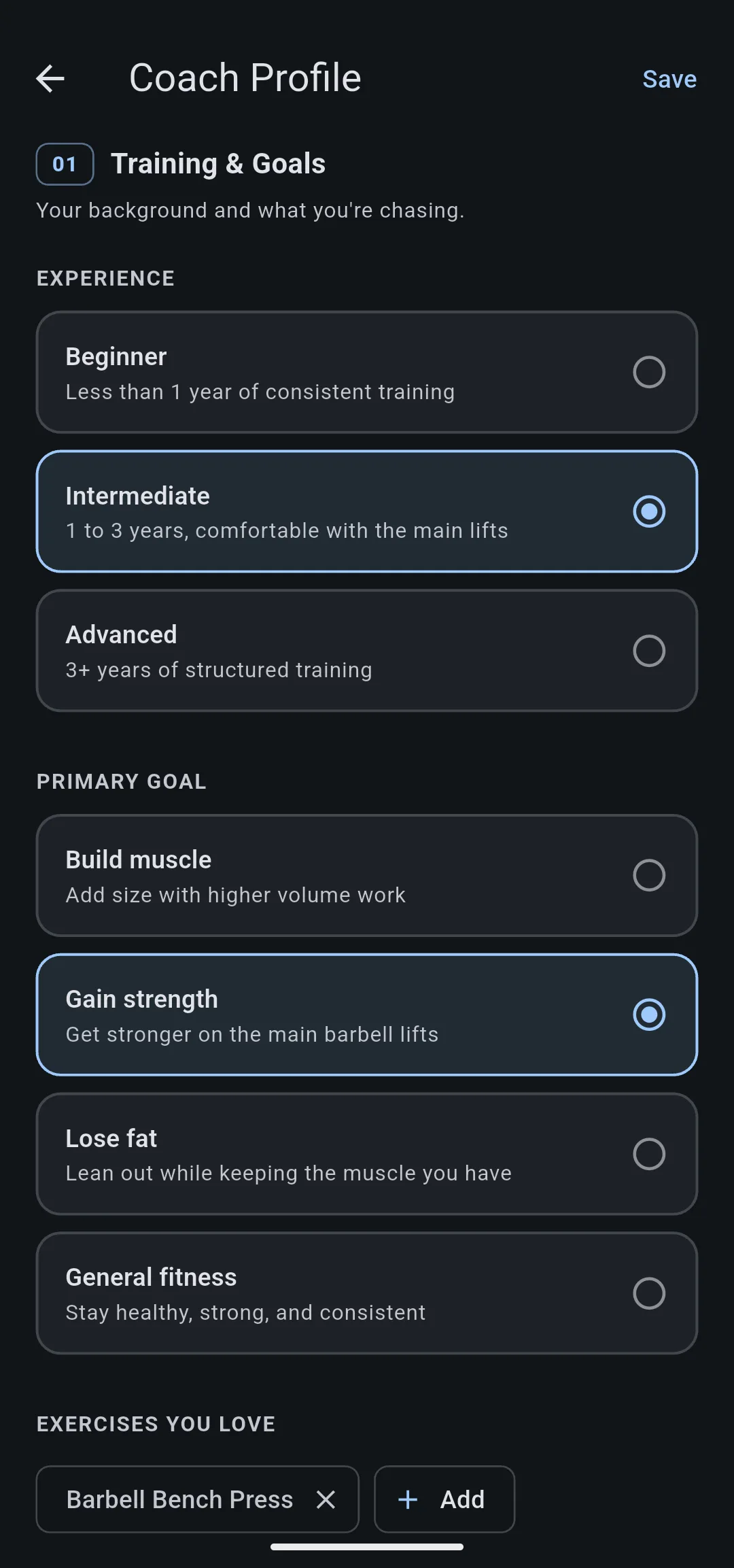
- Under Experience, choose Beginner, Intermediate or Advanced.
- Under Primary goal, choose Build muscle, Gain strength, Lose fat or General fitness.
- Optional: under Exercises you love, tap Add, choose one or more exercises, then tap Add with the count. Do the same under Exercises to avoid. To remove an exercise, tap the x on its chip.
- Optional: under Goals and motivation, enter what you are working toward.
- Optional: under Injuries and limitations, enter anything Max should program around.
Each notes field holds up to 300 characters.
Fill in schedule and equipment
- Scroll to Schedule & Equipment. Under Days per week, choose 1 to 6. This number is also your weekly goal on the Training screen.
- Under Training split, choose how your week is organized. The split that fits your days per week is marked Recommended. That is Full body for 1 to 3 days, Upper / lower for 4, Body-part split for 5 and Push / Pull / Legs for 6. Choose Coach’s choice to let Max decide.
- Under Preferred workout length, choose 30, 45, 60 or 90 minutes.
- Optional: under Weekly endurance hours, set the hours of endurance training you do each week, from 0 to 20.
- Under Equipment, tap Add equipment. Check what you can use, or tap a Quick fill option (Full gym, Home gym or Minimal) to replace the list, then tap Done. Bodyweight exercises are always available, so bodyweight is not on the list.
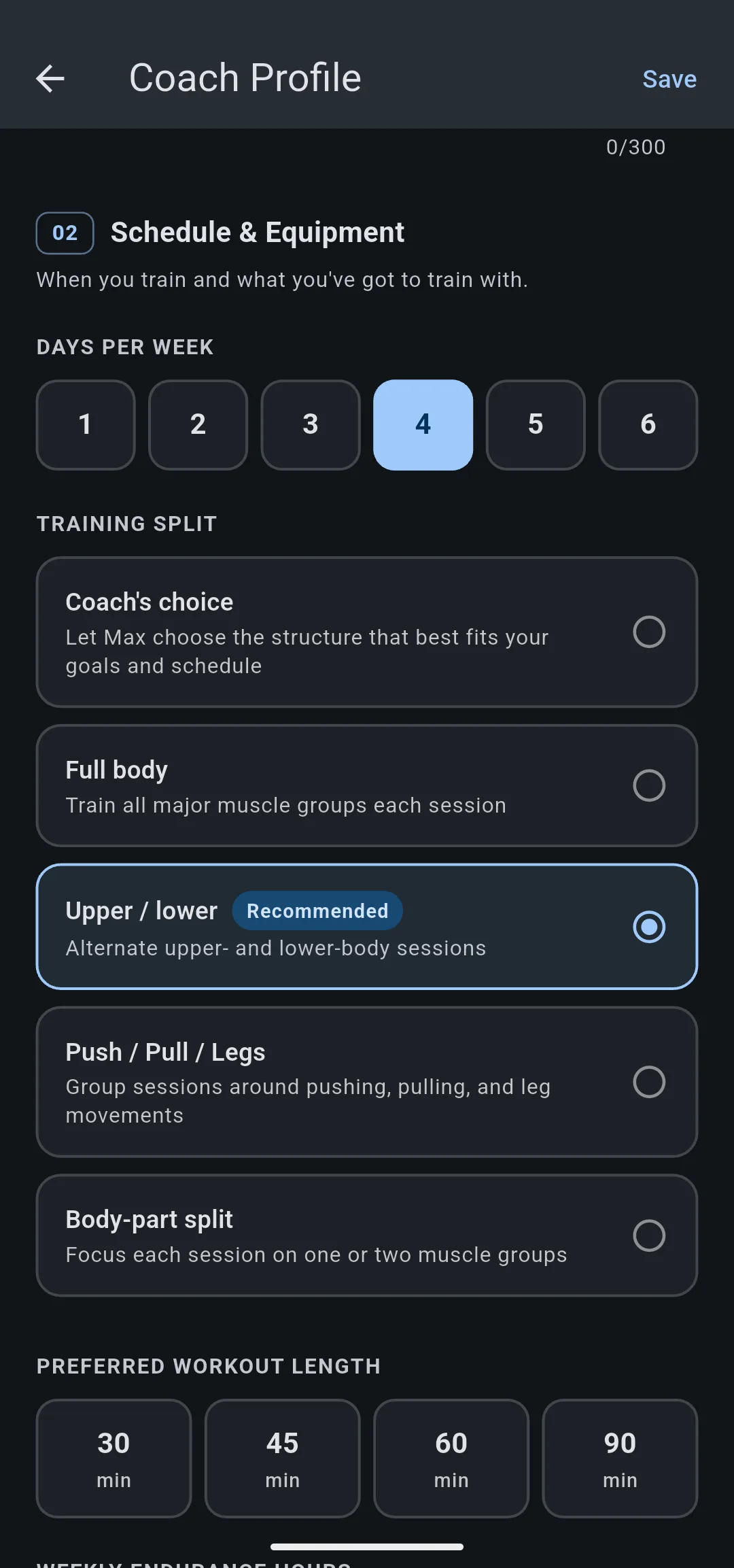
Schedule & Equipment 4 days a week, with Upper / lower marked Recommended.
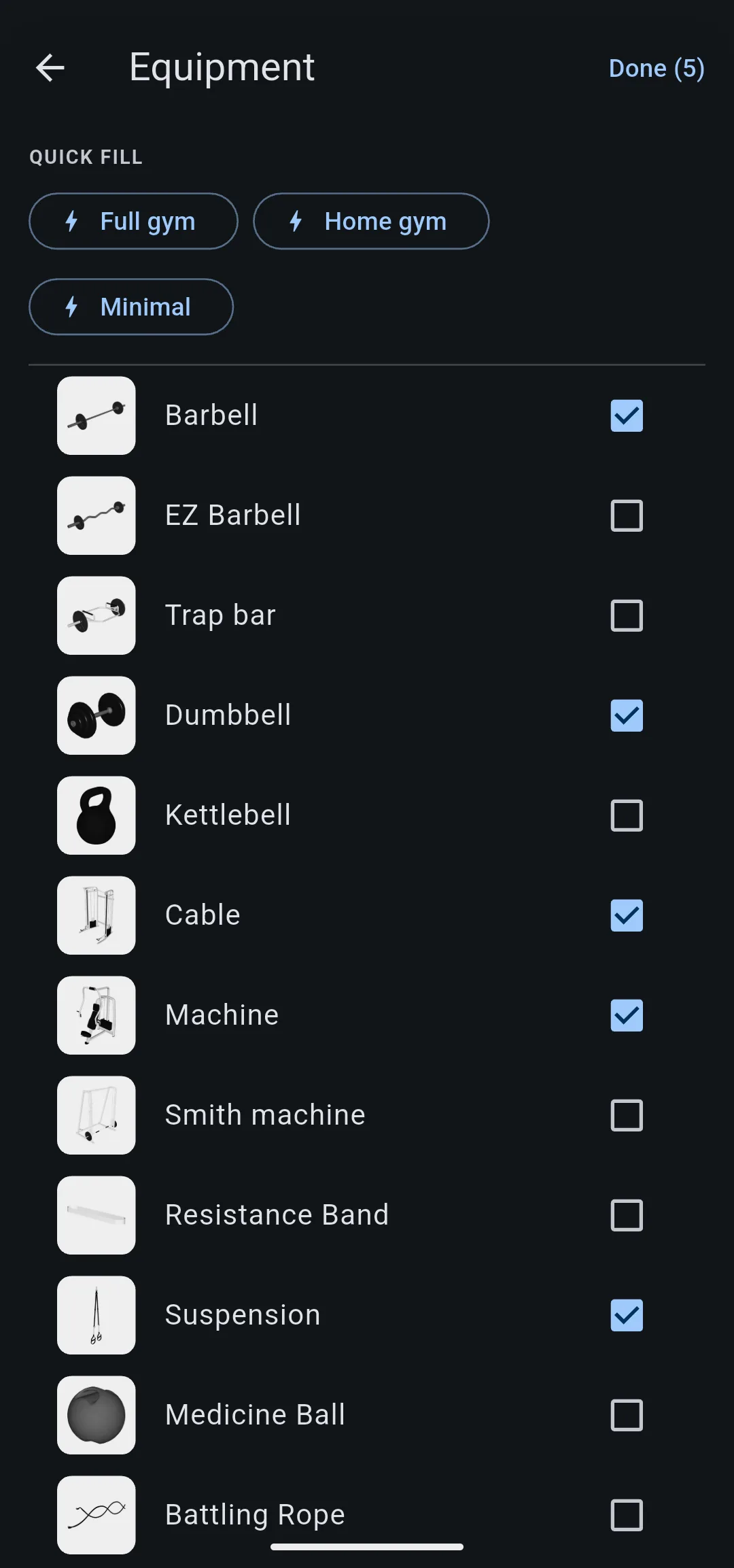
Equipment picker A Quick fill option replaces the list; check anything else you can use.
Save your profile
Tap Save profile, or Save at the top of the screen. Profile saved appears and the screen closes. Leaving without saving discards your changes.
Max uses the saved profile from your next message on, and so do ChatGPT and Claude connected to LiftTrack. To have Max turn it into a full plan, see build your program with AI.
Did this answer your question?


