Delete your account
Delete your LiftTrack account from the Profile tab, which removes your saved workouts and disconnects Garmin and Strava for good.
On this page
Deleting your account cannot be undone, so save anything you want to keep and cancel Premium before you start.
Before you start
- Signed in to the account you want to delete. The Delete Account row shows only while you’re signed in.
- Optional: a copy of your training. Export your workouts to CSV first; nothing can be exported after the account is gone.
- Premium cancelled, if you have it. Deleting your account does not stop the App Store or Google Play from billing you, so cancel your subscription first.
Delete the account
Warning: Tapping Delete removes the account and its data right away, and there is no way to restore them.
- On the Profile tab, in the Account section, tap Delete Account. The Confirm Delete dialog opens and reads Are you sure you want to delete your account? This action cannot be undone.
- Tap Delete. To keep your account, tap Cancel instead.
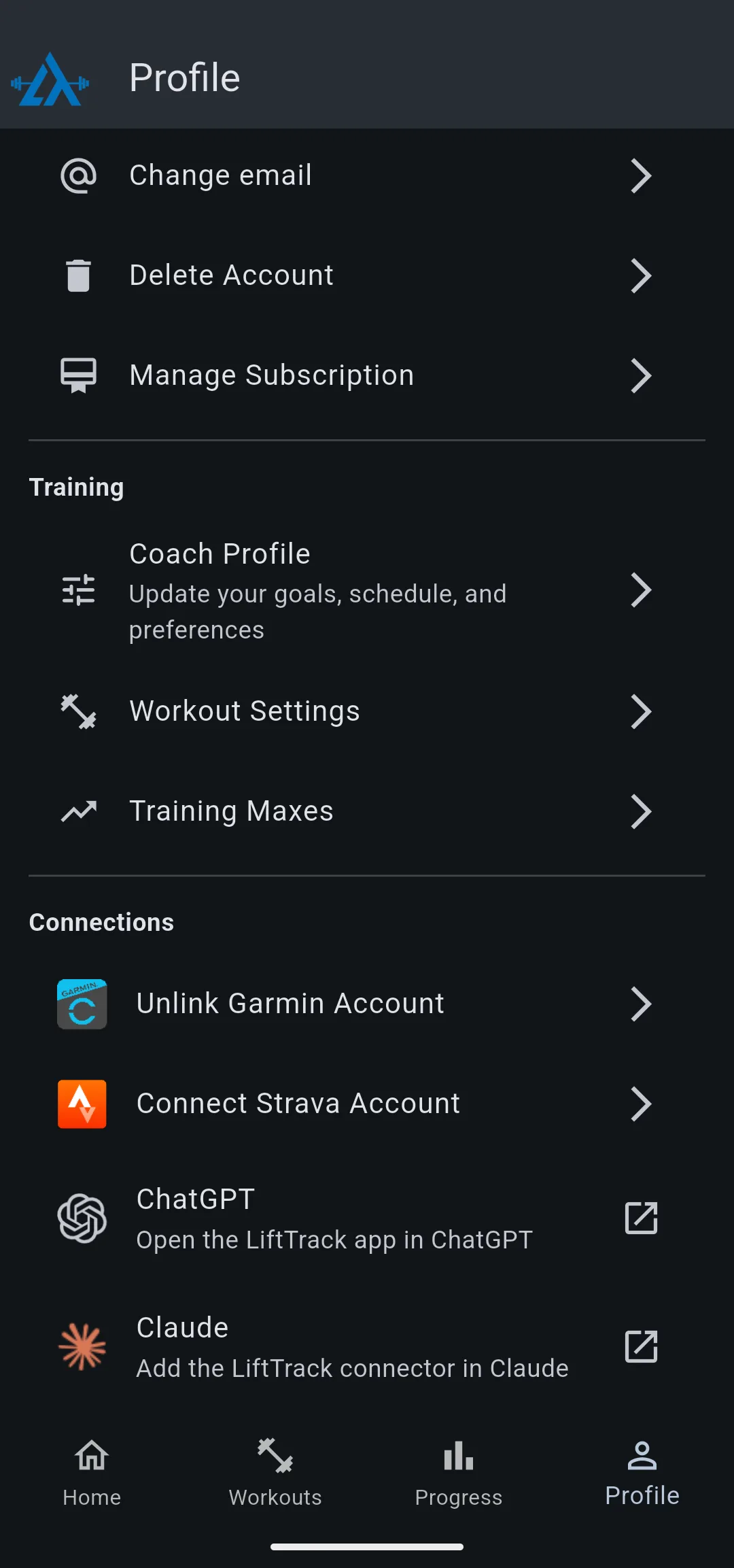
LiftTrack signs you out when it finishes. That is how you know the account is gone.
What deleting your account removes
Deleting your account removes these for good:
- Your LiftTrack sign in. The email and password no longer work.
- Your saved workouts and folders, with the progressions on them.
- Your custom exercises.
- Your conversations with Max.
- The workouts LiftTrack sent to Garmin Connect. LiftTrack removes them from Garmin Connect.
- The connections to Garmin and Strava.
Sessions already saved on Garmin Connect or Strava stay there; they belong to those accounts.
If the app shows Failed to delete account
When the deletion does not go through, LiftTrack shows Failed to delete account: followed by the error, and you stay signed in. Check your internet connection, then tap Delete Account again. If the message comes back, contact support with the full message and the email you sign in with.


