Add a progression to an exercise
Add a progression to an exercise in a workout, so LiftTrack raises its weight or reps after each session where you hit every set.
On this page
A progression belongs to one exercise in one workout, and you add it in the workout editor. Each exercise can have its own type and settings.
Before you start
- A workout with the exercise in it. To create one, see build a workout.
- Sets planned as weight and reps.
The Progression button only shows on exercises that use weight and reps. For timed sets or weights set as % of TM, the exercise options list Add Progression as unavailable. Under it, the options read Unavailable for timed sets or Unavailable with % of TM.
Add a progression
- On the Workouts tab, open the workout and tap Edit. Edit Workout opens.
- On the exercise card, tap Progression. You can also tap the three dots icon on the card, then tap Add Progression.
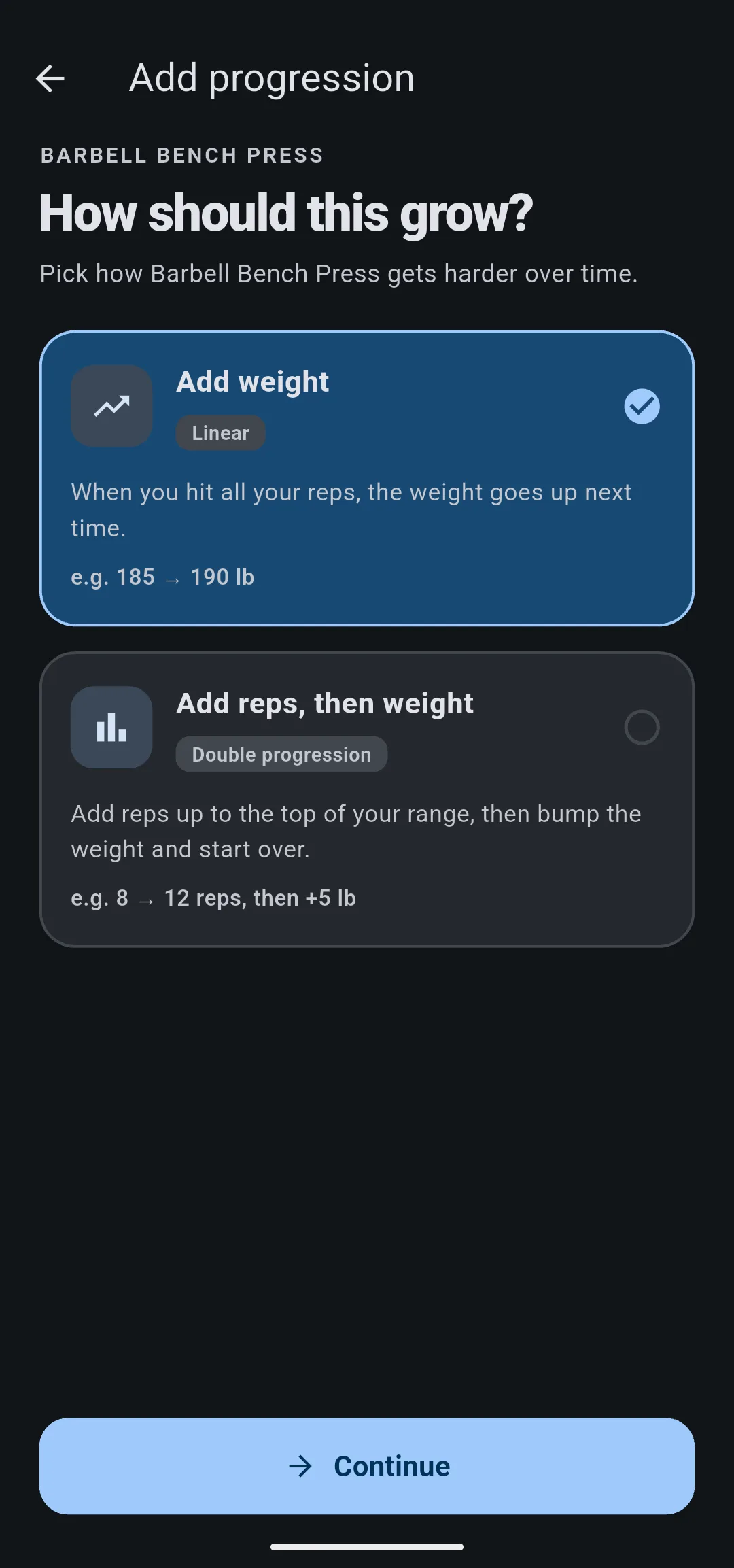
- Under How should this grow?, choose Add weight (Linear) or Add reps, then weight (Double progression), then tap Continue.
- Set the numbers, then tap Save progression.
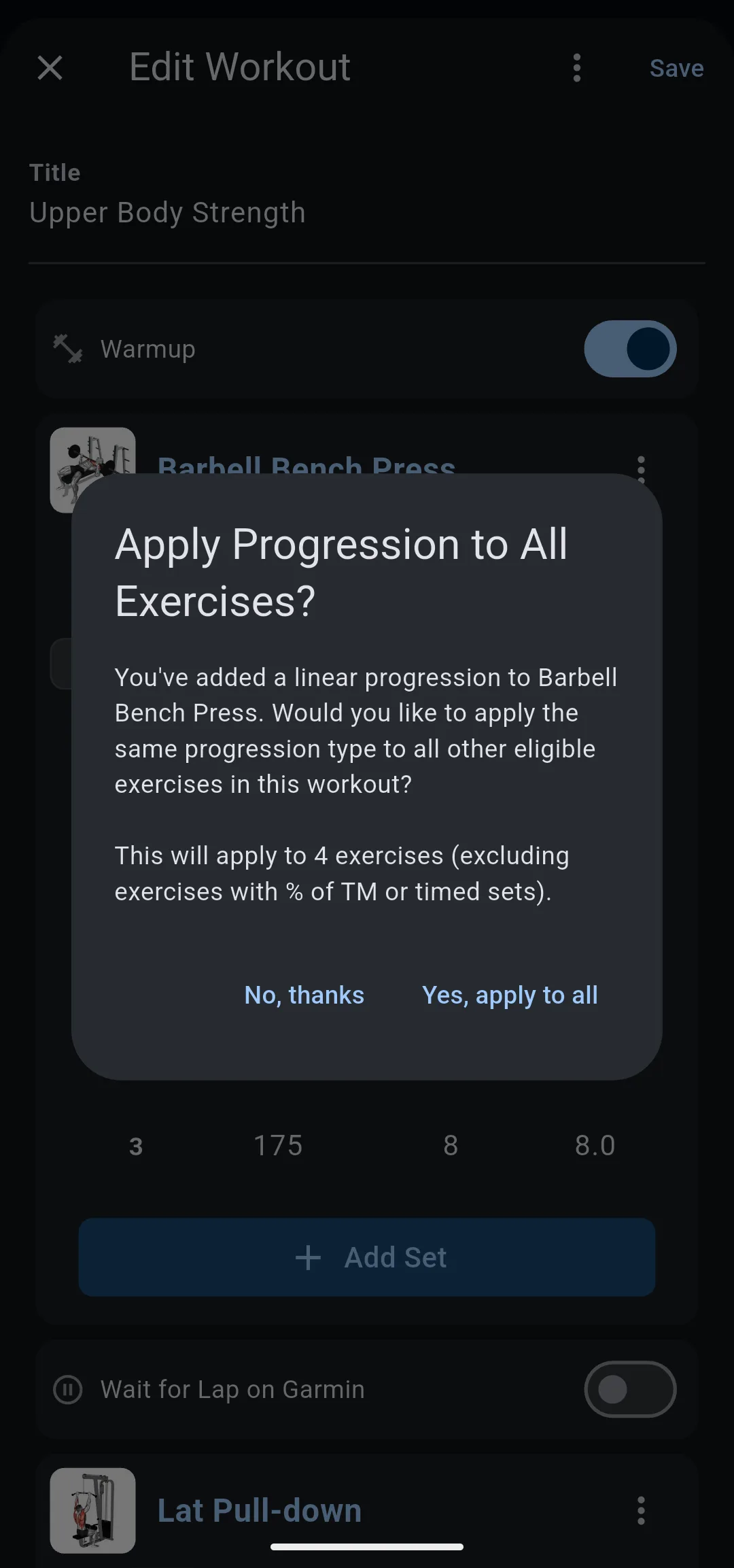
- If Apply Progression to All Exercises? opens, tap Yes, apply to all or No, thanks.
- Tap Save.
- 1 Choose how it grows
Add weight raises the load; Add reps, then weight climbs a rep range first.
- 2 Set the numbers
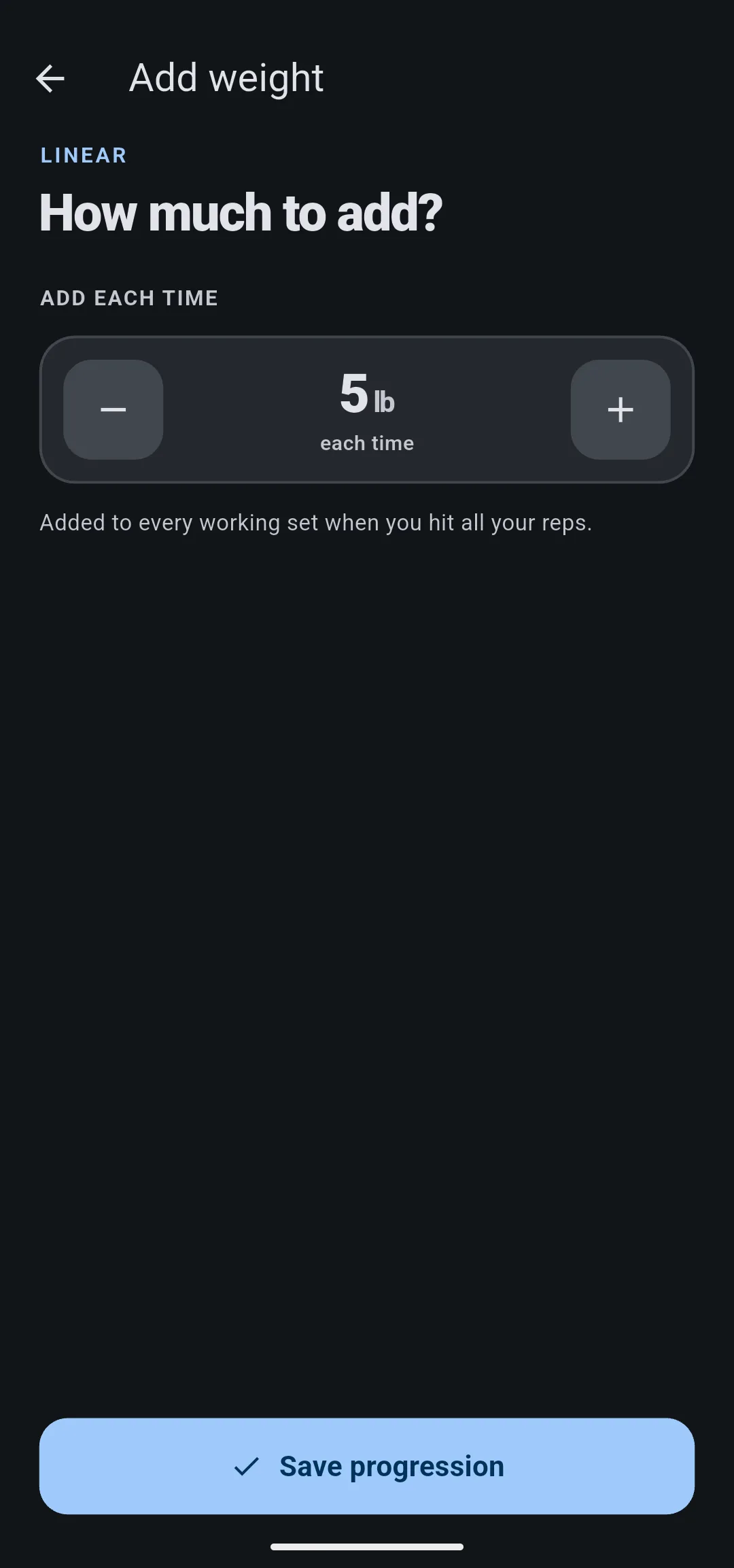
5 lb each time is the default for Add weight.
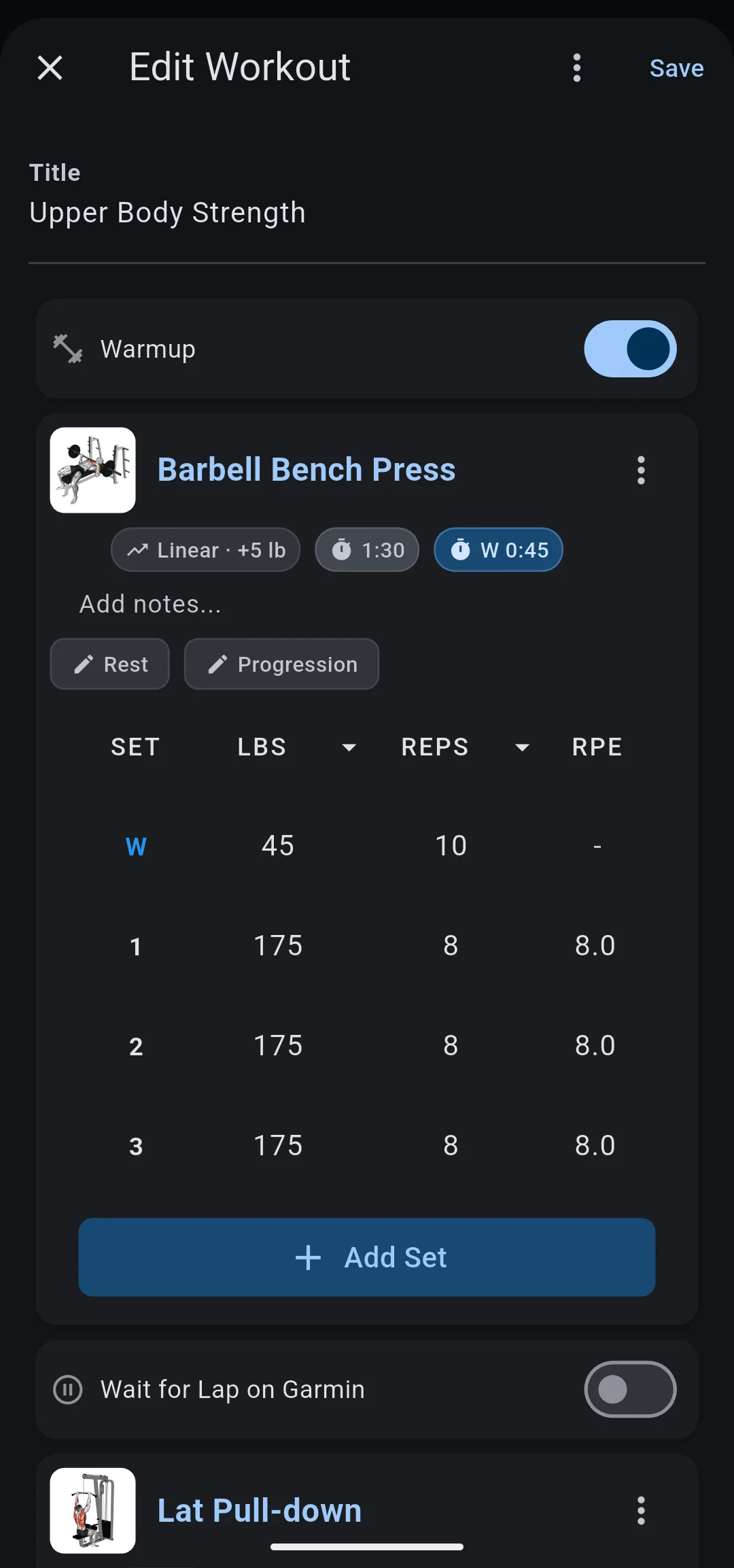
The exercise card now shows the progression next to its rest times, for example Linear · +5 lb or Double · 8–12 · +5 lb. If you close the editor and tap Exit Without Saving, the exercise keeps no progression.
To see when LiftTrack changes the targets and how you accept them, read how progressions work.
Set the weight for Add weight
Add weight has one setting, Add each time: the weight added to every working set after a session where you hit all your reps.
- Default: 5 lb (2.5 kg).
- Smallest: 2.5 lb (1 kg).
- The minus and plus buttons change it by 2.5 lb (0.5 kg).
Set the rep range for Add reps, then weight
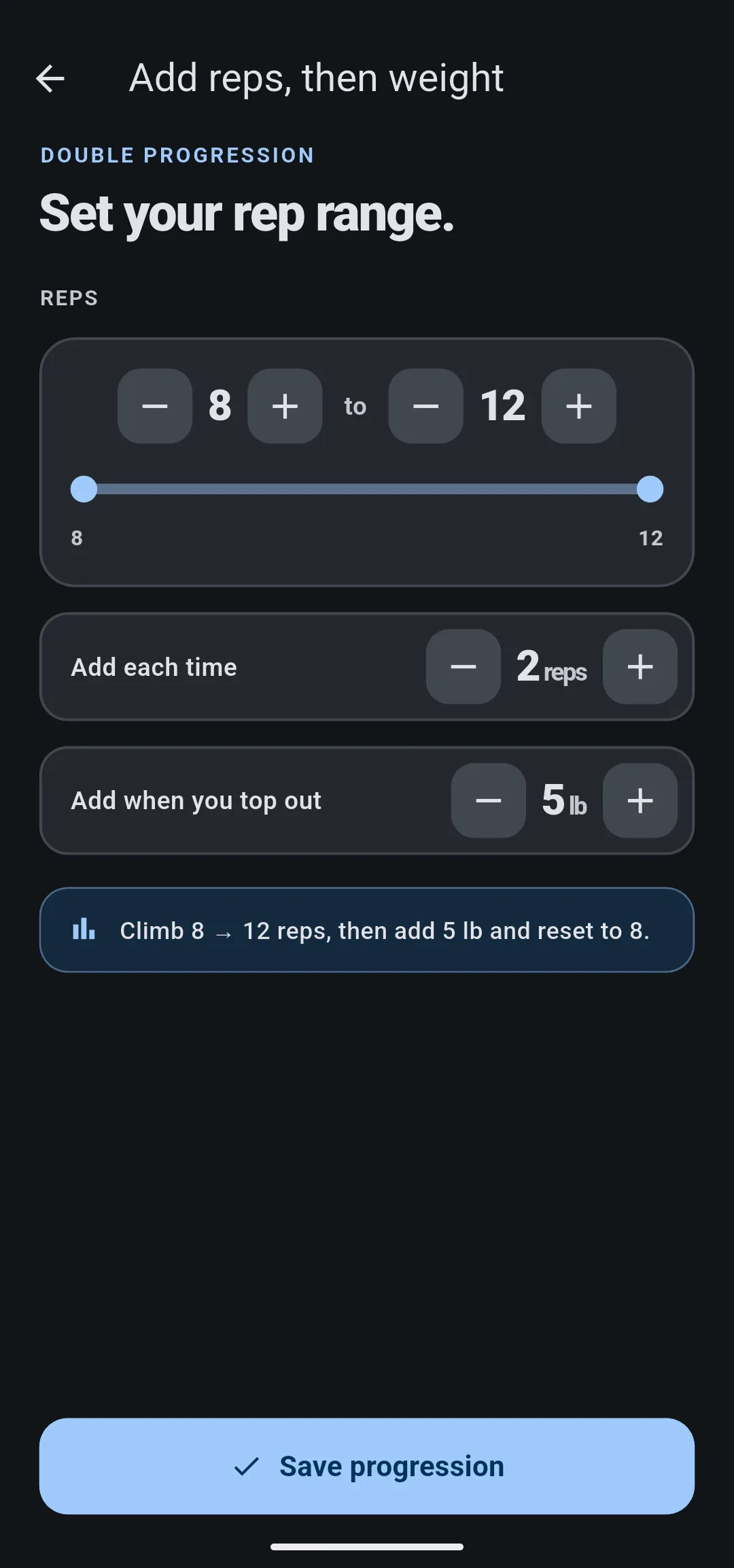
Add reps, then weight has three settings. A line under them sums up the result, for example Climb 8 → 12 reps, then add 5 lb and reset to 8.
| Setting | Default | What it does |
|---|---|---|
| Reps | 8 to 12 | The range to climb. The bottom is at least 1, and the top at least 1 rep higher. |
| Add each time | 2 reps | Reps added after each successful session, from 1 up to the size of the range. |
| Add when you top out | 5 lb (2.5 kg) | Weight added once you reach the top of the range, when the reps reset to the bottom. Smallest 2.5 lb (1 kg), in steps of 2.5 lb (0.5 kg). |
Give every exercise in the workout a progression
Apply Progression to All Exercises? opens after the first progression you add to a workout that has more than one exercise with reps. The dialog names how many exercises it applies to.
- Yes, apply to all gives each of those exercises its own progression, with the same type and settings as the one you added.
- No, thanks keeps the progression on the one exercise.
Exercises with timed sets or % of TM, and exercises that already have a progression, are left out.
Change or remove a progression
- On the Workouts tab, open the workout and tap Edit.
- On the exercise card, tap Progression, or tap the progression shown on the card. Edit progression opens with the current settings.
- Change the settings the same way as when you added it, then tap Save changes. To remove the progression instead, tap the trash icon.
- Tap Save.
The three dots icon on an exercise card also has Remove Progression. To remove every progression in the workout, tap the three dots icon at the top of Edit Workout, tap Remove All Progressions, then tap Remove All. Tap Save to keep the change.
Switching an exercise to timed sets removes its progression, and LiftTrack shows Progression removed: progressions aren’t available for timed sets.


